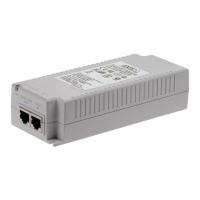
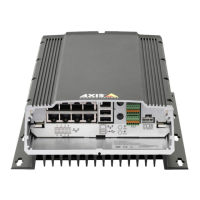
AXIS Camera Station S2216 Mk II Appliance
Configur e your device
6.
7.
8.
Start the video management system
Double - click the AXIS Camera Station Pro client icon to start the client. When you start the client for the rst time, it attempts to log
in to the AXIS Camera Station Pro server installed on the same computer as the client.
Y ou can connect to multiple AXIS Camera Station Pro servers in different ways.
Add devices
The Add devices page opens the rst time you start AXIS Camera Station Pro. AXIS Camera Station Pro searches the network for
connected devices and shows a list of devices found.
1. Select the cameras you want to add from the list. If you can’t nd your camera, click Manual search .
2. Click Add .
3. Select Quick conguration or Site Designer conguration . Click Next .
4. Use the default settings and ensure the recording method is None . Click Install .
Congure recording method
1. Go to Conguration > Recording and events > Recording method .
2. Select a camera.
3. T urn on Motion detection , or Continuous , or both.
4. Click Apply .
View live video
1. Open a Live view tab .
2. Select a camera to view its live video.
View recordings
1. Open a Recordings tab .
2. Select the camera you want to view recordings from.
Add bookmarks
1. Go to the recording.
2. In the timeline of the camera, zoom in and out and move the timeline to put the marker at your desired position.
3. Click .
4. Enter the bookmark name and description. Use keywords in the description to make the bookmark easy to nd and
recognize.
5. Select Prevent recording deletion to lock the recording.
9



 To Next Page