K5902149 /02 MDSC-833120
4.1 On/Off switching (hard/soft power On/Off)
The procedures below considers that the power supply is connected to the display and that the
power switch in the connector compartment is switched on. Please check the status of the power
mode LED to verify that your display is supplied with DC power (see “Power status LED ”, page 21).
To switch on your display
Press and hold (3-4 seconds) the key until the entire keyboard lights up. Afterwards, release the key again
(within 2 seconds) to avoid a keyboard re-lock.
When the keyboard backlight lights up, the power mode LED will turn full green indicating that the
display is switching on.
To switch off your display
1. Unlock the keyboard (see “Keyboard locking/unlocking”, page 20).
2. With the keyboard unlocked, press and hold (3-4 seconds) the
key until the entire keyboard starts
blinking quickly. Afterwards, release the
key again (within 2 seconds) to avoid a keyboard re-lock.
4.2 Keyboard locking/unlocking
About
In order to avoid unwanted or accidental activation of the keyboard, a lock/unlock mechanism has been
implemented. This means that the keyboard needs to be unlocked before it can be used to change any of the
display settings. By default, all keys except the
key will be dimmed to indicate that the keyboard is locked.
After unlocking the keyboard, all keys will light up. Touching any of these keys while the backlight is on will
execute the function of the key. However, if no further action is taken within the time-out (10 seconds), the
keys will dim again and the keyboard will re-lock.
To unlock the keyboard
Two options are available to unlock the keyboard:
1. Option 1: Press and hold (0.5 seconds) the keyboard unlock button (
) at the bottom of the display until the
entire keyboard starts blinking slowly. Afterwards, release the
key again (within 2 seconds) to avoid a
keyboard re-lock.
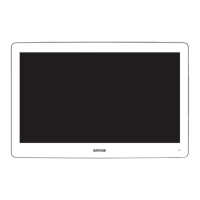
Image 4–1
2. Option 2: Press and hold (3-4 seconds) the key until the entire keyboard starts blinking slowly.
Afterwards, release the
key again (within 2 seconds) to avoid a keyboard re-lock.
To lock the keyboard
The keyboard will automatically lock after OSD time-out (seconds) of inactivity, except while navigating the
OSD menu, during which it remains unlocked.
Daily operation


 To Next Page