K5902149 /02 MDSC-833132
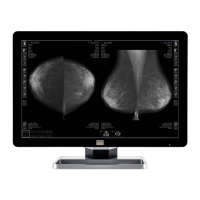
The available 2
nd
picture regions for your display are:
• Main (left) window
• Sub (right) window
To select the 2
nd
picture region
1. Bring up the OSD main menu.
2. Navigate to the Setting menu.
3. Enter the 2
nd
picture mode (PBP) submenu.
4. Select the desired 2
nd
picture region and confirm.
5.5 Advanced menu
5.5.1 OSD control
5.5.1.1 OSD Horizontal Position
To adjust the OSD horizontal position
1. Bring up the OSD main menu.
2. Navigate to the Advanced menu.
3. Enter the OSD Control submenu.
4. Select Horz Position.
The command bar Horz Position is highlighted.
5. Set the OSD horizontal position as desired and confirm.
5.5.1.2 OSD Vertical Position
To adjust the OSD vertical position
1. Bring up the OSD main menu.
2. Navigate to the Advanced menu.
3. Enter the OSD Control submenu.
4. Select Vert Position.
The command bar Vert Position is highlighted.
5. Set the OSD vertical position as desired and confirm.
5.5.1.3 OSD Back ground
To adjust the OSD back ground transparency
1. Bring up the OSD main menu.
2. Navigate to the Advanced menu.
3. Enter the OSD Control submenu.
4. Select Back Ground.
The command bar Back Ground is highlighted.
5. Set the OSD back ground transparency as desired and confirm.
5.5.1.4 OSD Time-out
About OSD time-out
The OSD menu can automatically close after a certain time of inactivity after the last selection was made.
Advanced operation


 To Next Page