BD PrepMate™ Instrument User’s Manual
14
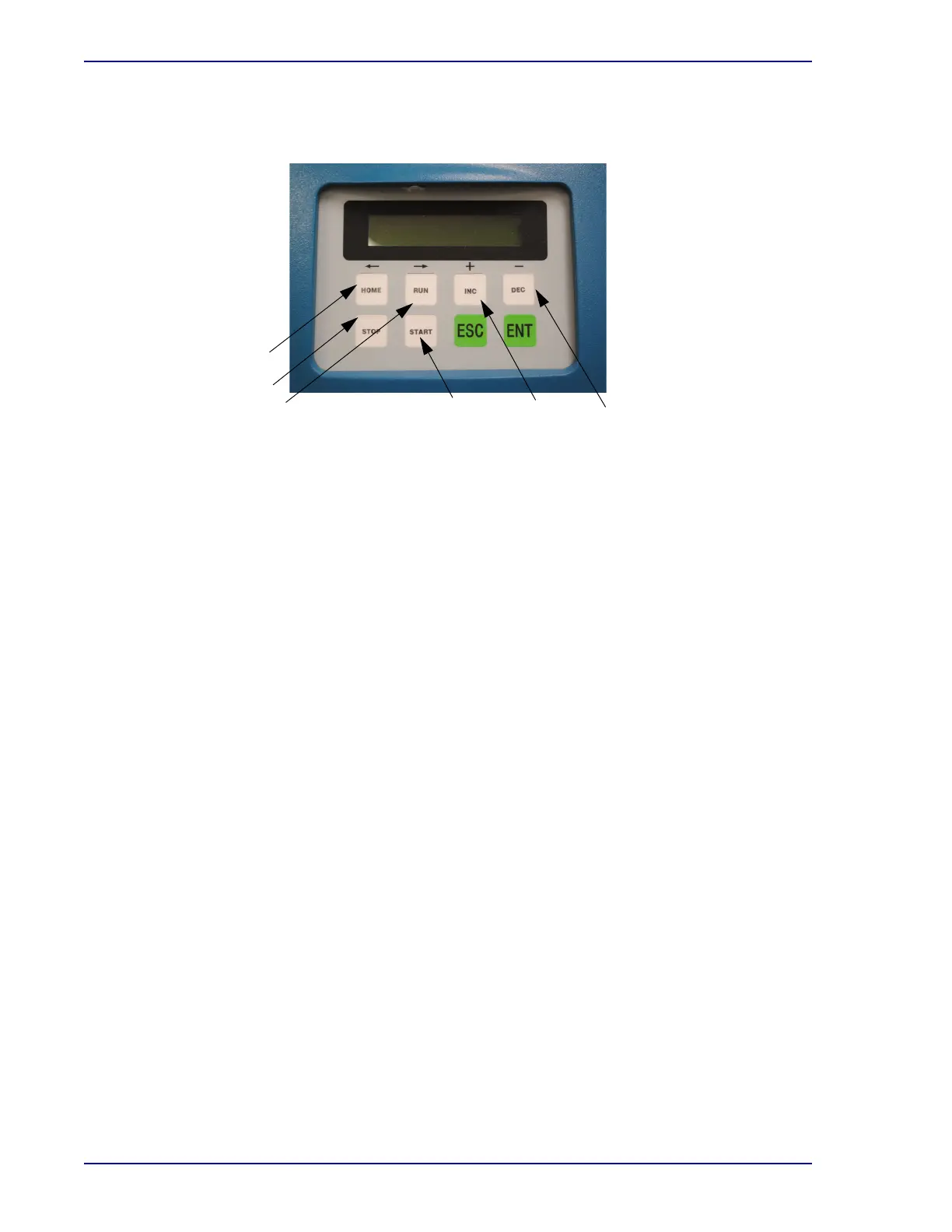
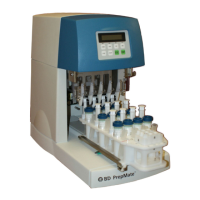
Operator controls are located on the front panel of the instrument. Figure 4 illustrates these
controls.
Home key
Stop key
Run key
Start key Increment key
Decrement key
Figure 4 – BD PrepMate ™Automated Accessory operator controls
The operator interface is made up of a touchscreen panel and eight control keys. The touchscreen
panel displays messages to indicate the operating status and prompts when action is required. When
a key is pressed, the current message is interrupted for a short period of time to identify the key
pressed. Follow the instructions indicated on the touchscreen panel. In normal operation, these
instructions signal the operator to either insert a rack, change a rack, or to press
START
.
Refer to Operating Messages later in this manual for details on this panel’s displays.
4.1 Control key descriptions
The control keys are located on the front panel of the instrument (see Figure 4). These keys
allow control of the BD PrepMate™ Automated Accessory.
HOME
Use this key to return all BD PrepMate™ Autom
ated Accessory components to their start-up
positions. If a row is being processed when HOME is pressed the components do not return
to the home position until that row is processed. This key is also used during power up to
home the motors.
RUN
Use this key to resume processing after an interruption. When the RU
N key is pressed the
normal processing sequence resumes.
INC
Use this key to increase the number of rows in the proc
essing cycle. This key is needed only
if too few rows were selected. Each time a processing cycle completes, the setting returns to
the default value (3).
Do not change this setting in the middle of a processing cycle. Wait until a new rack is loaded.
DEC
Use this key to decrease the number of rows in the pr
ocessing cycle. When there are fewer


 To Next Page