BIGTREETECH CB2 User Manual
17
①Find the path where the downloaded RKDevTool is located.
②Open the RKDevTool tool.
③The software will recognize a “LOADER” or “MASKROOM” device.
④Select the system to be written (the OS image must be unzipped as a .img file
beforehand; RKDevTool does not support directly writing compressed .xz files).
⑤Check “Write by Address”.
⑥Click “Run” to start writting the system.
⑦“Download image OK” indicates that the system has been successfully burned.
5. After writing is complete, toggle the USB OTG switch to the OFF position to boot
normally. Note: Files on the eMMC cannot be accessed by the computer like
those on a MicroSD card, so you cannot modify the system.cfg configuration file to
set up the WiFi network. Instead, use an Ethernet cable or USB-to-UART
connection to configure the terminal.
4.3.2. Writing System onto eMMC Using a MicroSD Card
1. First, write the system onto the MicroSD card. Then, insert the MicroSD card into the
motherboard's card slot and wait for the system to boot.
2. Connect to the system terminal via Ethernet cable, WiFi, or USB to UART, and log in
to the system.
login: biqu
password: biqu
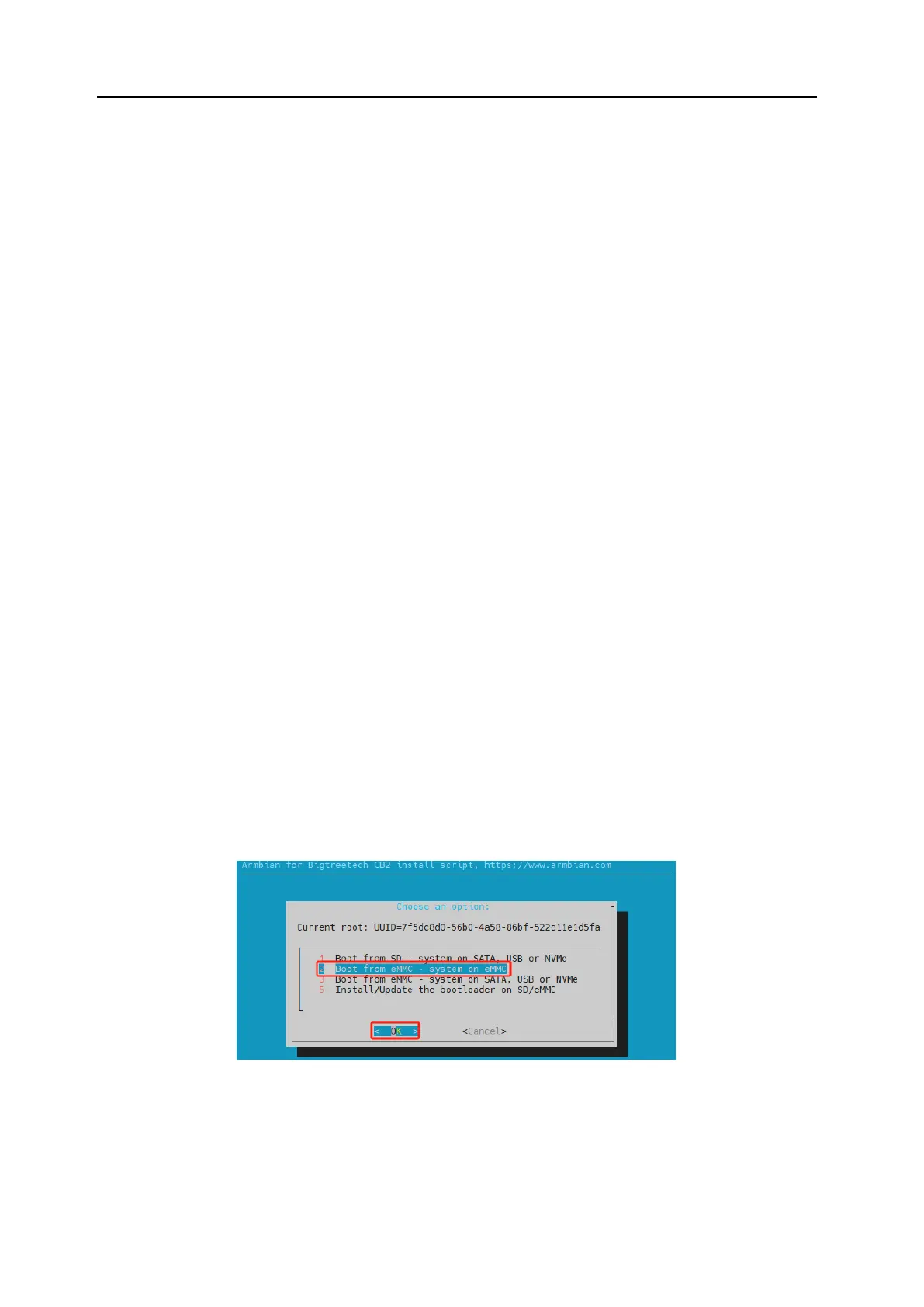
Execute the command sudo nand-sata-install. In the interface that pops up, select "2
Boot From eMMC - system on eMMC" and then select "OK"




 To Next Page