Epic X User Manual 25
7 Installation and Set-Up
7.9 SETTINGS SCREEN
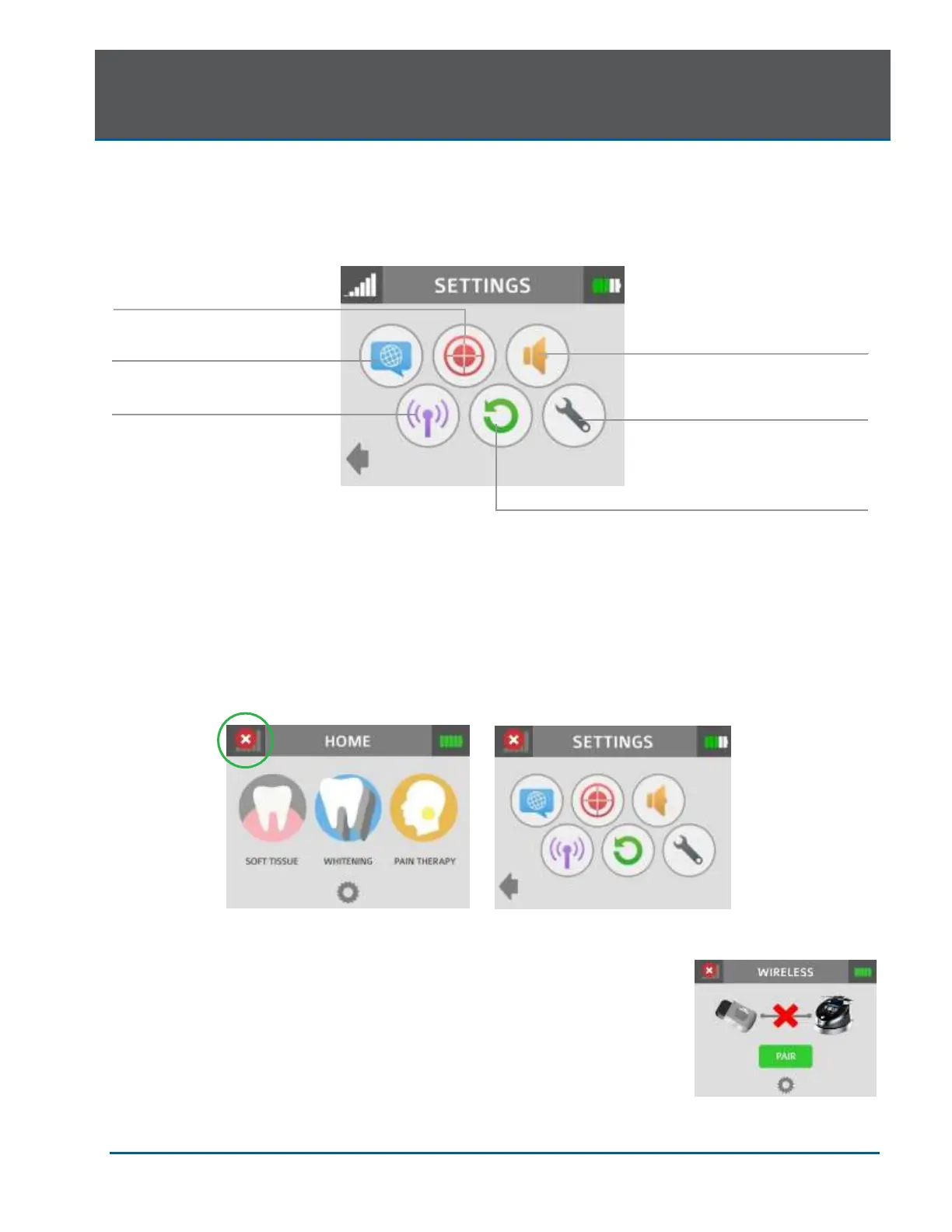
Pressing the Settings button on the HOME screen accesses the Settings screen; the user may make
changes to the following system settings:
7.10 PAIRING THE FOOTSWITCH TO THE LASER CONSOLE
Verify that the Footswitch and laser console are paired; a blue LED indicator light on the laser
console will blink when pairing is established. The laser and Footswitch are shipped already paired.
However, if pairing is not confirmed, an "x" will appear over the pairing icon located in the upper left-
hand corner of the touchscreen.
To re-establish pairing, take the following steps:
1. Go to the settings menu on the laser console display by pressing
the settings icon; select the “Wireless” icon.
2. A screen will appear indicating that pairing of the Footswitch to the
laser console has been lost (Figure 7.19); press the green PAIR
button.


 To Next Page