User’s Guide
able to get the desired motion unless you set the speed between poses correctly.
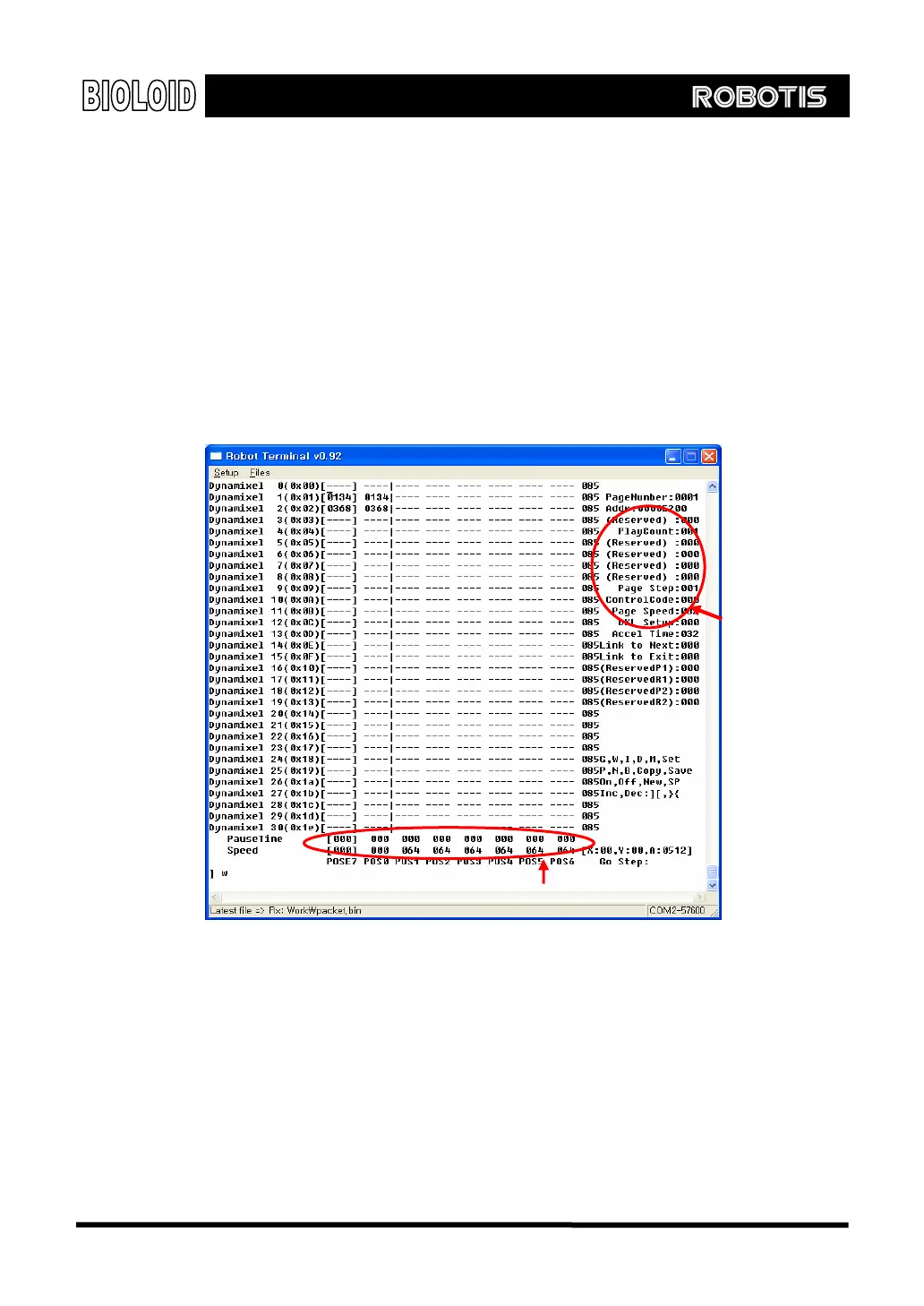
You can do this by setting the value of the speed at the bottom of the screen.
The following shows how this is done.
Move the cursor to the item that you want to set.
Press the “]” or “[“ key to increase or decrease the value of the item.
Press the “{“ or “}” key to change the magnitude.
By typing in “Set [value]” the value can be set at once.
The method above can be used to set not only the speed but also all the other
items below.
PauseTime Sometimes you will want to pause for a short time after a pose. For example, you
might want the robot to pause for a while after it has finished doing a bowing
motion. If you give it a “pause time” value, it will pause for 7.8 msec per the set
value and then move on to the next pose. The figure above shows an example of
the robot pausing for 0.5 s (40*7.8 msec) after POSE1 is played.
Accel. Time Every time a motion is played, the joints go through a process of acceleration
constant velocity deceleration. The acceleration time is the time of
acceleration and deceleration (ramp up time plus ramp down time). Reducing the
Pause time and Speed by poses
Page information
89



 To Next Page