Additional Features
34
Save Screen Picture (jpeg)
Saves a JPEG file of the current Sweep Display Area, press the menu op
tion and
a save dialog is displayed allowing the user to enter a file name or use the
default file name.
Note: If
the Site Name option is set to ON an Edit SiteName dialog box
will be displayed each time screen shot is taken.
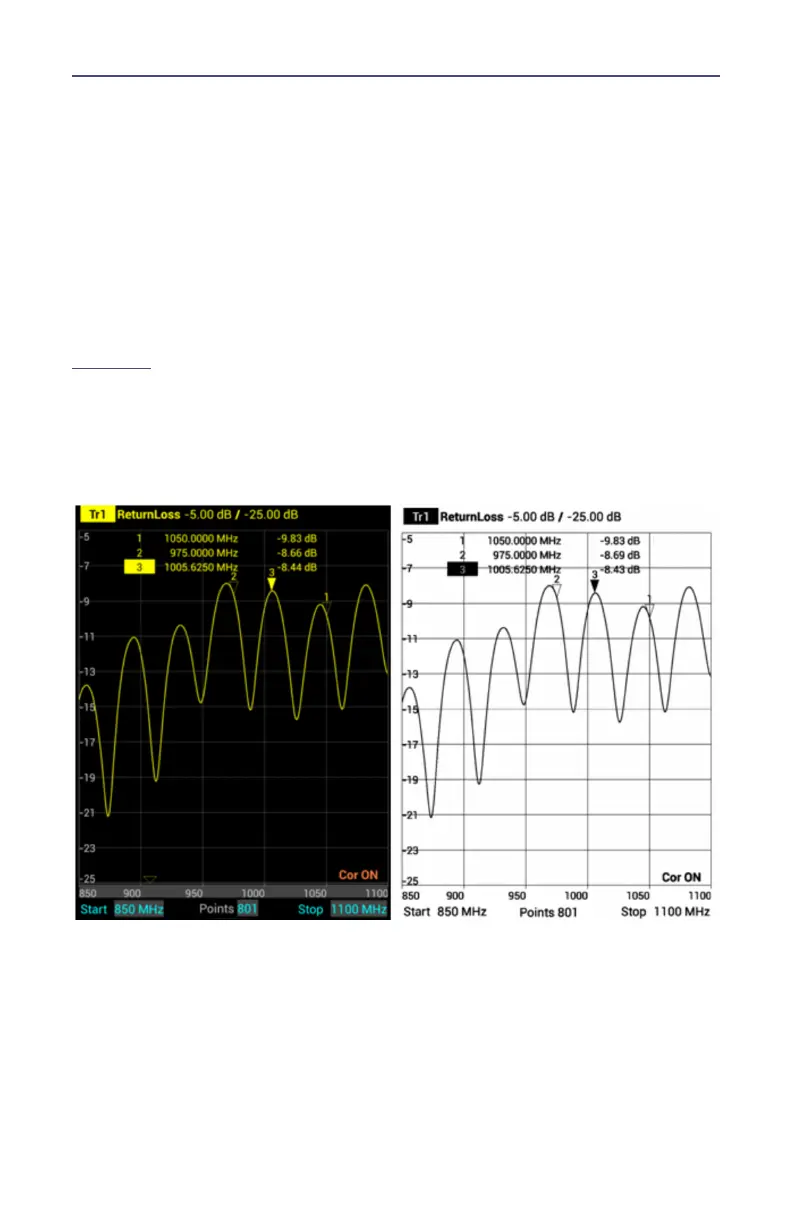
Color Screen Shot
Press to toggle screen shots in color or black and white. When set to OFF screen
shots will be black and white, when set to ON screen shots will be in color. See
Figure 24
Note: The default setting for Color Screen Shot option is ON. If the
reset function is executed on the SK-6000, the Color Screen Shot option
is reset to ON.
Figure 24 Screen Shots in Color or Black and White



 To Next Page