Data Save and Export
48
Data Transfer via Bluetooth
Files may be transfered to/from the SiteHawk using the following steps.
1. Press Home key on the SiteHawk display.
2. Select Settings.
3. Turn on Bluetooth.
4. Press Home key.
5. Select the File Manager icon on the unit’s home screen.
6. Select Phone Storage (SiteHawk storage Local) in the File Manager
program.
7. Navigate to the location of the file.
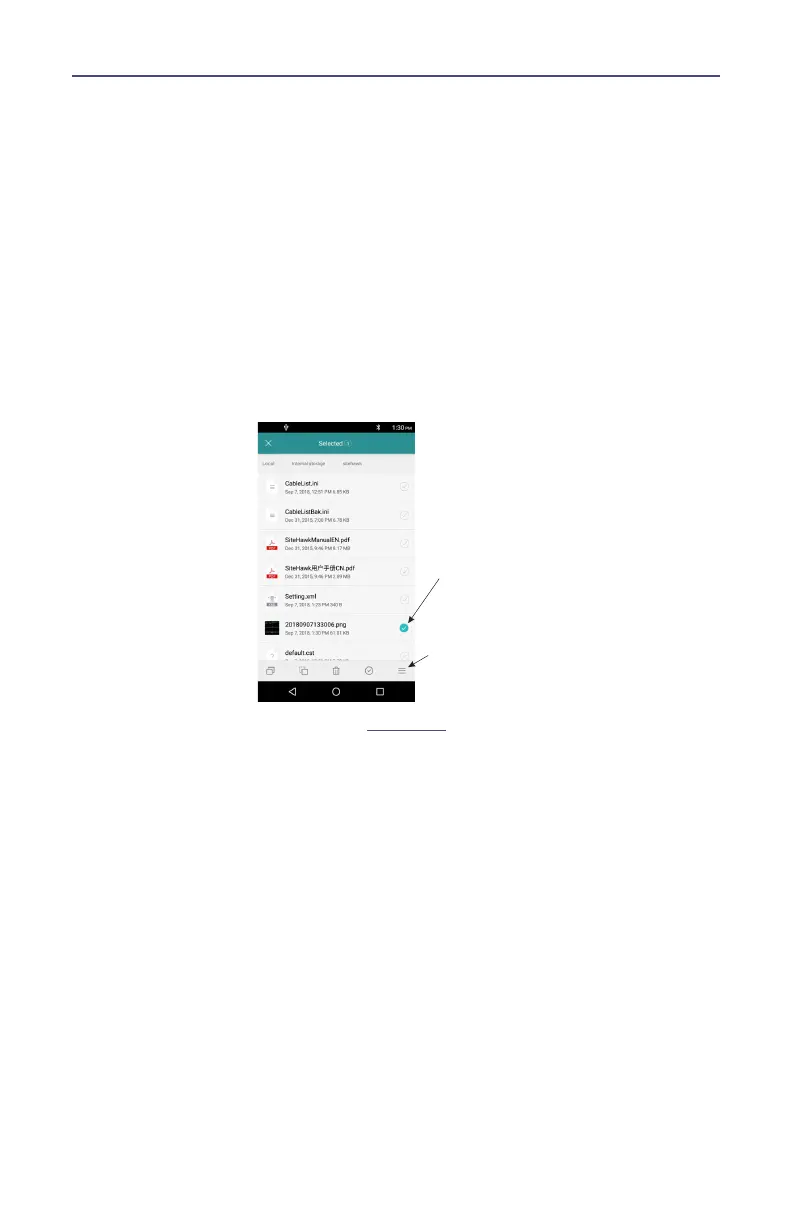
Figure 44 File Selection
8. Select the file to be copied. See
Figure 44
.
9. Tap the options menu.
10. Tap Share.
11. Select Bluetooth option for sharing.
12. Scan for available devices.
Note: You may need to make the destination device visible to other
devices in it’s setting’s menu.
13. Select the destination device from the devices listed.
14. On the destination device, tap ACCEPT.
15. Verify transfer is complete.



 To Next Page