_____________________________________________________________________
724-746-5500 | blackbox.com Page 83
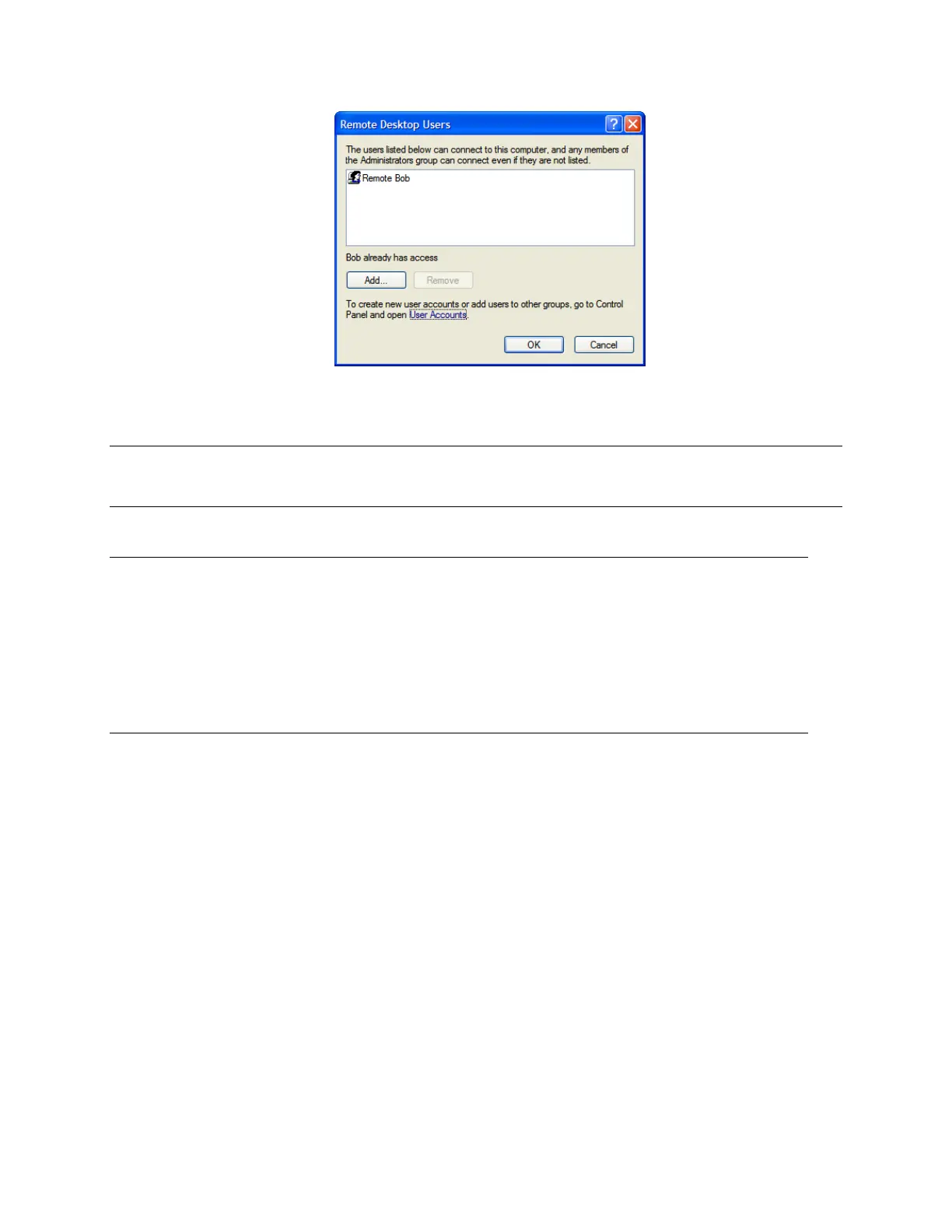
To set the user(s) who can remotely access the system with RDP, click Add on the Remote
Desktop Users dialog box.
Note If you need to set up new users for Remote Desktop access, open User Accounts in the Control
Panel and follow the steps to nominate the new user‘s name, password, and account type
(Administrator or Limited).
Note With Windows XP Professional and Vista, you have only one Remote Desktop session and it
connects directly to the Windows root console. With Windows Server 2008, you can have
multiple sessions (and with Server 2003 you have three sessions— the console session and
two other general sessions). More than one user can have active sessions on a single
computer.
When the remote user connects to the accessed computer on the console session, Remote
Desktop automatically locks that computer (no other user can access the applications and
files). When you come back to your computer at work, you can unlock it by typing
CTRL+ALT+DEL.
6.8.2 Configure the Remote Desktop Connection client
Now that you have the Client PC securely connected to the console server (either locally, or remotely—
through the enterprise VPN, or a secure SSH internet tunnel, or a dial-in SSH tunnel), you can establish
the Remote Desktop connection from the Client. Simply enable the Remote Desktop Connection on the
remote client PC, then point it to the SDT Secure Tunnel port in the console server:
A. On a Windows client PC
Click Start. Point to Programs, then to Accessories, then Communications, and click Remote
Desktop Connection.



 To Next Page