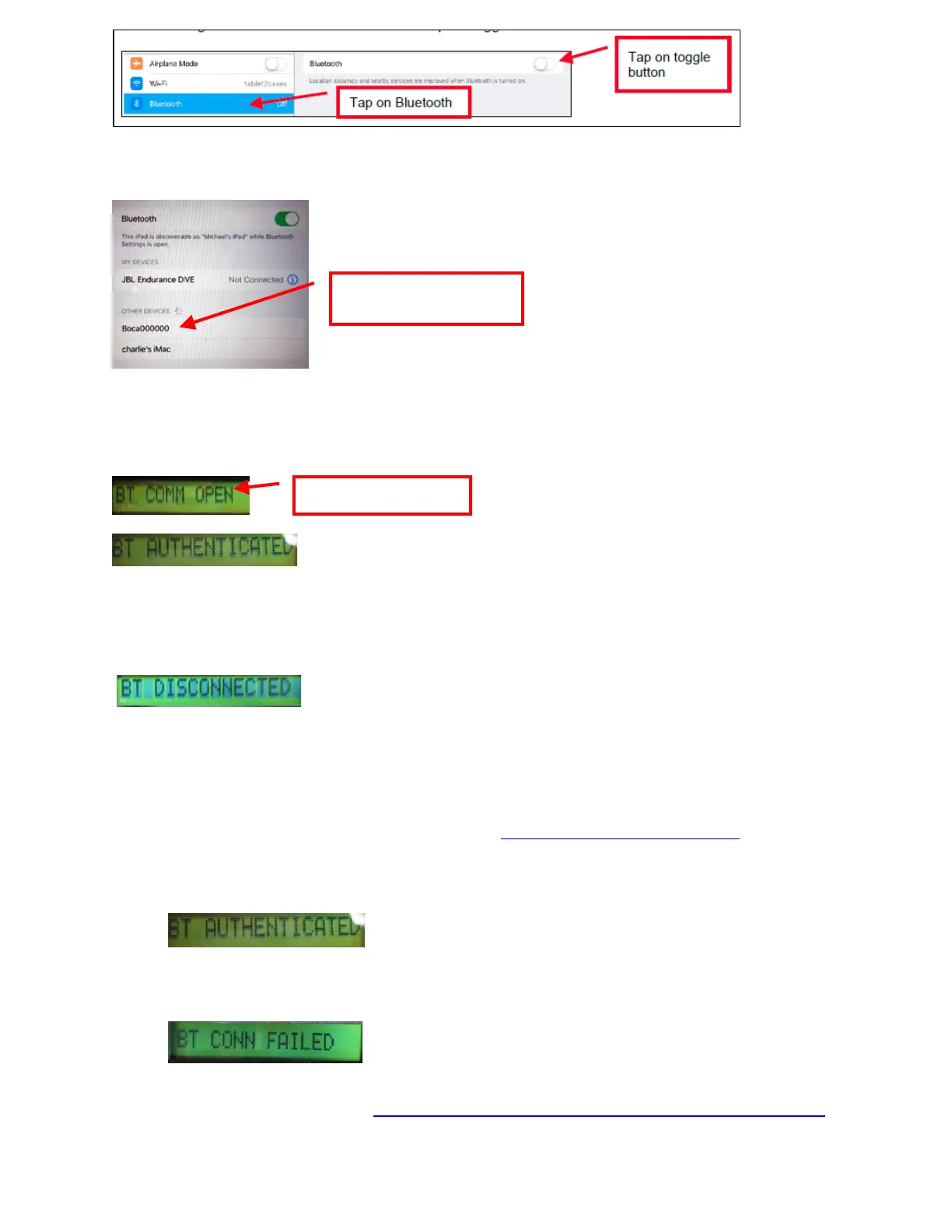
4. Under DEVICES you should see the serial number of the printer you are trying to pair to (Boca######) For
example if your printer was serial number 000000 then you would see Boca000000
5. Touch on this serial number to enable the iPad to pair to it.
6. If the printer has an optional LCD display, you will see the following:
7. The iPad should show that it is connected when successfully paired.
8. Anytime a Bluetooth device disconnects from the printer the display will show BT DISCONNECTED. It will
disappear when the printer prints a ticket. You will need to manually reconnect to the printer.
9. When the printer is powered off the iPad will disconnect from the printer. When the printer is powered on you will
need to manually reconnect to the printer.
• If you want the printer to try to reconnect to the iPad the printer was originally paired with, then the reconnect
menu feature may be enabled (BT RECONNECT). See APPENDIX A - CONTROL PANEL.
o If the printer is able to connect to the printer the Bluetooth host it was paired with then below will be seen
on the LCD display (if so equipped).
o If the printer is NOT able to connect to the printer the Bluetooth host it was paired with then below will be
seen on the LCD display (if so equipped).
You may use our iPad test program that is on the Apple store to test the printer. The search will need to be done via the
iPad and search name would be BocaPrinter (https://itunes.apple.com/us/developer/boca-systems/id951179235 ).



 To Next Page