Windows 11 Connection
The below provides an overview of a Windows 11 connecting to a BOCA printer with optional Bluetooth interface.
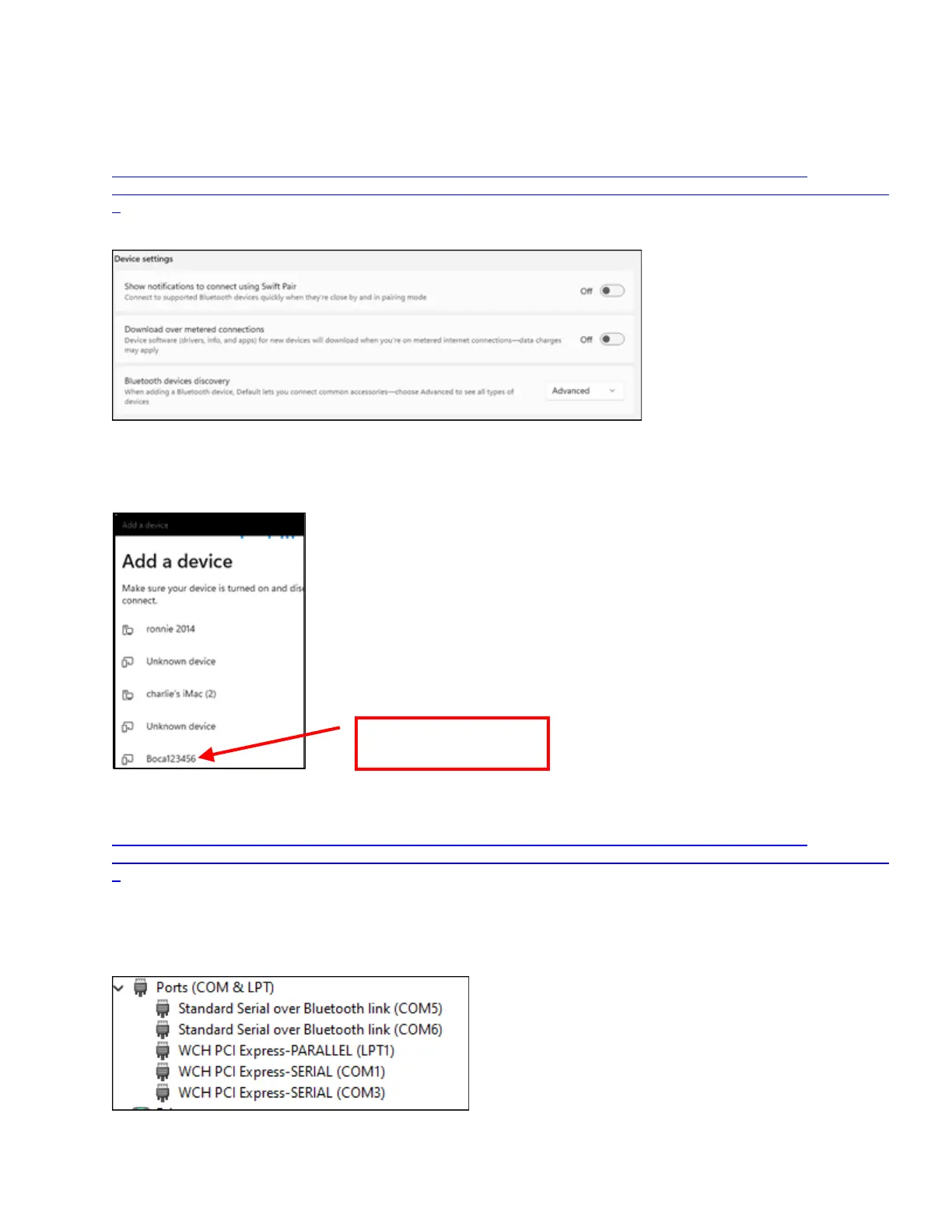
1. In your Windows Bluetooth device settings, set Bluetooth devices discovery setting from Default to
Advanced. The below link reviews how to set Bluetooth to advanced setting.
https://help.cricut.com/hc/en-us/articles/16511514972183-Windows-11-Bluetooth-Devices-Discovery-
Issues#:~:text=Open%20open%20Bluetooth%20settings%20and,setting%20from%20Default%20to%20Advance
d
2. When you do your search, you should now see Boca######. In the below example my test printer is serial
number123456, you should see Boca522557. Click on it to pair your PC to the printer and follow the instructions
provided.
3. Once connected go to Device Manager settings, the blow link shows various ways to open Device Manager.
https://help.cricut.com/hc/en-us/articles/16511514972183-Windows-11-Bluetooth-Devices-Discovery-
Issues#:~:text=Open%20open%20Bluetooth%20settings%20and,setting%20from%20Default%20to%20Advance
d
4. Once open, look under Ports (COM & LPT) and you should see Standard Serial over Bluetooth link (COM#). In
the below example W11 provided two COM ports, which the lowest number COM port should be used. This this
case I would use COM5. Your COM port values may be different.
• Your software application would then use this COM port connection to communicate to the printer through.



 To Next Page