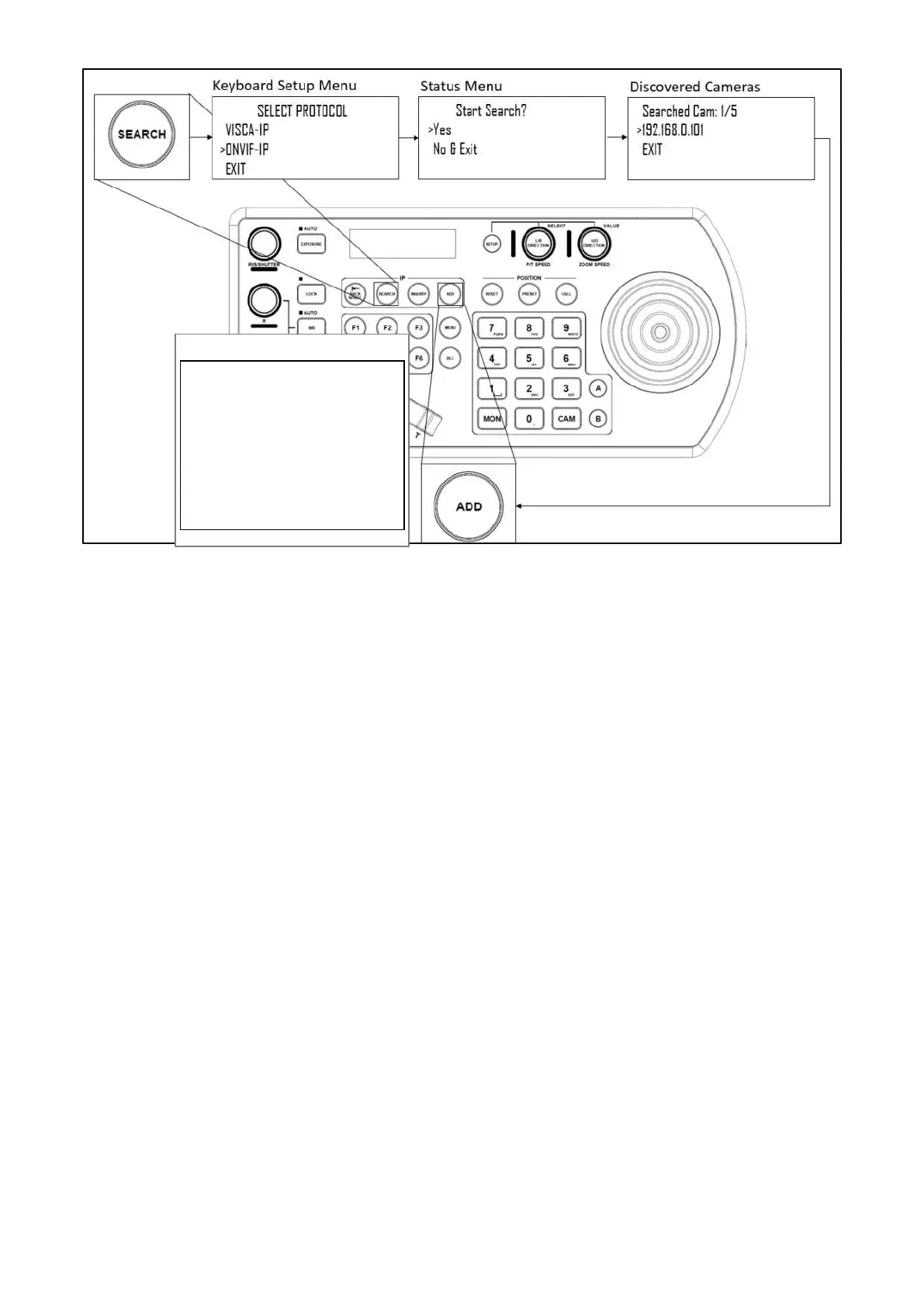
41
Repeat this process for each discovered camera that you wish to add to the KBD-1010
Adding ONVIF cameras to be controlled via WAN
1. At Camera Location:
• For commands to flow from outside the network into a camera, ports must be opened
• Contact the network administrator at the camera location to create a port-forwarding rule in the router
allowing commands to flow through the necessary ports using these values:
o Source/ external port: 9090 (80 by default, try not to use it, too common, may create conflict,
use anyone that is not 80)
o Destination / internal port: 80 (default)
o IP Address: IP Address of the camera
o Protocol: Both (TCP and UDP)
2. At Keyboard location:
• Set the keyboard to DHCP
• Contact the network administrator at the Keyboard location to create a port-forwarding rule in the
router allowing commands to flow through the necessary ports using these values:
o Source/ external port: 80 (default)
o Destination / internal port: 80 (default)
o IP Address: IP Address of the keyboard
o Protocol: Both (TCP and UDP)
• Within the Setup menu of the KBD-1010, add the ONVIF camera using the WAN IP of the camera
location as the IP Address, click the P/T Speed dial to save.
• Enter the username of the camera, click the P/T Speed dial to save.
• Enter the password of the camera, click the P/T Speed dial to save
• Enter the port for the remote camera: 9090, click the P/T Speed dial to save.
• Exit


 To Next Page