43
Scanning local network for available VISCA over IP cameras
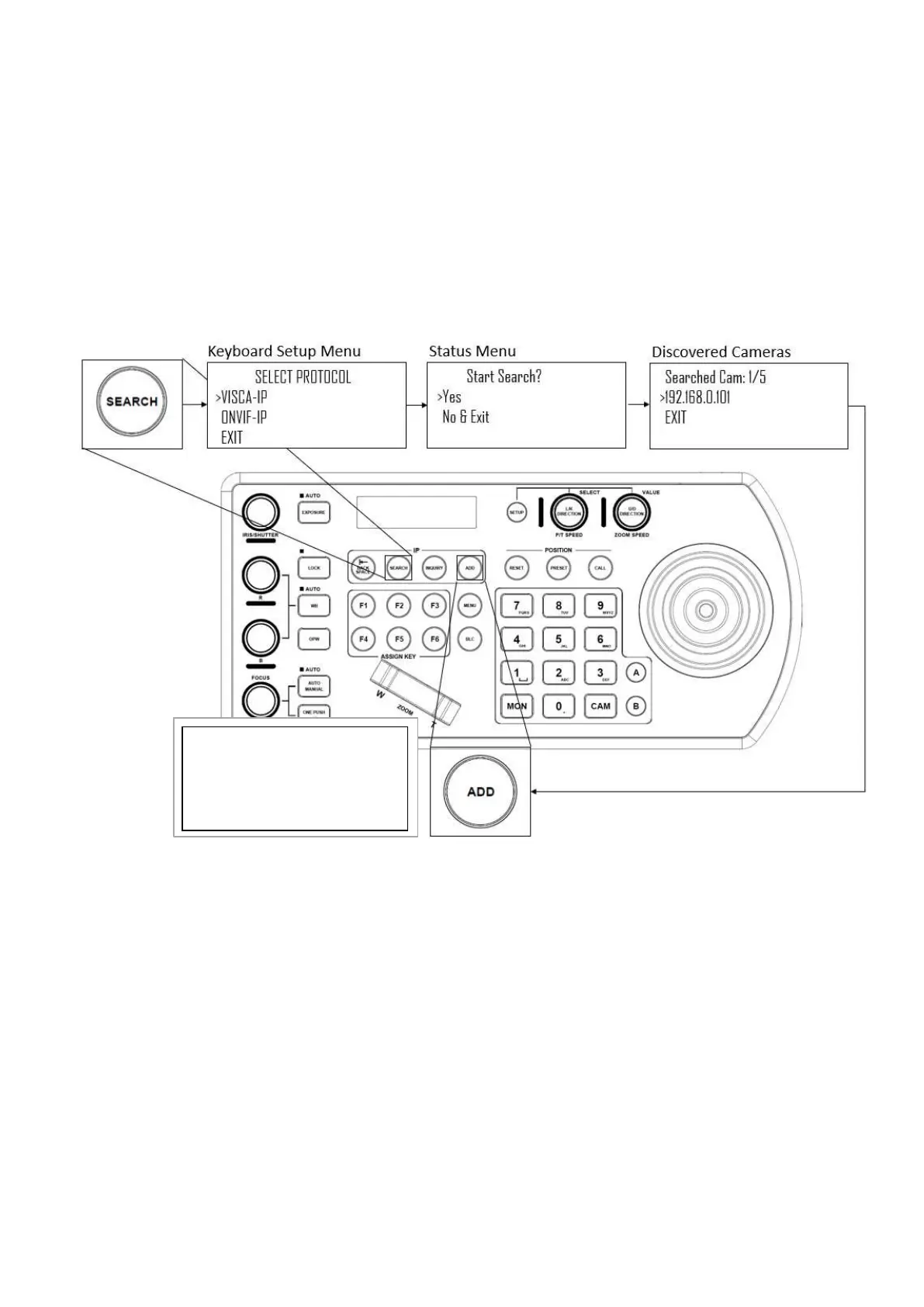
• Press the Search button to bring up the Auto Search menu
• Move the cursor to VISCA-IP
• Select Yes to start the search
• A list of discovered cameras will appear showing the cameras that have been discovered. Scroll through the
discovered cameras using the Zoom Speed dial
• To add a camera to be controlled by the KBD-1010, press the ADD button
• With the cursor on CAM ID, Assign the camera to a CAM ID by rotating the Zoom Speed dial
• Click the Zoom Speed dial to save
• Move the cursor to the Title, and use the alphanumeric keypad to give the camera a title
• Click the Zoom Speed dial to save
Repeat this process for each discovered camera that you wish to add to the KBD-1010
Adding VISCA over IP cameras to be controlled via WAN
1. At Camera Location:
• For commands to flow from outside the network in to a camera, ports must be opened
• Contact the network administrator at the camera location to create a port-forwarding rule in the router
allowing commands to flow through the necessary ports using these values:
o Source/ external port: 52381
o Destination / internal port: 52381
o IP Address: IP Address of the camera
o Protocol: Both (TCP and UDP)
2. At Keyboard location:
• Set the keyboard to DHCP
• Contact the network administrator at the Keyboard location to create a port-forwarding rule in the
router allowing commands to flow through the necessary ports using these values:
o Source/ external port: 52381
o Destination / internal port: 52381
o IP Address: IP Address of the keyboard


 To Next Page