20
Display System
6QWEJVJGWRRGTNGHVEQTPGTVQFKURNC[OCKPOGPW
6QWEJ=5GVVKPIU?
6JGUGVVKPIUOGPWKUFKURNC[GF
Adjust General Settings
6QWEJ=)GPGTCN?KHPGEGUUCT[
6QWEJVQJKIJNKIJVCUGVVKPI
6QWEJQPVJGQRVKQPVQFKURNC[UGNGEVCPQRVKQP
6QWEJDNCPMCTGCQHVJGUETGGPVQGZKV
General settings Options Description
4CFKQTGIKQP
75#
5GNGEVQPGVJCVOCVEJGU[QWTNQECVKQP
%JKPC
Japan
'WTQRG
'WTQRG.9
1+46
4CFKQTCPIG
.QECN
&KUVCPEG
$NCEMQWV Off/10s/20s
&KOOGTOQFG 0KIJV&CTM0QTOCN$TKIJVPGUU #FLWUVVJGFKURNC[DTKIJVPGUU
$GGR
On
6WTPQPVJGDGGRUQWPF'CEJVKOG[QWRTGUUCDWVVQP
VJGWPKVDGGRU
Off 6WTPQHHVJGDGGRUQWPF
%CNKDTCVKQP 5VCTV %CNKDTCVGVJGVQWEJUETGGP
Calibration
:KHQWKHWRXFKRSHUDWLRQLVQRWVHQVLWLYHRUYDOLG\RXVKRXOG
calibrate the touch screen through calibration setting function.
Adjust the response positions of the touch panel as followings:
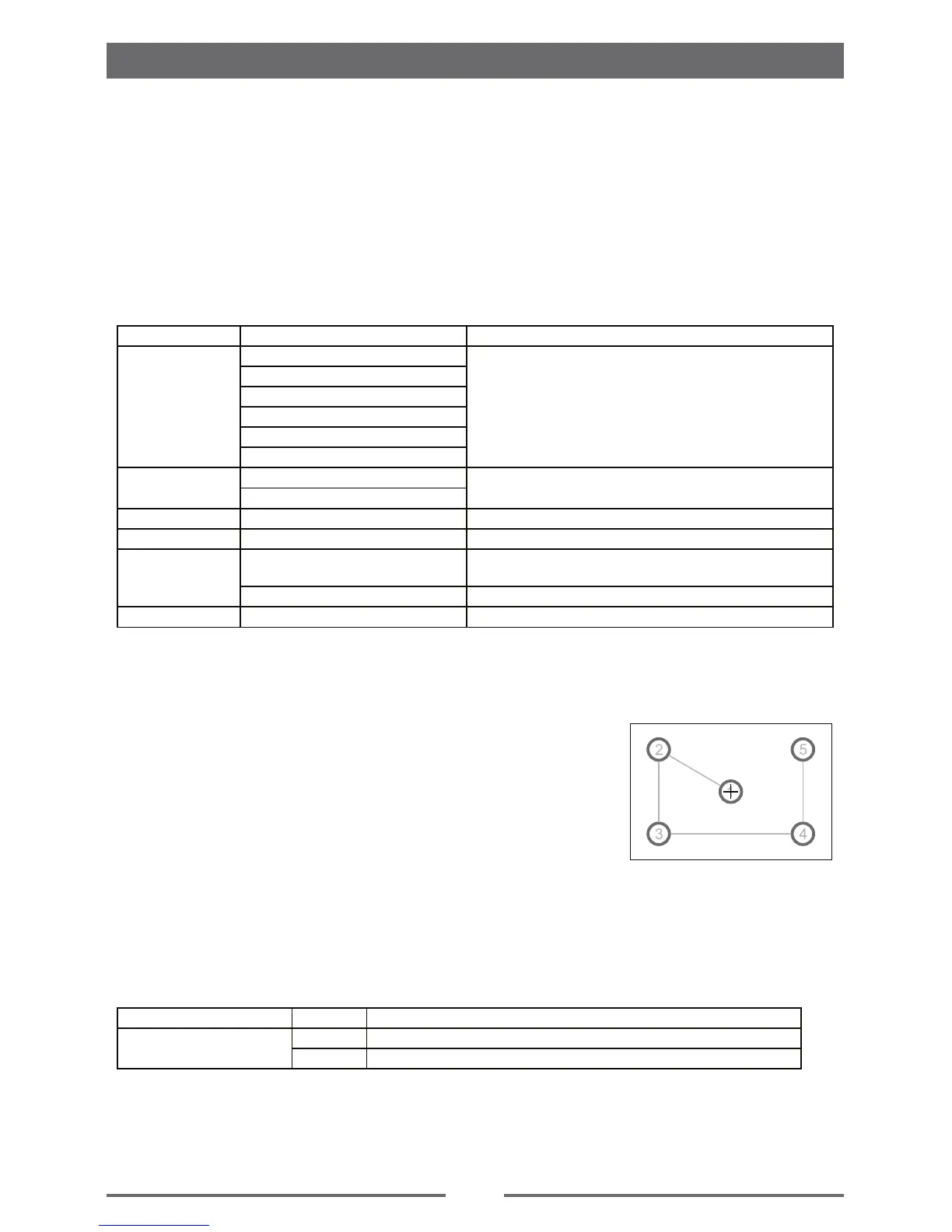
1. Press the [ Calibration ] option on the setup menu to enter.
2. Touch [ Start ] to enter.
3. Press and hold the center of [ + ] for 2 seconds, the [ + ] will
move automatically.
4. Aim at center of [ +@IROORZWKHSDWKDVVKRZQRIWKH¿JXUHDIWHU
steps from 1 to 5, the system will exit calibrating automatically.
Adjust Video Settings
6QWEJ=8KFGQ?
6QWEJCPQRVKQPTGRGCVGFN[VQUGNGEV
6QWEJDNCPMCTGCQHVJGUETGGPVQGZKV
Video settings Options Description
Parking
On 'PCDNGXKFGQ
Off &KUCDNGXKFGQ
:KHQLQ3DUN³2Q´PRGHWKHVFUHHQZLOOGLVSOD\³:$51,1*´>LI\RXSOD\WKHYLGHRGLVF@7KH
above warning screen will prevent the driver watching images.
Settings


 To Next Page