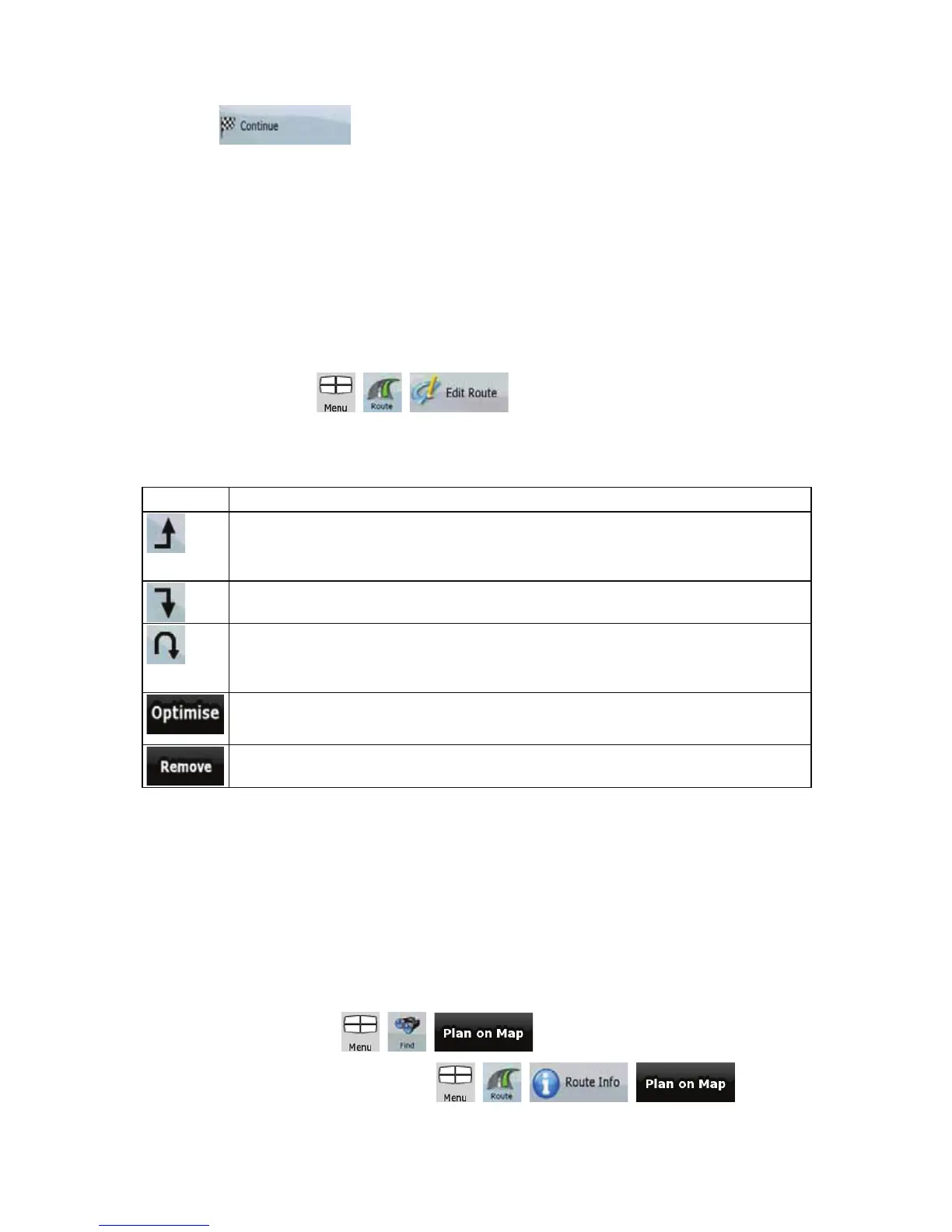
4. Tap
to add the point as a new final destination demoting the previous one
to the last intermediate destination.
5. [optional] To add more points to the route, repeat the above steps as many times as you like.
Every time a new point is added, the route is recalculated automatically and you can start navigating
right away.
3.4 Editing the route
This feature is available in Advanced mode only.
Tap the following buttons:
, , .
The list of route points appear with the start point at the top of the list and the final destination at the
bottom. If several via points exist, you might need to scroll between pages.
Tap one of the route points in the list. You have the following options:
Button Action
The selected point moves up in the list (becomes a via point to be reached earlier). Tap
this button repeatedly, and the point becomes the start point of the route
(when routing
from a given location) or the first via point to reach (when routing from the GPS position).
The selected point moves down in the list (becomes a via point to be reached later). Tap
this button repeatedly, and the point becomes the final destination of the route.
Tap this button to reverse the route. The start point becomes the destination, the
destination becomes the start point, and all via points are to be reached in the opposite
order than before.
Tap this button to optimise the route. The start point and the destination remain at their
position, but the via points are reordered to make the shortest possible route.
Tap this button to remove the selected point from the route.
As soon as you leave this screen, the route is recalculated automatically, and you can start navigating
right away.
3.5 Viewing the entire route on the map (Fit-to-Screen)
The map can be moved and scaled to show the whole line of the route. You do not need to
manipulate the map manually. The Plan on Map feature does it for you.
In Advanced mode you have the following options to enter Plan on Map:
x Via the Find menu: tap
, , .
x Via the Route Information screen: tap
, , , .
41


 To Next Page