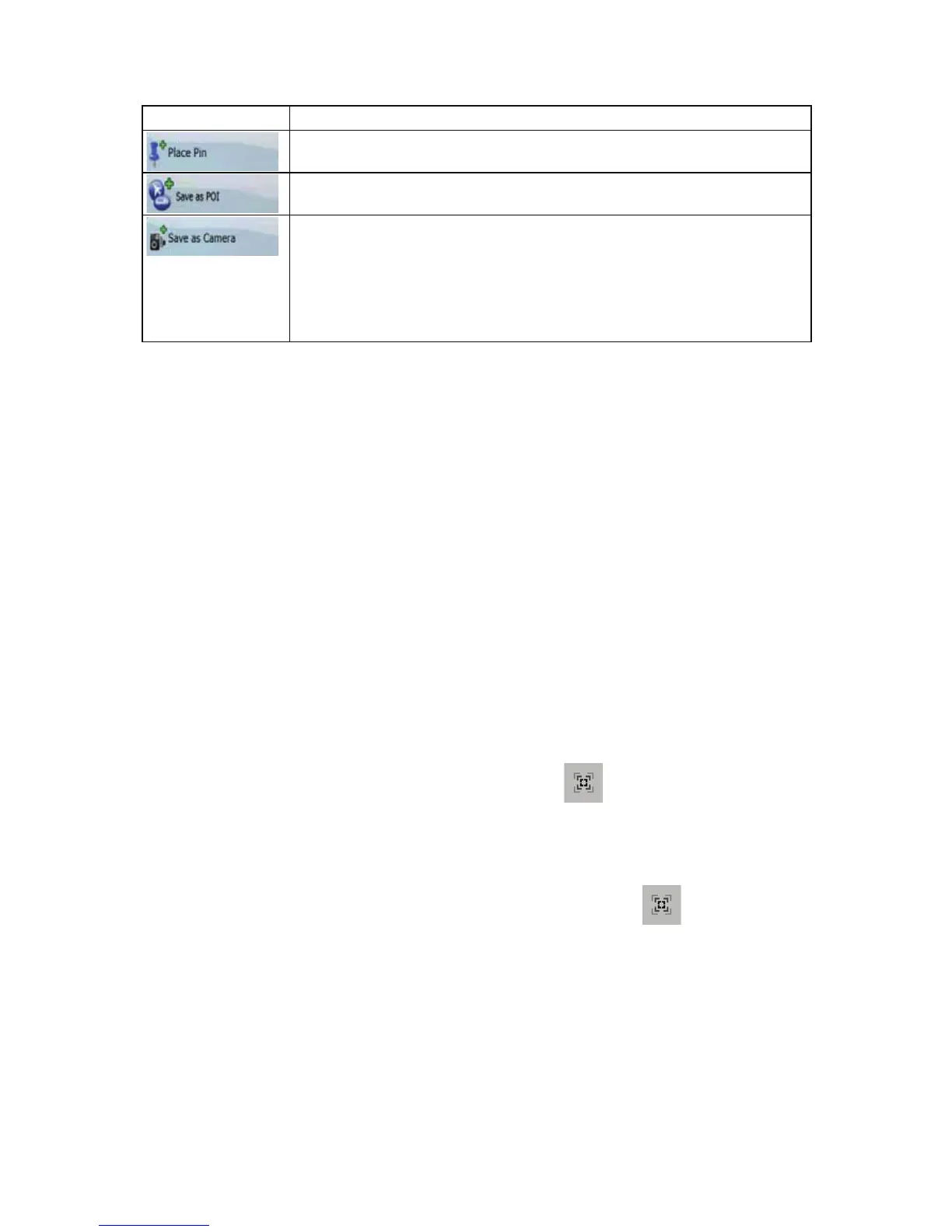
Button Action
Marks the map with a Pin at the Cursor (available in Advanced mode only)
Saves the Cursor as a POI (available in Advanced mode only)
Saves the Cursor as a Road Safety Camera location (available in Advanced
mode only)
This button is not displayed when GPS position is not available or if you are in
certain countries where Road Safety Camera warning is prohibited. Even if the
button is available, you are responsible for checking whether it is legal to use
this feature at your location.
2.4 iGO8 concepts
2.4.1 Smart Zoom
Smart Zoom provides much more than just a usual automatic zoom feature:
x While following a route calculated by iGO8: when approaching a turn, it will zoom in and
raise the view angle to let you easily recognise your manoeuvre at the next junction. If the next
turn is at a distance, it will zoom out and lower the view angle to be flat so you can see the
road in front of you.
x While driving without an active route in iGO8: Smart Zoom will zoom in if you drive slowly
and zoom out when you drive at high speed.
Enabling Smart Zoom
Tap the map to let the map control buttons appear, and then tap to enable Smart Zoom.
Fine-tuning Smart Zoom
Tap the map to let the map control buttons appear, and then tap and hold to open the Smart
Zoom Settings window. Modify the zoom limits of Smart Zoom if necessary.
20


 To Next Page