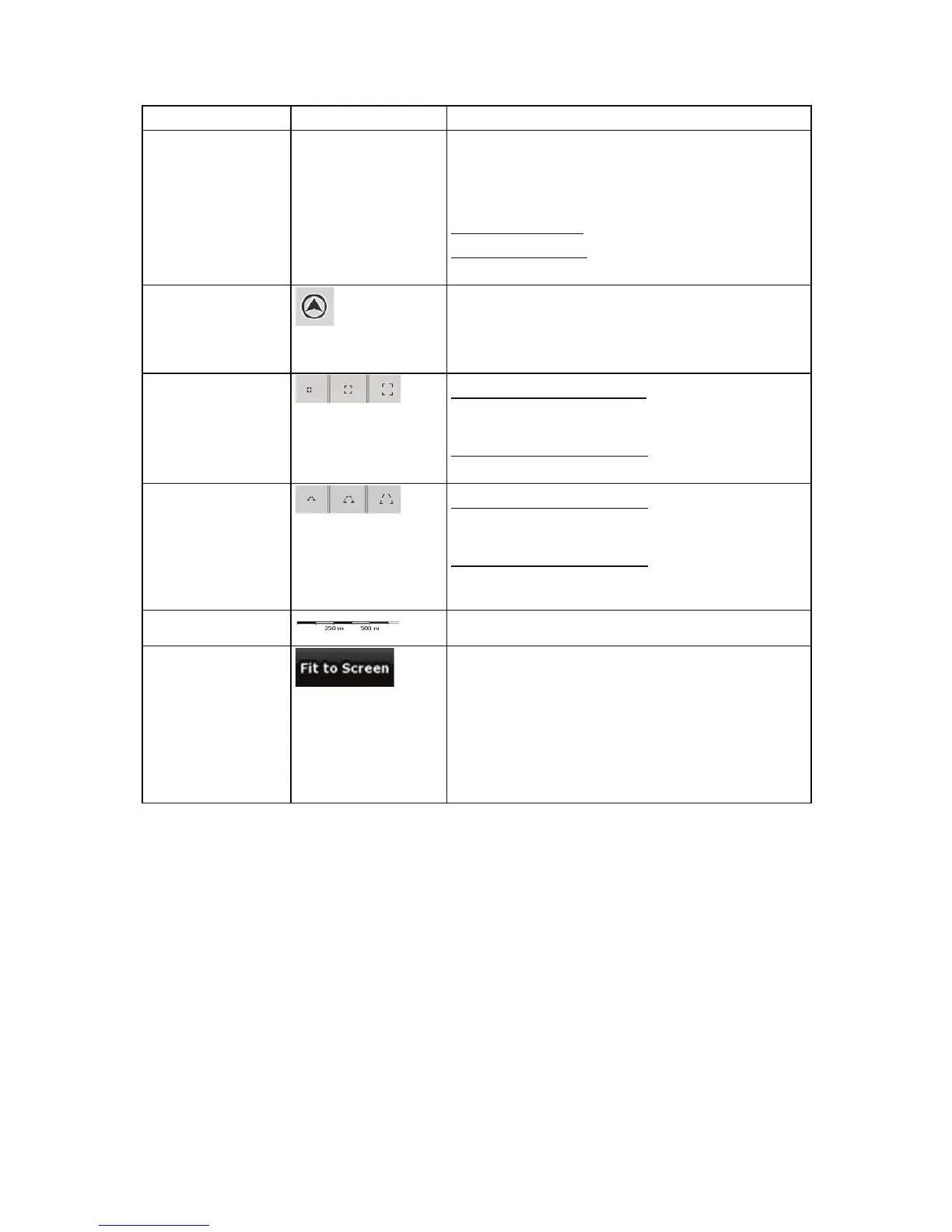
Action Button(s) Description
recognise your manoeuvre at the next junction.
x If the next turn is at a distance, iGO8 zooms out
and lowers the view angle to show you the road
in front of you.
Tap this button once
to enable Smart Zoom.
Tap&hold the button
to set the zoom limits of Smart
Zoom.
Returning to normal
navigation (back to
the GPS position
with
automatic map
rotation)
Tap this button to move the map back to the current
GPS position. If the map has been rotated, automatic
map rotation is also re-enabled.
Zoom preset buttons
(available in
Advanced mode
only)
Tap one of the preset buttons to set the zoom level to
a fix, predefined value. Smart Zoom is disabled. These
buttons are available in 2D mode.
Tap&hold any of the buttons
to set its value to the
current zoom level, or to reset it to its original value.
Tilt and zoom preset
buttons (available in
Advanced mode
only)
Tap one of the preset buttons to set the tilt and zoom
levels to fix, predefined values. Smart Zoom is
disabled. These buttons are available in 3D mode.
Tap&hold any of the buttons
to set its value to the
current tilt and zoom levels, or to reset it to its original
value.
Map scale
iGO8 shows the scale of the map in 2D mode.
Fit-to-screen
This button does not appear on the Map screen. It is
available on the following screens:
x Plan on Map screen: When you have an active
route, you can display it in its full length on the
map.
x Track Information screen: A track log can be
displayed in its full length on the map.
2.3.3 Lane information and Signposts
When navigating on multilane roads, it is important to take the appropriate lane in order to follow the
recommended route. If lane information is available in the map data, iGO8 displays the lanes and
their directions using small arrows either at the bottom or at the top of the map (the position of these
arrows can be modified in Map Screen settings). Arrows in yellow represent the lanes you need to
take.
Where there is additional information available, signposts substitute arrows. Signposts are always
displayed at the top of the map. The colour and style of the signposts are similar to the real ones you
can see above road or by the roadside. They show the available destinations and the number of the
road the lane leads to.
All signposts look similar when cruising (when there is no recommended route). When navigating a
route, only that signpost is displayed in vivid colours that points to the lane(s) to be taken; all others
are darkened out.
15


 To Next Page