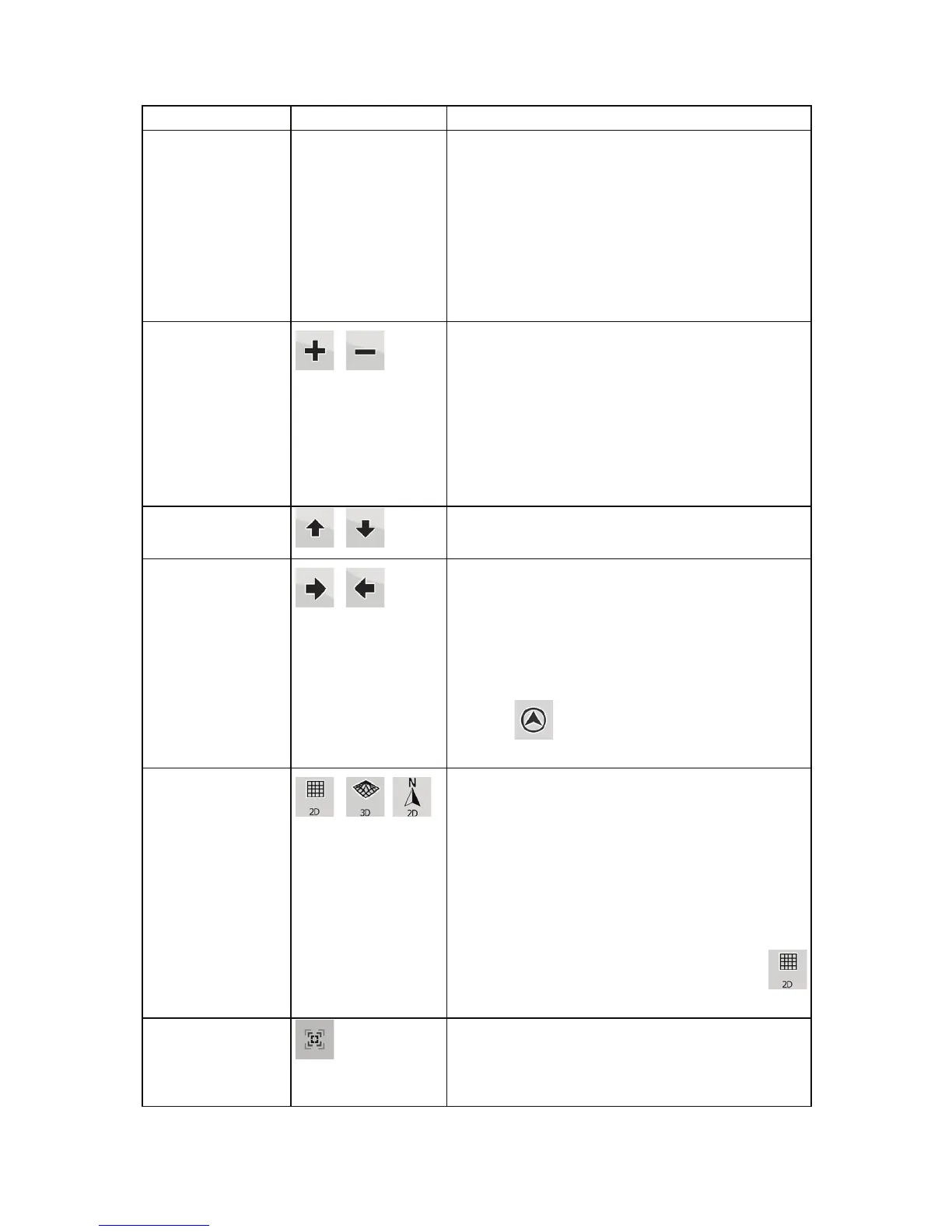
Action Button(s) Description
x Zoom in/out
x Rotate left/right (3D map only)
x Tilt up/down (3D map only)
x Zoom preset buttons (2D map only)
x Tilt and zoom preset buttons (3D map only)
x Return to GPS position button
x Smart Zoom button
Zooming in and out
,
Changes how much of the map is displayed on the
screen.
iGO8 uses high-quality vector maps that let you see
the map at various zoom levels, always with optimised
content. It always displays street names and other text
with the same font size, never upside-
down, and you
only see the streets and objects that you need.
Map scaling has different limits in 2D and in 3D map
view modes.
Tilting up and down
,
Changes the vertical view angle of the map in 3D
mode.
Rotating left and right
,
Changes the horizontal view angle of the map in 3D
mode.
When GPS position is available, iGO8 always rotates
the map so its top faces your direction of travel (Track-
Up orientation). You can turn away from Track-Up
with
these buttons.
If GPS position is available and you have rotated the
map, the
button appears. Tap this button to re-
enable the automatic map rotation.
Viewing modes
, ,
Gives you the following map perspectives in iGO8:
x classic top-down view (2D), the top of the map
always faces North
x top-down view (2D), the top of the map always
points in the current driving direction
x perspective view (3D) the top of the map always
points in the current driving direction
The icon always shows the mode the button switches
to: If you are in 3D mode, you can see the
button and you need to tap it to switch to 2D mode.
Smart Zoom
iGO8 can automatically rotate, scale and tilt the map
and give you the optimal view:
x When you are approaching a turn, iGO8 zooms
in and raises the view angle to let you easily
14


 To Next Page