4 Reference Guide (Advanced mode)
On the following pages you will find the description of the different menu screens of iGO8 in
Advanced mode. In Simple mode, these functions work the same way, but only a few of them are
available.
The Navigation menu:
iGO8 starts with the Navigation menu. From there you can access the following screens:
Screen Button Description
Map The Map screen.
Find
Selecting the destination (for example an address or a POI) or
using the search engine of iGO8 for any other reason (for
example to look for the phone number of a POI).
Route Managing the active route (obtaining information about it,
changing or deleting it or parts of it) or planning a route without
GPS reception.
Manage Managing user data, such as saved locations (POIs, Favourites,
Pins, and History items), Saved Routes, and Track Logs.
Settings Managing the behaviour of iGO8, for example the map layout
during navigation, the used languages or the warnings.
4.1 Map screen
iGO8 is primarily intended for land navigation. That is why maps in iGO8 look similar to paper road
maps. However, iGO8 provides much more than regular paper maps: you can customise the look and
the content of the map.
The most important and most often used screen of iGO8 is the Map screen.
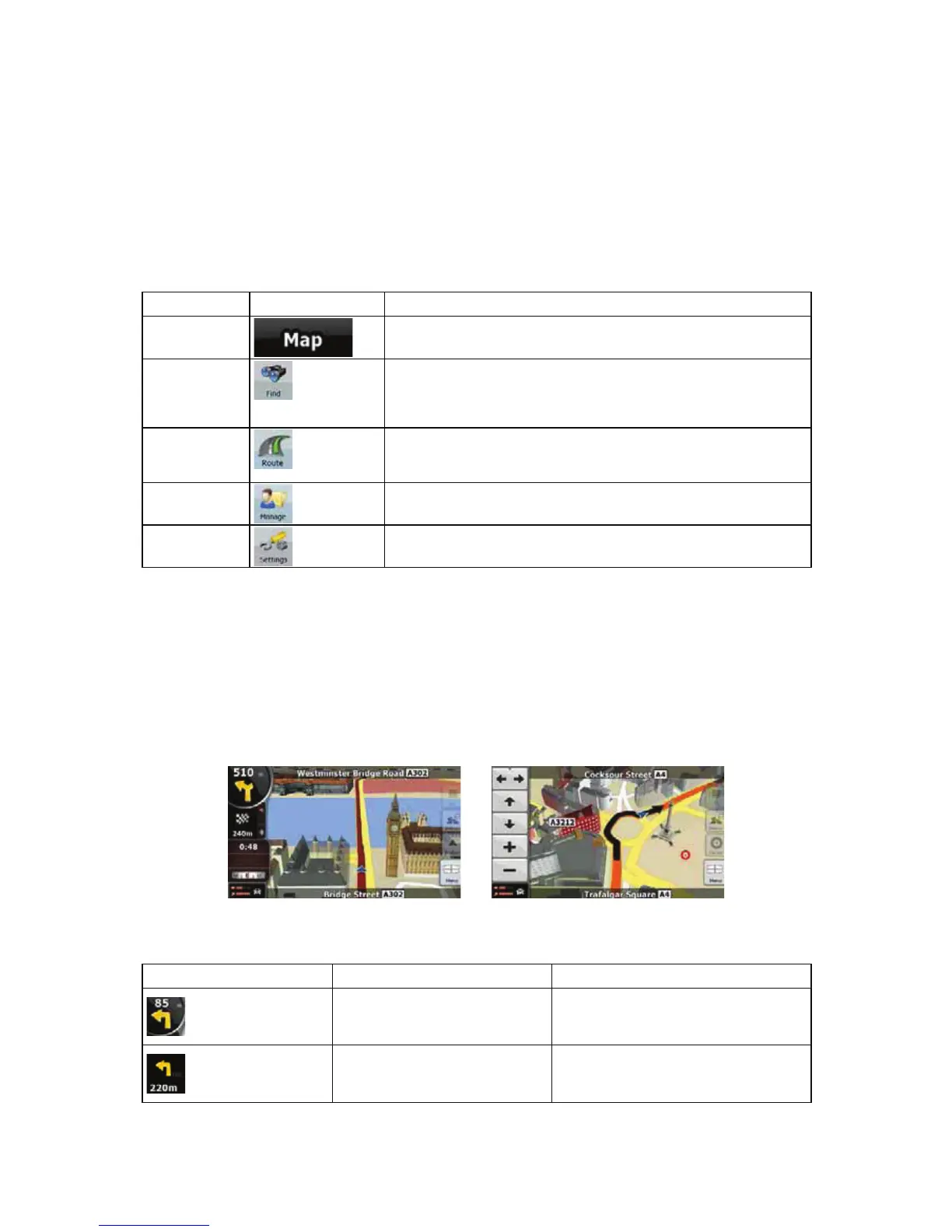
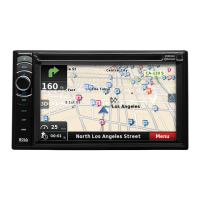
During navigation, the screen shows route information and trip data (left screenshot), but when you
tap the map, additional buttons and controls appear for a few seconds (right screenshot). Most parts
of the screen behave as buttons.
Symbol Name Action
Turn Preview, that is, the next
route event
Opens the Route Information screen
Second upcoming route event Opens the Itinerary
46


 To Next Page