Tip!
If you prefer not to see street names during navigation, turn them off (page 70).
4.1.2.2 3D object types
iGO8 supports the following 3D object types:
Type Description
3D landmarks Landmarks are 3D artistic or block representations of prominent or well-known
objects. 3D landmarks are only available in selected cities and countries.
Elevation model Hills and mountains are shown in the background of the 3D map view, and
illustrated by colour on the 2D map.
Elevated roads
Complex intersections and vertically isolated roads (such as overpasses or
bridges) are displayed in 3D.
3D buildings Full 3D city building data that represents actual building size and position on the
map. Building data is limited to the city centres of major cities in the US and
Europe.
3D terrain 3D terrain map data shows changes in terrain, elevations or depressions in the
land when you view the map, and use it to plot the route map in 3D when you
navigate.
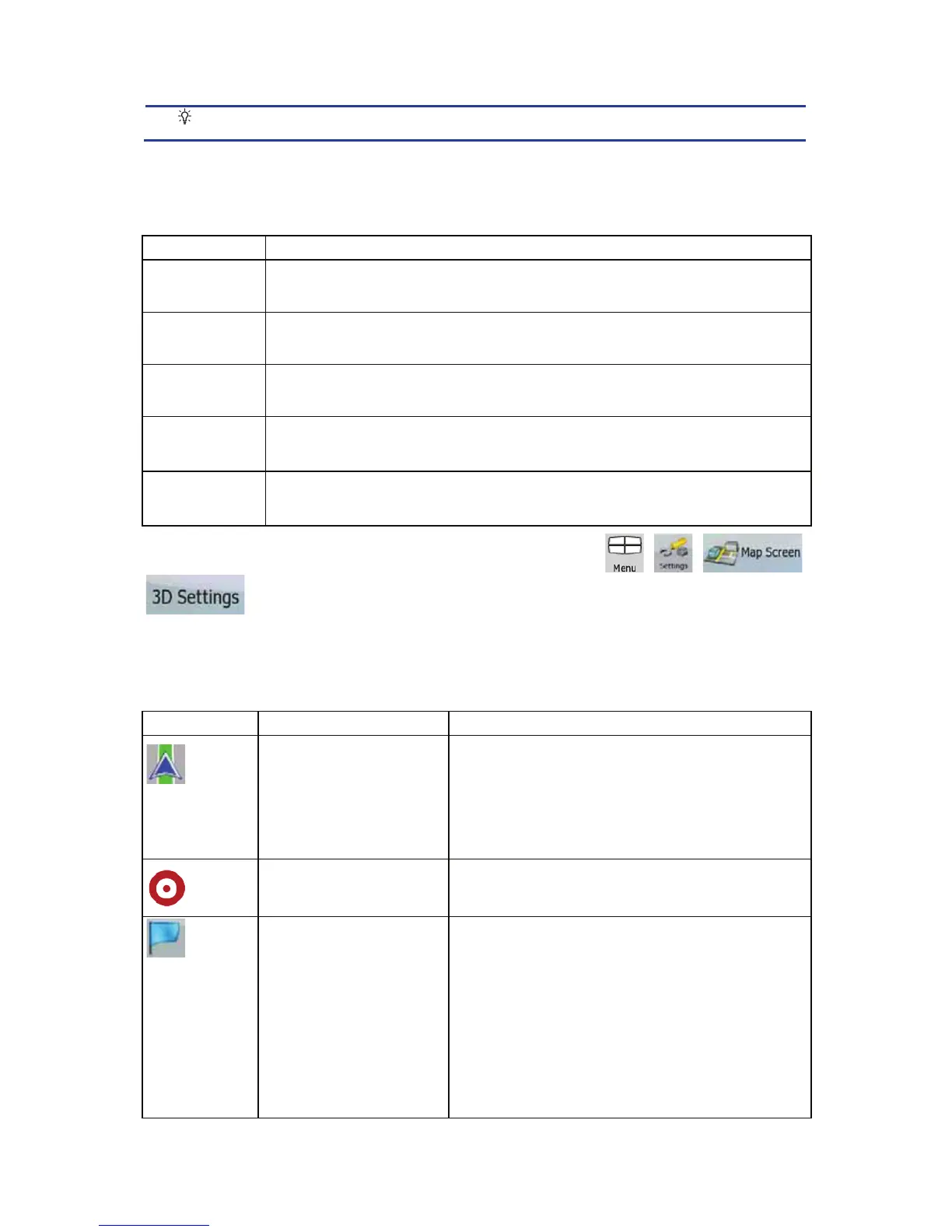
To fine-tune 3D visualisation on the map, tap the following buttons: , , ,
.
4.1.2.3 Elements of the active route
iGO8 shows the route in the following way:
Symbol Name Description
Current GPS position
Your current position displayed on the map.
x In pedestrian mode it is the exact GPS position.
x If a vehicle is selected for route calculation and
roads are near, the symbol is put on the
nearest road.
Cursor (selected map
location)
The location selected in the Find menu, or a map point
selected by tapping the map.
Start point The first point of the route.
Normally if GPS position is available, it is the start
point of the route. If there is no valid GPS position,
iGO8 uses the last known GPS position as the start
point.
When you are using a saved route, iGO8 asks you if
you want to use your GPS position or the first point in
the saved route as the start point.
You can also modify the start point in the Cursor
menu. If you do so, automatic off-route recalculation
52


 To Next Page