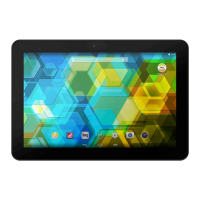
If you connect your tablet to a computer using the USB cable, you can also transfer
les between the two devices (to/from the internal memory, or the MicroSD card,
if one is in use). This will allow you to use, copy or store images, videos, music, text
documents, etc. on one or both devices.
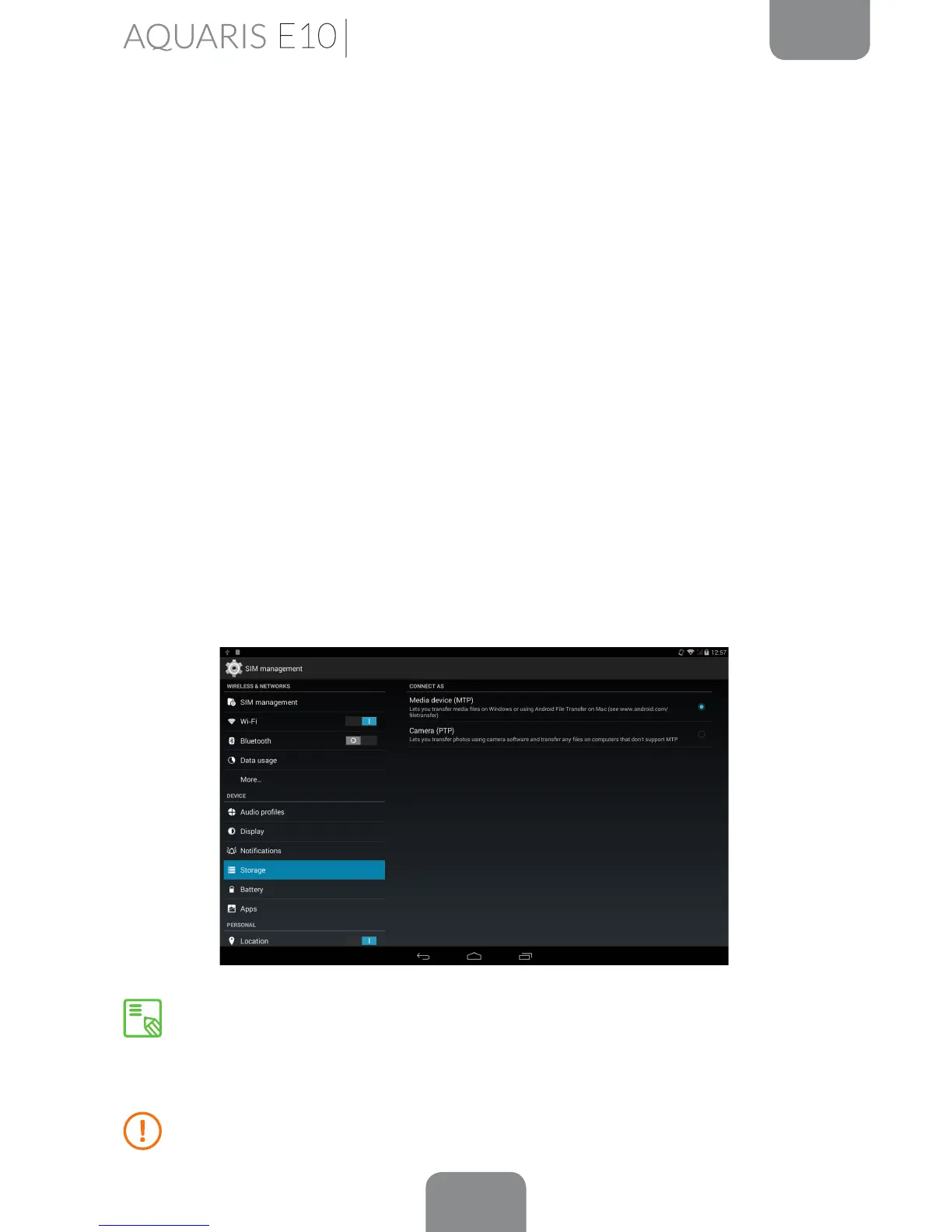
You can select the file transfer mode when you connect your bq Aquaris E10 /
Aquaris E10 3G to a computer. Swipe down (with a single nger) from the top of
the screen in order to display the various options for USB computer connection.
The tablet will be connected as a Media device (MTP) by default or you can also
connect it as a Camera (PTP).
There are a number of ways to transfer les. The steps below will show you how to
transfer them via USB:
1.
Connect your bq Aquaris E10 / Aquaris E10 3G to a computer using the micro-USB
to USB cable supplied. Insert the micro-USB connector into the corresponding port
on the device, and the generic USB connector into the corresponding port on the
computer.
2.
Select and copy the desired les onto your tablet or computer. Remember that
you can store them on either the internal memory or on the MicroSD card if you
are using one.
To transfer files in MTP or PTP mode from your tablet (internal memory or
MicroSD card) onto a computer running Mac OS (and vice versa), you will
need to download and install the free Android File Transfer app onto your
computer: www.android.com/filetransfer/.
Do not disconnect the cable while les are being transferred.
Getting Started


 To Next Page