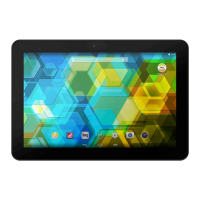
HOME SCREEN
Screen Lock
Your tablet screen will lock itself after a prolonged period of inactivity. To congure the
screen timeout interval, press the Menu button
, go to Settings > Display > Sleep and
select the desired time interval. To switch the screen off manually, briey press the power
button.
To unlock the screen, press (but do not hold down) the power button and the screen
will come on, displaying the unlock option. To change the unlock option, press the
Menu button, go to Settings > Security > Screen lock and choose from the following
options: None, Slide, Face Unlock, Voice Unlock, Pattern, PIN and Password. For
more information on each of these options, go to Settings > Security.
If you forget how to unlock the screen, after various wrong attempts, the
Forgot pattern message will appear at the bottom of the screen. If you press
this message you will be asked to enter the email address and password used to
set up your tablet. The screen lock will then be removed.
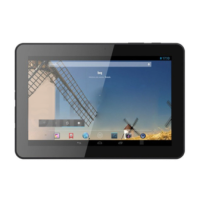
Your Aquaris E10 / Aquaris E10 3G includes a new feature that enables you to
lock and unlock your tablet via double tap control. Simply tap any part of the
screen twice in quick succession so that it lights up and requests the unlock
pattern. When the screen is activated, a double-tap anywhere in the notications
bar will lock and deactivate it.
This feature is disabled by default, so in order to use it you will need to activate
it by going to Settings > Display > Double tap control.
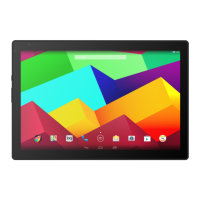
Home Screen


 To Next Page