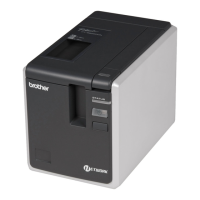
Why does my Brother 97OOPC Label Maker not print and show a printing error?
- OofletcherAug 18, 2025
Check if the interface cable is correctly connected, the tape cassette is properly installed, and the tape compartment cover is fully closed.

Why does my Brother 97OOPC Label Maker not print and show a printing error?
Check if the interface cable is correctly connected, the tape cassette is properly installed, and the tape compartment cover is fully closed.
How to reset Brother 97OOPC Label Maker and delete data transferred from computer?
To reset the printer, turn it off by pressing and holding the power button. Then, hold down the power button for two seconds. While still holding the power button, press the Feed/Cut button six times. This will reset the printer, delete all transferred data, and restore factory settings.
Why does Brother 97OOPC Label Maker not cut labels automatically?
When using Fabric tapes or Non-laminated tapes, the label is not cut automatically. Check the Auto Cut, Chain Printing and Special Tape settings. After printing, remove the tape cassette from the machine and use scissors to cut the tape. Be sure to read the instructions provided with tapes and observe all precautions noted in the instructions.
What to do if data transmission error appears on computer with Brother Label Maker?
For Windows®, select the correct port from the “Print to the following port” list in the printer Properties dialog box. For a USB connection, select “USB00n”. Also, if other users are printing large amounts of data, restart your print job after the other jobs are completed.
What to do if Brother 97OOPC Label Maker power button does not light up?
Check that the main power switch on the back of the printer is on and that the power supply and adapter cord are connected correctly.
Why does Brother 97OOPC print labels with blank horizontal line?
The print head may be dusty. Clean the print head and head roller.
Why does my Brother 97OOPC print striped tape?
The tape cassette may be empty. Install a new tape cassette.
What to do if Brother 97OOPC labels are not ejected correctly after cut?
The cutter blade may be dirty. Clean the cutter.
How to cancel current printing job on Brother 97OOPC?
Ensure that the printer is on, and then briefly press the power button on the front of the printer.
Why is the baud rate not set using the Change Baud Rate Wizard or the Brother printer utilities?
This may be caused by: 1. Error 99: The computer cannot detect the printer. Ensure that the printer is turned on, the interface cable is connected correctly, and the COM port selected in the Change Baud Rate Wizard matches the printer's COM port. 2. Error 1 or Error 5: The serial port of the computer cannot be used. If another serial connection device is using the same COM port, labels cannot be printed. Change the COM port for the serial connection device or connect the printer to a COM port that is not being used.
| Technology | Thermal Transfer |
|---|---|
| Maximum Resolution | 180 dpi |
| Connectivity | USB |
| Maximum Label Width | 24 mm |
| Cutter | Automatic |
| Tape Width | 3.5mm, 6mm, 9mm, 12mm, 18mm, 24mm |
| Power Source | AC Adapter |
| Battery Type | AA |
Statement regarding the product's compliance with ENERGY STAR guidelines.
Important precautions for using the AC adapter to prevent fire and electric shock.
Essential safety guidelines for operating the printer to avoid damage or injury.
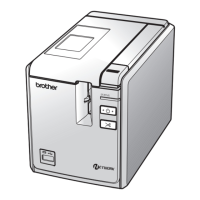
Description of front and rear views of the PT-9700PC model.
Description of front and rear views of the PT-9800PCN model.
Explains the meaning of LED lamps on the printer body.
Details the LED status for the USB Direct Interface on the PT-9800PCN.
Steps for connecting the printer to the power outlet and adapter.
Instructions for connecting the printer to a computer via various interfaces.
Information on using the included USB interface cable.
Details pin assignments for serial RS-232C cables for Windows.
Requirements for using network cables with the PT-9800PCN.
Lists the authorized Brother tape types (TZ/TZe and HG/HGe) for the printer.
Guide for installing software on Windows for PT-9700PC.
Guide for installing software on Mac OS for PT-9700PC.
Guide for installing software on Windows for PT-9800PCN.
Guide for installing software on Mac OS for PT-9800PCN.
Steps to install the BRAdmin Light configuration utility.
How to set IP address, subnet mask, and gateway using BRAdmin Light.
Steps to uninstall software and drivers on Windows.
Steps to uninstall software and drivers on Mac OS.
How to adjust print speed and resolution for better output.
Distributing large print jobs across multiple printers for efficiency.
Printing identical labels by scanning bar codes for pre-stored templates.
Printing scanned bar codes using a previously created template.
Replacing template data with scanned bar code data from a database.
How to print a report of the printer's current settings.
How to configure serial port baud rates on Windows.
Procedures for cleaning the printer exterior, print head, and cutter.
Solutions for common printer problems and error messages.
Detailed technical specifications for the printer models.
Step-by-step guide for using the Bar Code Template Print function.