EasyManua.ls Logo

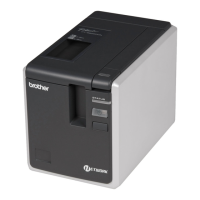
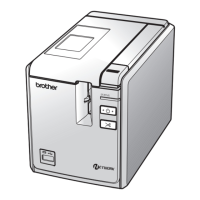
Brother 97OOPC - User Manual

Brother 97OOPC
165 pages
Print Icon
To Next Page IconTo Next Page
Loading...
Users Guide / คู่มือผู้ใช / Hướng dẫn sử dụng
9 7OOPC
/
98OOPCN
ST
A
TUS
S
TATUS
If you encounter any problems with your product, visit our Web site:
http://solutions.brother.com/
ENGLISH ไทย
Việt Nam

Table of Contents

Questions and Answers

  • L
    lcooperSep 12, 2025
    Why data cannot be sent from a device plugged into the USB Direct Interface on Brother PT-9800PCN?
    • N
      Nicole GriffinSep 12, 2025
      This issue can arise due to two main reasons: * The connected device is incompatible with the PT-9800PCN. If the LED display on the USB Direct Interface flashes red, the device is either incompatible or consumes too much power. * The buffer of the PT-9800PCN is full. If the LED flashes red while connected devices are in use, the buffer may be full. Stop data transmission, wait for the buffered data to process, then unplug and replug the device.
  • M
    Mrs. Meagan SolomonSep 14, 2025
    How to install the second Brother 97OOPC Label Maker printer?
    • J
      Jonathan PorterSep 14, 2025
      With a USB connection, when the printer is connected to the computer using a USB cable, the driver for the second printer is automatically installed through Plug and Play. With a Peer-to-Peer connection (PT-9800PCN only) - If one PT-9800PCN is already installed: After the second printer is connected to the LAN, the installer starts up and the printer driver is installed. If multiple printers are to be installed at the same time: When the printers are connected to the LAN, the installer starts up and the printer drivers are installed.

Summary

Introduction

Energy Star Compliance

Statement regarding the product's compliance with ENERGY STAR guidelines.

Safety Precautions

AC Adapter Safety

Important precautions for using the AC adapter to prevent fire and electric shock.

Printer Safety

Essential safety guidelines for operating the printer to avoid damage or injury.

General Precautions

Printer Overview

PT-9700 PC Overview

Description of front and rear views of the PT-9700PC model.

PT-9800 PCN Overview

Description of front and rear views of the PT-9800PCN model.

LED Status Indicators

Printer LED Status

Explains the meaning of LED lamps on the printer body.

PT-9800 PCN USB LED Status

Details the LED status for the USB Direct Interface on the PT-9800PCN.

Connecting the Printer

Connecting to Power Source

Steps for connecting the printer to the power outlet and adapter.

Connecting to Computer

Instructions for connecting the printer to a computer via various interfaces.

Interface Cables

USB Cable Usage

Information on using the included USB interface cable.

Serial Cable (Windows)

Details pin assignments for serial RS-232C cables for Windows.

Network Cable (PT-9800 PCN)

Requirements for using network cables with the PT-9800PCN.

Installing Tape Cassettes

Compatible Tape Types

Lists the authorized Brother tape types (TZ/TZe and HG/HGe) for the printer.

PT-9700 PC Software Installation

Windows Setup

Guide for installing software on Windows for PT-9700PC.

Mac OS Setup

Guide for installing software on Mac OS for PT-9700PC.

PT-9800 PCN Software Installation

Windows Setup

Guide for installing software on Windows for PT-9800PCN.

Mac OS Setup

Guide for installing software on Mac OS for PT-9800PCN.

BRAdmin Light Utility

Installing BRAdmin Light Utility

Steps to install the BRAdmin Light configuration utility.

Network Configuration

IP Address Configuration

How to set IP address, subnet mask, and gateway using BRAdmin Light.

Uninstalling Software

Uninstalling Software (Windows)

Steps to uninstall software and drivers on Windows.

Uninstalling Software (Mac OS)

Steps to uninstall software and drivers on Mac OS.

Advanced Functions

High Speed and Resolution Printing

How to adjust print speed and resolution for better output.

Distributed Printing

Distributing large print jobs across multiple printers for efficiency.

Barcode Printing (BTP)

Preset Template Printing

Printing identical labels by scanning bar codes for pre-stored templates.

Bar Code Printing with Templates

Printing scanned bar codes using a previously created template.

Database-Assisted Barcode Printing

Replacing template data with scanned bar code data from a database.

P-touch Editor Lite LAN

Printer Settings

Print Printer Settings

How to print a report of the printer's current settings.

Serial Interface Settings (Windows)

How to configure serial port baud rates on Windows.

Printer Maintenance

Printer Cleaning

Procedures for cleaning the printer exterior, print head, and cutter.

Troubleshooting and Specifications

Troubleshooting Guide

Solutions for common printer problems and error messages.

Product Specifications

Detailed technical specifications for the printer models.

BTP Function Steps

Step-by-step guide for using the Bar Code Template Print function.

Brother 97OOPC Specifications

General IconGeneral
TechnologyThermal Transfer
Maximum Resolution180 dpi
ConnectivityUSB
Maximum Label Width24 mm
CutterAutomatic
Tape Width3.5mm, 6mm, 9mm, 12mm, 18mm, 24mm
Power SourceAC Adapter
Battery TypeAA

Related product manuals