Home > Print > Print Photos Directly from a USB Flash Drive > Print Photos from a USB Flash Drive on the
Brother Machine > Preview and Print Photos from a USB Flash Drive
Preview and Print Photos from a USB Flash Drive
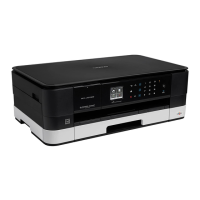
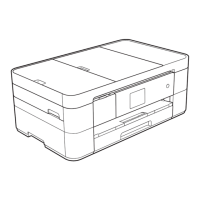
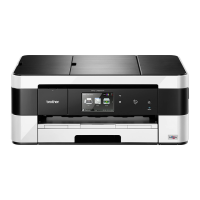
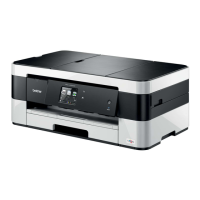
Related Models: MFC-J4440DW/MFC-J4540DW
You can preview your photos on the LCD before printing them, or print images stored on a USB flash drive.
If your photos are large files, there may be a delay before each photo is displayed.
1. Insert a USB flash drive in the USB slot.
2. Press [JPEG Print] > [Select Files].
3. Press d or c to display the photo you want to print, and then press it.
To print all photos, press [Print All], and then press [Yes] to confirm.
4. Enter the number of copies in one of the following ways:
• Press [-] or [+] on the touchscreen.
• Press to display the keyboard on the touchscreen, and then enter the number of copies using the
touchscreen keyboard. Press [OK].
5. Press [OK].
6. Repeat the last three steps until you have selected all the photos you want to print.
7. Press [OK].
8. Read and confirm the displayed list of options.
9. To change the print settings, press [Print Settings].
When finished, press [OK].
10. Press [Start].
Related Information
• Print Photos from a USB Flash Drive on the Brother Machine
Related Topics:
• Print Settings for Photos
91


 To Next Page
 Loading...