44
Serial interface settings (Windows
®
only)
Use the following steps to change or confirm
the port and the baud rate settings on the
computer and the printer. The following
procedure is shown based on Windows Vista
®
.
Setting the computer baud
rate
1
On the taskbar, click the “Start” button,
and then click “Control Panel”.
For Windows
®
2000 Professional
On the taskbar, click the “Start” button,
point to “Settings”, click “Control Panel”,
and then double-click the “Printer” icon.
Proceed to step
3.
2
Select “Printers and Other Hardware”
(XP) / “Hardware and Sound” (Windows
Vista
®
) and then click “Printers and
Faxes” (XP) / “Printer” (Windows
Vista
®
).
3
Right-click the “Brother PT-XXXX” icon,
and then select “Properties”.
4
Click the “Ports” tab and then select the
port you use from the list.
To save the settings, click [Apply].
5
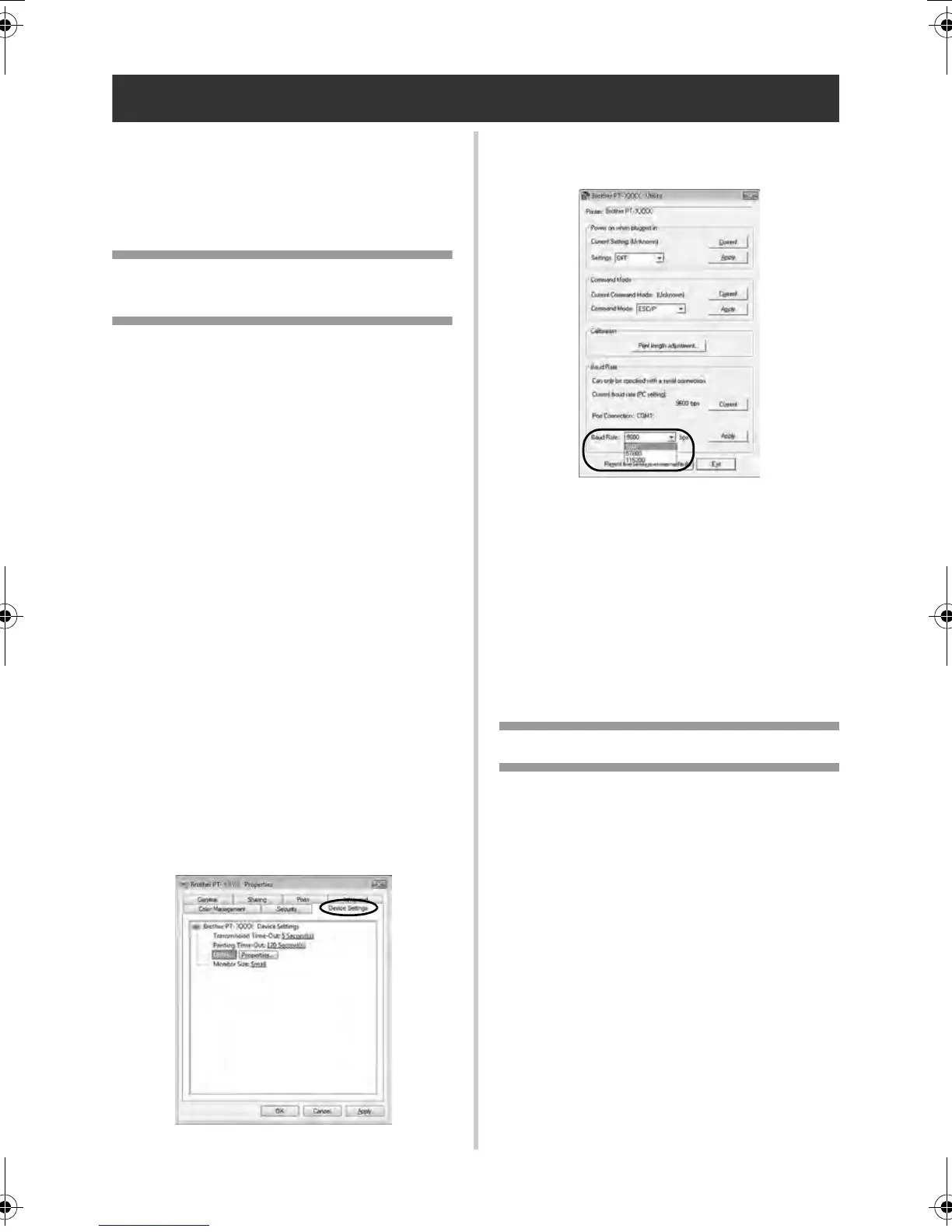
Click the “Device Settings” tab, and
“Utility...”, and then click [Properties...]
that appears next to Utilities.
6
Select the desired baud rate.
7
Click [Apply].
The baud rate will be changed.
8
Click [Exit].
9
Click [OK].
Setup is complete and the setting window
will close.
Setting the printer baud rate
For details on the setting the printer baud rate,
download “P-touch Template manual” (English
only) from the following web site.
http://solutions.brother.com/
[Select your region/country]-[Choose your
product]-[Downloads]
PT9700PC9800PCN_US.book Page 44 Wednesday, October 7, 2009 11:58 AM


 To Next Page
 Loading...