Quick Reference Guide QRG
Quick Reference Guide EDV no.: MD.337.01.04
ekrPro Com60 with CLS Pro 600 Issue Date: 30.06.2011 Seite: 21/22
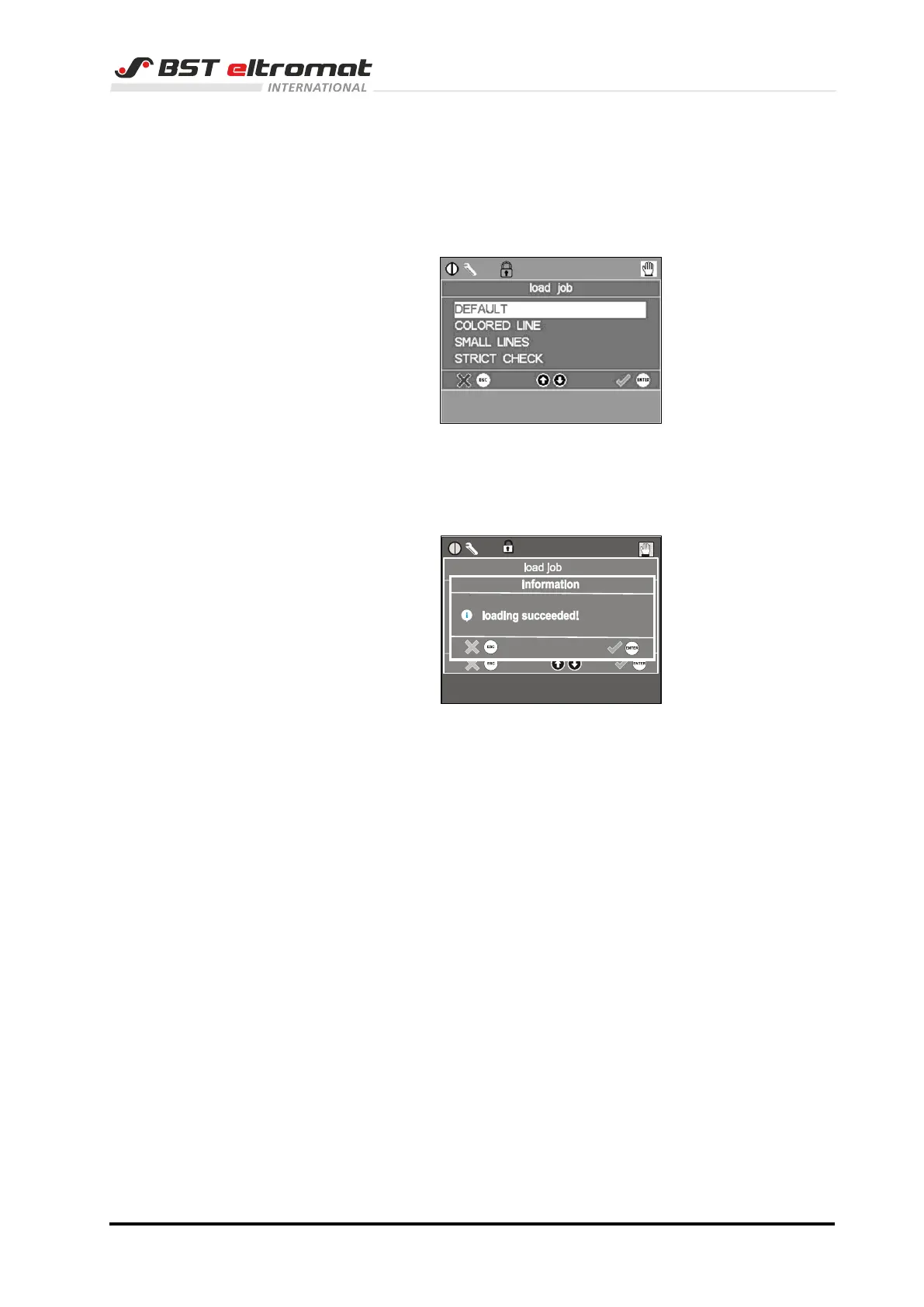
5.1 Selecting a job
1. Call up the \\parameter\jobs\choose job\load job menu. The
select list of the existing jobs appears on the display.
2. Use the up / down arrow keys to select the desired job and
press ENTER for confirmation.
3. The job selected will be loaded. A relevant information window
appears after the loading has been completed successfully.
5.2 Creating and saving a job
You can create specific jobs for the application if neither of the pre-
configured jobs applies to your application.
Procced as follows:
1. Set up the necessary parameters first.
2. Select the \\parameter\jobs\save job menu afterwards. An
entry screen appears, in which you can use the arrow keys to
enter the job name.
3. Press ENTER to confirm your entry. The settings will be saved
under this name in the job list.
5.3 Deleting a job
A saved job that is no longer wanted can be deleted.
Call up the \\parameter\jobs\delete job menu. A selection list of
saved jobs will be displayed. Use the up / down arrow keys to
select the job that you want to delete and then press ENTER to
confirm your selection. The job will be deleted.



 To Next Page