Quick Reference Guide QRG
Quick Reference Guide EDV no.: MD.337.01.04
ekrPro Com60 with CLS Pro 600 Issue Date: 30.06.2011 Seite: 10/22
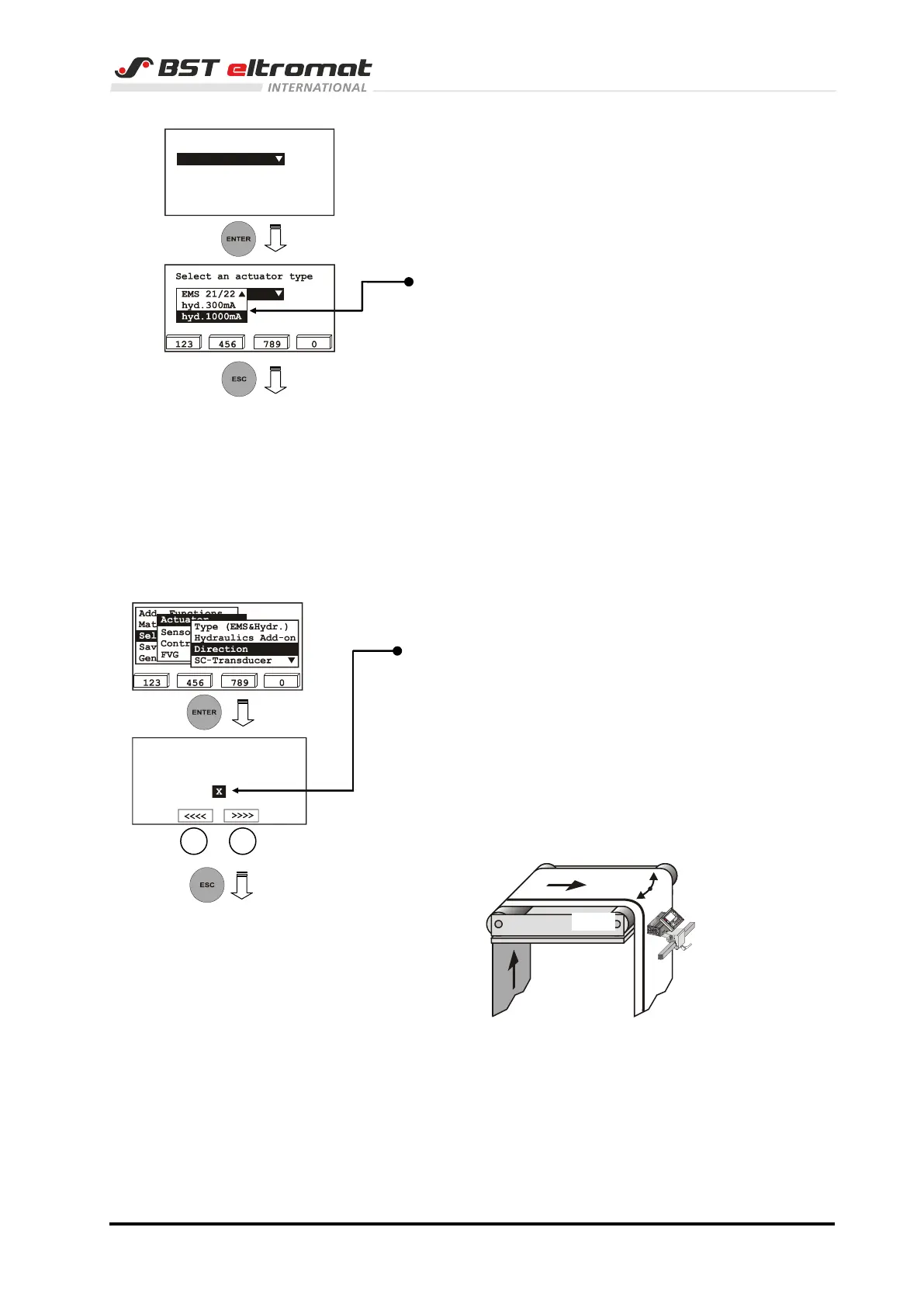
3. The default actuator will be displayed on the screen.
4. Press the ENTER button. The actuator option list will then be
opened.
Now use the vertical arrow keys to select the actual actuator
that is connected to the system.
Confirm the selection by pressing ENTER.
The allocation of the hydraulic powered actuators to the
options is as follows:
300 mA: SV 1-6, SV 1-10/4, SV 1-10/8
SV 1-10/16, SV 1-10/32, EH-St 9/3
1000 mA: SV 1-10/48
(You will find the specifications of the type used on the
nameplate of the unit)
5. Press the ESC button to exit the window.
2.3.2 Setting the actuator guiding direction
1. Switch to the sub-directory Direction.
The actuator guiding direction for manual mode can be
reversed by activating the checkbox Mot. Dir. Inverted.
The direction can be checked on the spot.
Move the actuator using the F2 or F3 key.
If key F2 is pressed, the actuator must move the material
web to the left hand side in material running direction, if F3 is
pressed it must move it to the right hand side in material
running direction!
Pressing F2 or F3 automatically changes the controller to
the manual operating mode.
2. Press the ESC button to exit the window.
Select an actuator type
EMS 17
Toggle Man Dir. until
F2 moves to sensor 1
Mot. Dir. Inverted



 To Next Page