19
Using the Function Button
Direct Copy - You can copy digital media les directly to the
LinkStation Mini from a USB storage device, such as a digital
camera, USB ash drive, or external hard disk.
1. Connect your USB device to the port on the
back of the LinkStation Mini. The Function LED
will glow solid blue for 60 seconds.
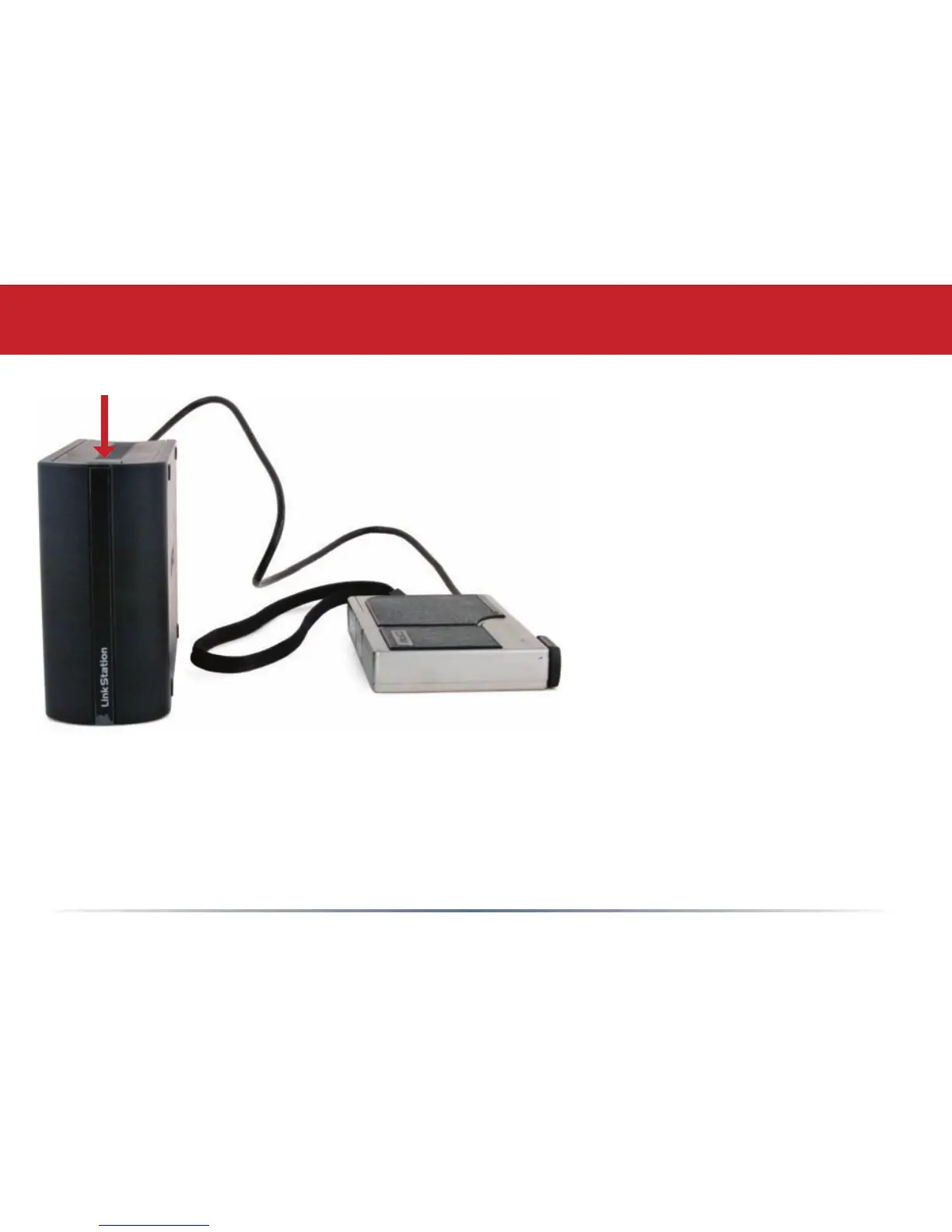
2. While the Function LED is still
glowing blue, press the function
button on top of the LinkStation.
The following folder is created
automatically:
DirectCopy/pictures/yyyymmdd
where yyyy is the year, mm is the month, and dd is the day. The following letypes will be copied
for USB MSC devices: avi, divx, asf, mpg, mpe, m1v, vob, mts, m2ts, m2t, mpeg, mpeg2, vdr,
spts, tp, ts, 3gp, mov, m4v, wmv, dvr-ms, xvid, mp4, m4v, jpg, jpeg, gif, png, tif, tiff, yuv, bmp,
mp3, mpa, wma, aac, apl, ac3, lpcm, pcm, wav, m3u, m4a, mp4, m4b, aif, aiff, ac, ogg, mp2,
mp1, mp4. If the USB device doesn’t follow the USB MSC standard, then all les will be copied.














 To Next Page