41
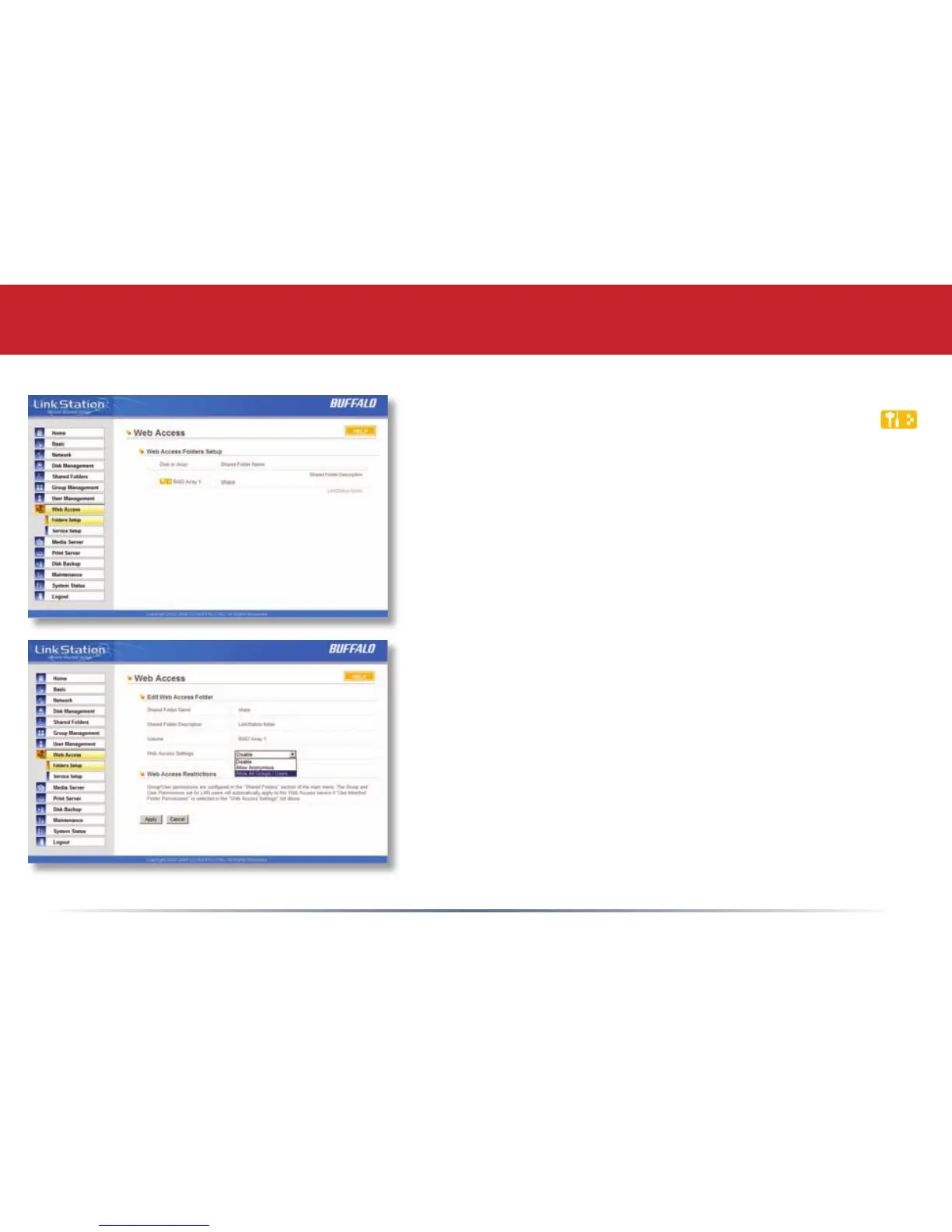
Select ‘Folders Setup’ in the left-side menu. Any shares on your
LinkStation will appear on the list to the right. Click on the
icon beside it to select a share for web access.
Choose your desired level of Web Access from the ‘Web Access
Settings’ dropbox:
‘Disable’ will prevent remote access to this share through
WebAccess. This is the default setting.
‘Allow Anonymous’ will allow anyone to access the share. Don’t
use this setting unless you want your LinkStation share to be
available publicly to everyone in the world!
‘Allow All Groups/Users’ will allow only people who have an
account on the LinkStation to access this share remotely.
‘Use Inherited Folder Permissions’ will allow people with an
account on the LinkStation to access the share remotely only
if they have read permissions on the specic share that they’re
accessing.
Click the Apply button to save your changes.
Conguring WebAccess














 To Next Page