EasyManua.ls Logo

C-more micro EA1-S6ML - Rotation

Default Icon
189 pages
Print Icon
To Next Page IconTo Next Page
To Previous Page IconTo Previous Page
Loading...
5–14
Chapter 5: System Setup Screens
5
®
EA1-MG6-USER-M Hardware User Manual, 1st Ed. Rev C, 09/10
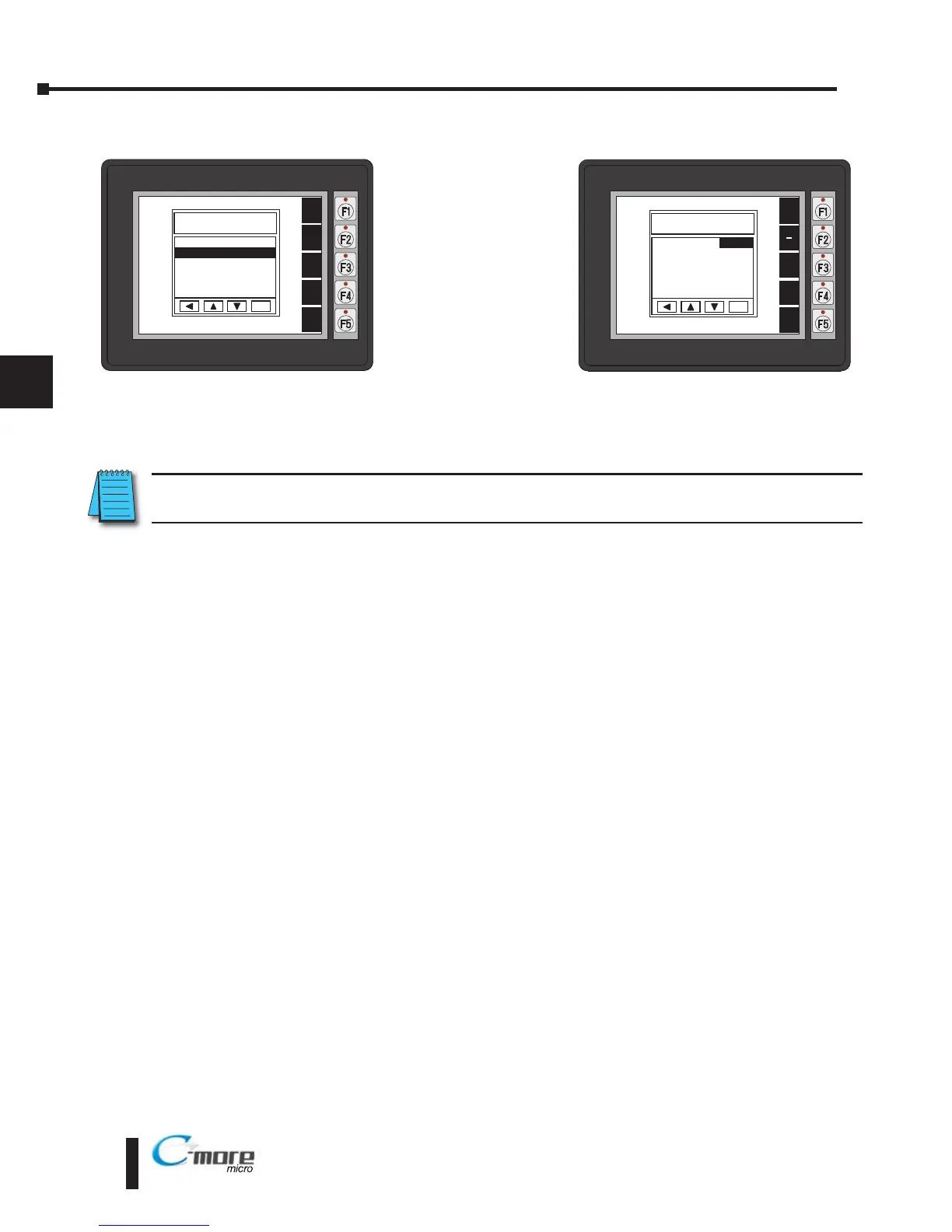
Setting – Rotation
With Rotation
highlighted, press
ENT [F5] to show
the current
orientation. Press UP
[F3] and DWN [F4]
to toggle between the
portrait (vertical) and
landscape
(horizontal)
orientation. Use the
APL [F5] function
button to apply the
selection.
Note: Loading a project to the panel will override the orientation choosen from the System Setup Screens’
Rotation selection screen. The selected orientation is displayed only when in the System Setup Screens.
BAK
UP
DWN
APL
ENT
ROTATION
Portrait Mode off
ENT
SETTING
7 Hourglass >
8 Rotation >
BAK
UP
DWN
ENT
NXT

Table of Contents