©2021 CAE 905K720652 v1.0 23
Setup
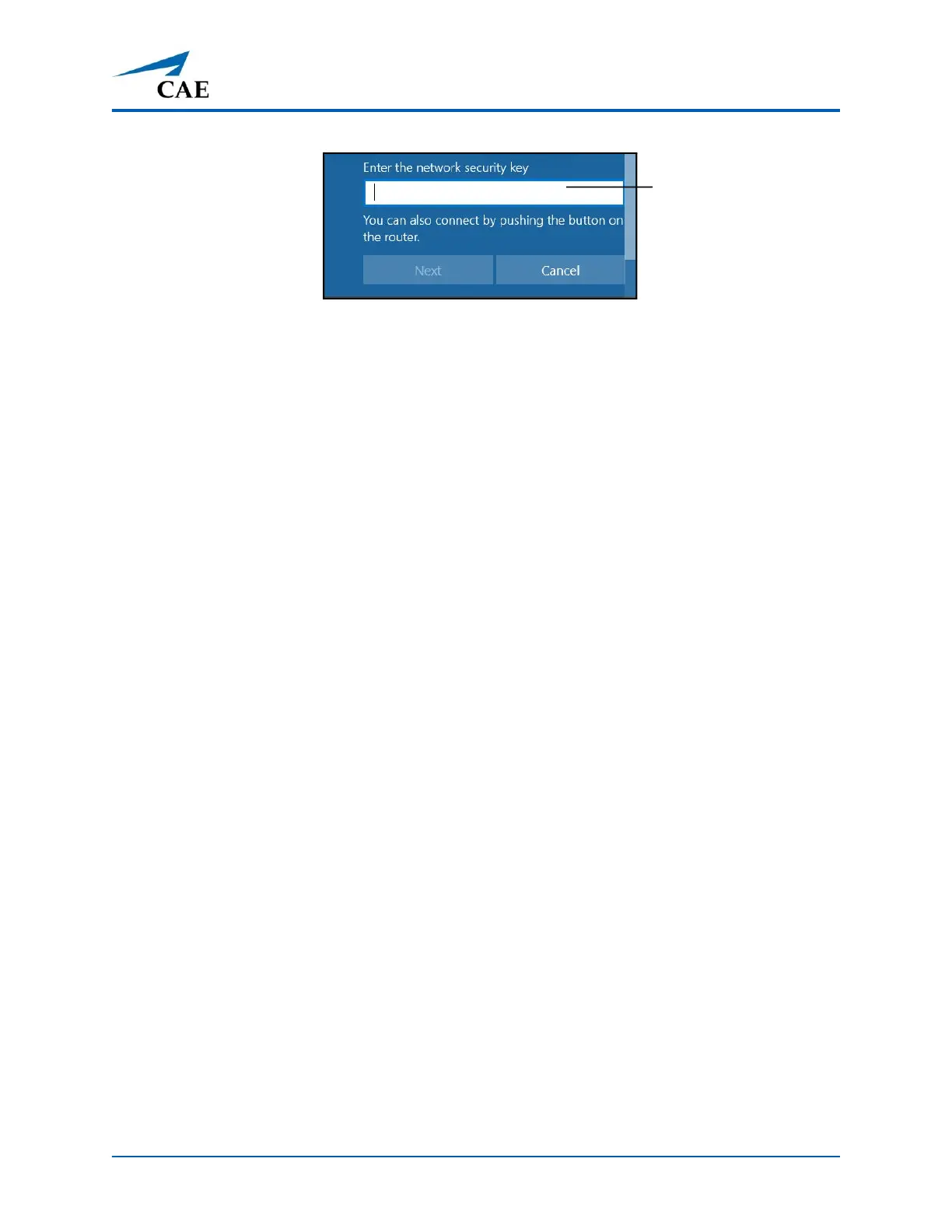
Entering the Security Key (Password)
g. Tap in the Enter the network security key text field.
h. Tap the Keyboard icon in the taskbar in the lower-right corner of the screen.
The on-screen keyboard appears.
i. Enter caeadmin in the text field.
j. Tap the X in the upper-right corner of the keyboard to exit.
k. From the Enter a network security key window, tap Next.
The Connecting message appears, then disappears when the tablet is finished
connecting to the simulator network.
Standalone - Setup the Router
If running standalone, it will be necessary to install the router included in the standalone package.
Note: The following instructions provide information for setting up the router using WiFi.
1. Prior to beginning a simulation, check the power level on the battery, it may need to be
recharged.
2. Power on the router by plugging the Micro USB cable from the battery (or to the computer
if using the Medical Cart) into the power port of the router.
Enter the Security key
(password)



 To Next Page