18
ENGLISH
Operating instructions
Turning on for the first time
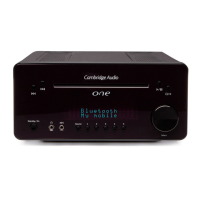
After making the connections to your unit, activate your One+ by switching the Power
button on the rear panel to 'On', then press the button on the front panel.
When turning the unit on for the very first time, the unit will display ‘Insert iPod’ as this
is the default mode. Refer to ‘Using an iPod with the supplied DD30 docking station’
on this manual for more information.
Tuning and listening to DAB or FM
Press the Source button until DAB or FM shows on the display and press Enter (either
press Enter on the remote or press the Volume dial on the unit itself) to accept.
DAB mode
Note: Depending on the unit’s geographic location. DAB is either enabled or disabled.
Refer to later ‘Advanced menu settings’ section on this manual.
When selecting DAB mode for the very first time, the unit will initiate a 'Full Service Scan'
for DAB services (can take up to 3 minutes to complete). A scanning bar appears on the
display while scanning for stations. When scanning is completed, the unit will default to
the DAB source mode. Use the buttons to cycle through receivable stations.
A partial or full scan for DAB station scan also be initiated at any time in the future (see
later section).
Press Enter to tune to and listen to the selected station.
Note:
– When scrolling through stations, as default the unit will revert to the previous station
if no station is selected or button pressed for 3-4 seconds. The One+ can also
automatically tune to any displayed station after 3-4 seconds of inactivity if required.
When in DAB mode press and hold the front panel or remote control Play/Pause
control. After 4 seconds an "Auto Enter On" or "Auto Enter Off" message will be
displayed. Press Play/Pause to repeatedly toggle between these two settings then
either press no button for a few seconds or press in the Volume/Select control to exit
and save the setting.
– The number of DAB stations received will depend on aerial signal strength. We
recommend completing a full auto scan from time to time to pick up new DAB
stations.
– In DAB mode you can also press the Menu button which will first bring up a <Station
Select> menu item. This also allows you to scroll to and select any desired station
using the volume control.
DAB+
One+ is compatible with both DAB (MP2 audio compression) and DAB+ (AAC+ audio
compression) broadcasts. A ‘+’ symbol will appear on the far right of the front panel
display when a DAB+ broadcast is being received.
Scanning for new DAB stations
To perform a quick scan (covers the UK based DAB frequencies) make sure the One+
is in DAB mode, then press and hold the
i button for about 8 seconds.
The display will now say 'Auto tune'. Now briefly press Enter for a Quick Scan or press
and hold Enter for a Full Scan (scans all world-wide DAB frequencies).
When "Auto Tune" is displayed you can also briefly press
i again to select "Manual
Tune", in this mode pressing Enter will allow you to scroll through the available DAB
frequencies manually using the volume control if you know the specific DAB frequency
you require.
FM mode
To tune and listen to station, do the following:
1. Press and hold button to scan up to the next available station.
2. Press and hold button to scan to previous available station.
Note: Pressing the button briefly allows manual tuning and will step the
frequency by 0.05MHz.





 To Next Page