9-15
Troubleshooting
<Cause 1> Paper is too moist or Too dry.
Solution
Replace the paper with new paper in an unopened package.
“Paper Requirements” (→P.2-6)
<Cause 2> Toner is nearly out.
Solution
To view the solution, refer to the following.
“Replacing the Toner Cartridge” (→P.8-10)
<Cause 3> The drum in the toner cartridge is deteriorated.
Solution
Replace the toner cartridge with a new one.
“Replacing the Toner Cartridge” (→P.8-10)
<Cause 4> Unevenness may appear when thin lines are printed.
Solution
Change the <Special Mode J> setting to <On> from the operation panel.
e-Manual → Maintenance → Special Mode
* If you use this mode, the following problems may occur.
• The output is less fine.
• Toner smears even on unnecessary parts.
• Toner consumption increases.
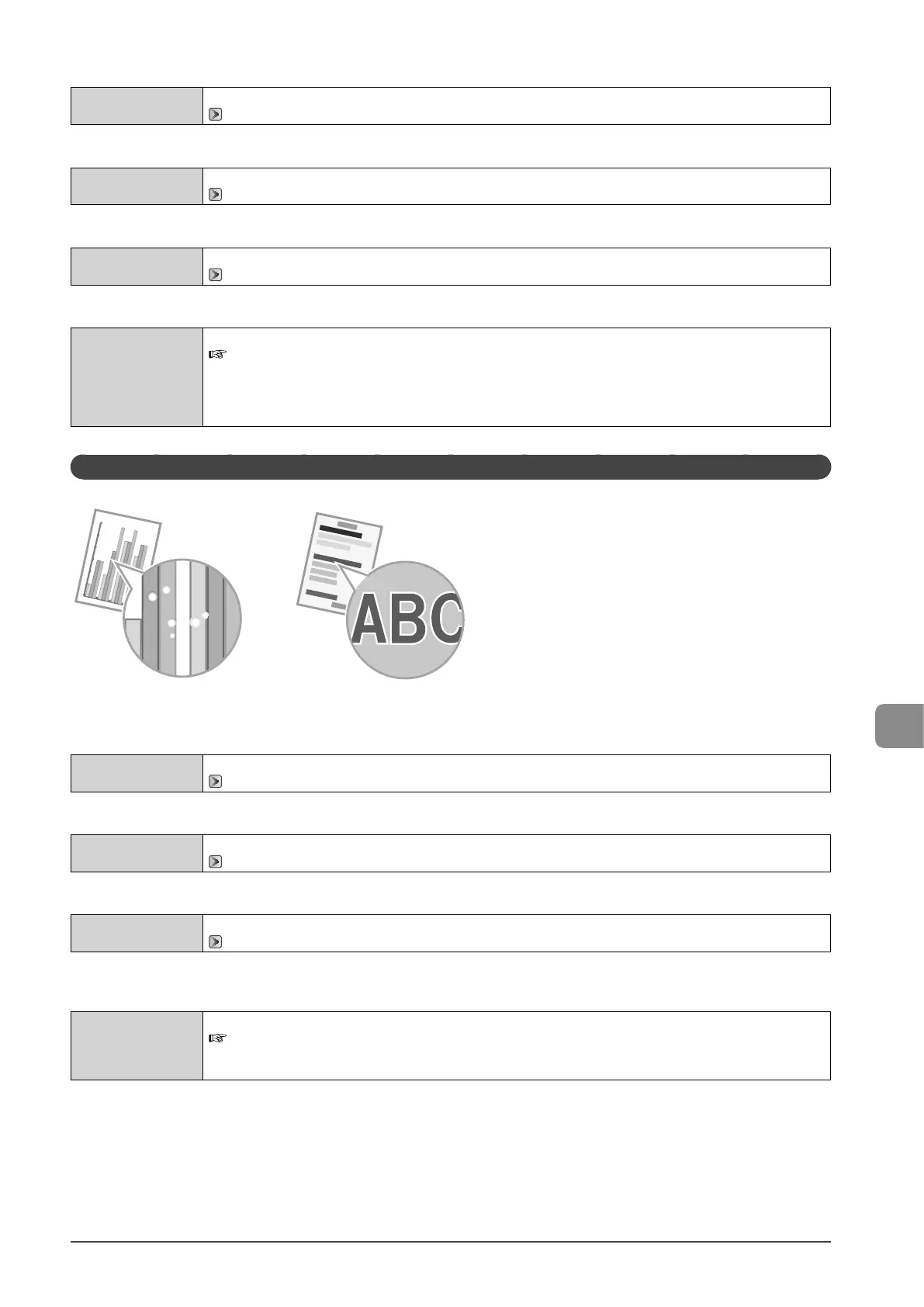
White Specks Appear
Perform one of the following solutions according to the cause.
<Cause 1> Appropriate paper is not being used.
Solution
Replace the paper with which can be used with this printer.
“Paper Requirements” (→P.2-6)
<Cause 2> Damp paper is used.
Solution
Replace the paper with new paper in an unopened package.
“Paper Requirements” (→P.2-6)
<Cause 3> The drum in the toner cartridge is deteriorated.
Solution
Replace the toner cartridge with a new one.
“Replacing the Toner Cartridge” (→P.8-10)
<Cause 4> When you print a document of highly contrasting density, white specks may appear on the outlines of the text or
images.
Solution
Change the [Special Print Mode] setting to [Special Settings 2] from the printer driver.
e-Manual → Maintenance → Special Mode
* When [Special Settings 2] is selected, printing density is lower than when [Off] or [Special Settings 1] is selected.
Also, text or lines may be less clear.









 To Next Page