4-4
Printing from a Computer
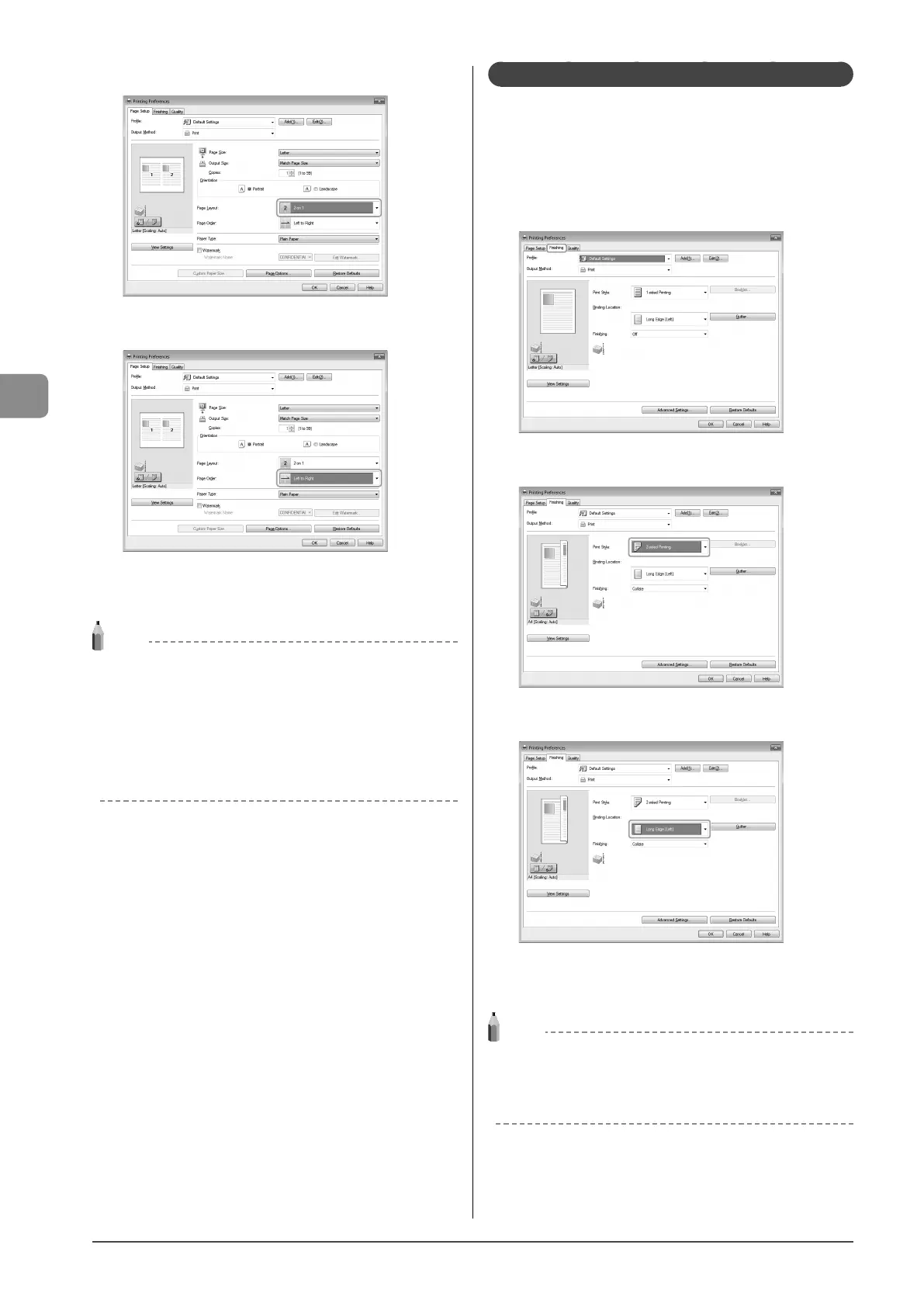
2 Select the page layout from [Page Layout].
3 Select the page order from [Page Order].
The output image is displayed in the preview area.
4 Click [OK].
NOTE
• You cannot enlarge and reduce manually when using this
function.
• Although there may be a function for printing multiple copies
depending on the application you are using, do not use it
together with this function. If you do, printing may not be
executed correctly.
• The display may differ according to the operating system, as well
as the type and version of the printer driver.
2-sided Printing (MF4570dn Only)
Two-sided printing prints a document on both sides of the
paper. You can reduce paper consumption by half.
1 Click [Finishing].
For instructions on how to display the printer driver screen, see
“Printing” or “Configuring the Default Print Settings” in the e-Manual.
2 Select [2-sided Printing] from [Print Style].
3 Select the binding edge from [Binding Location].
The output image is displayed in the preview area.
4 Click [OK].
NOTE
• The page sizes for which two-sided printing is available differ
according to printer model. For details, view the online help.
• The display may differ according to the operating system, as well
as the type and version of the printer driver.









 To Next Page