7-9
Scanning
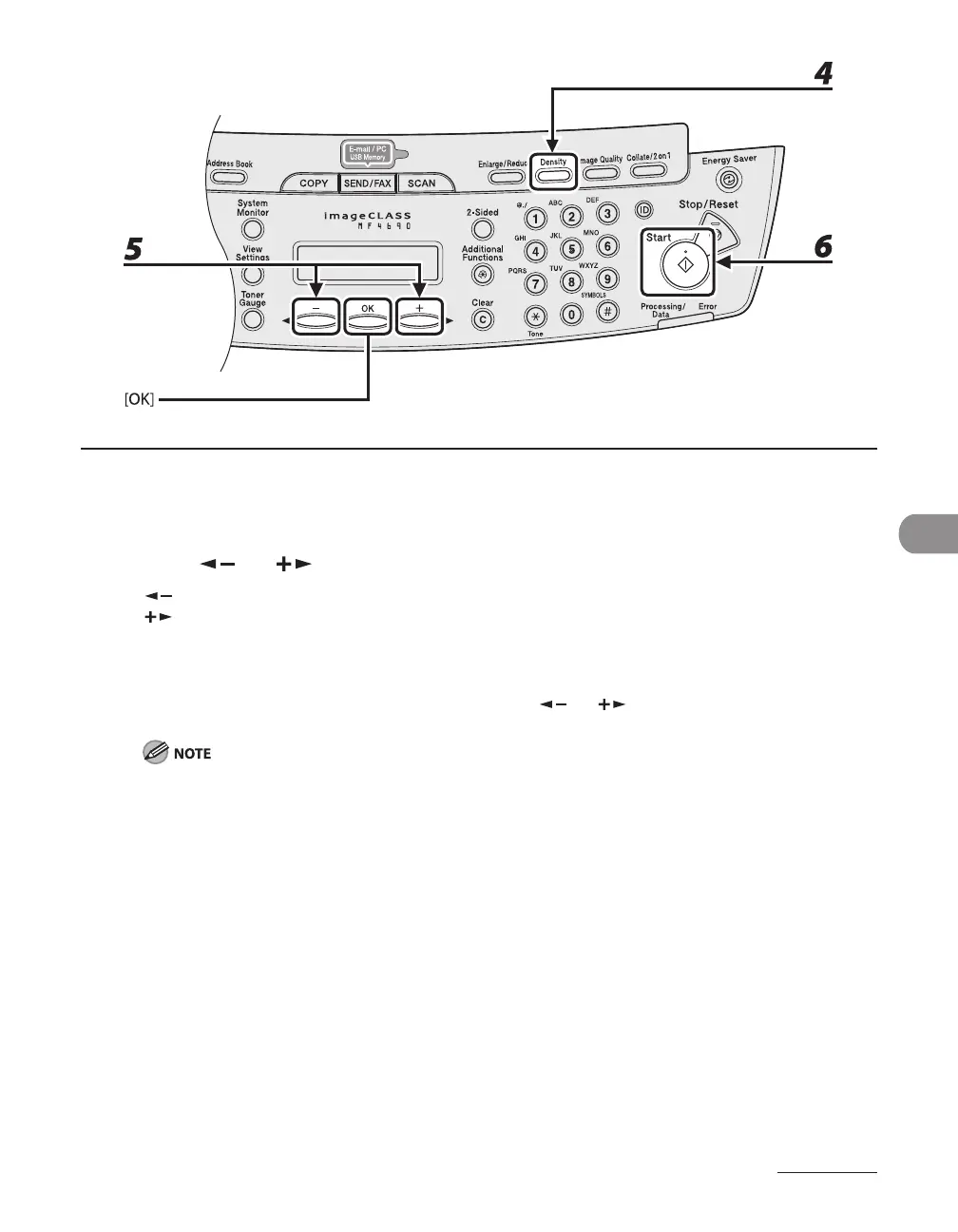
4 Press [Density].
5 Press [ ] or [ ] to adjust the density, then press [OK].
[ ]: to make dark documents lighter.
[ ]: to make light documents darker.
6 Press [Start].
When you set the documents on the platen glass, press [ ] or [ ] to select the document size, then
press [OK] or [Start].
These settings return to the default values after all documents are scanned. If you want to keep the
settings, set the density as following;
[Additional Functions] <TX/RX SETTINGS> <TX/RX COMMON SET.> <TX SETTINGS>
<SCANNING DENSITY> (See “Setting Menu,” on p. 12-6.)









 To Next Page