Printing from Windows
Canceling print jobs
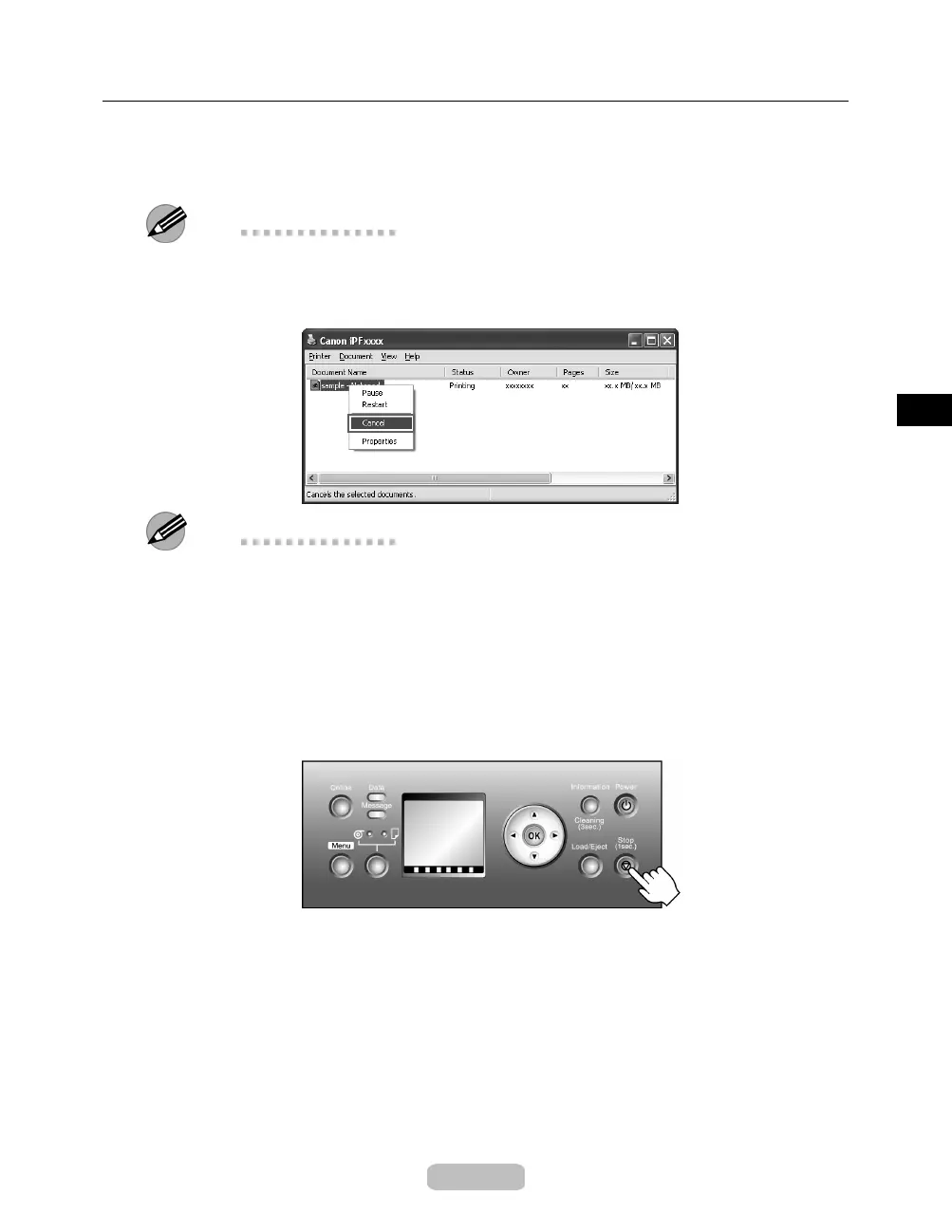
You can cancel print jobs in the printer window.
1
Click the printer icon in the taskbar to display the p rinter window.
Note
•
You can also display this window by double-clicking the printer icon in the Printers
and Faxes (or Printers ) folder, accessible t hrough the Windows start menu.
2
Right-click the job to cancel and select Cancel.
Note
•
The print job is display ed on the printer screen during the transmission of print data
from the c om puter. When the tran smission is fi nished, the job i s not displayed
even during printing.
To cancel print jobs from the Control Panel, follow these steps.
1
If the Display Screen of the Control Panel still indicates that the job is in progress
and the Data lamp continues flashing, hold down the Stop button for a second or
more to stop printing.
23













 To Next Page