167
By connecting the camera to a personal computer, you can transfer
images from the camera’s card by operating the camera. This feature is
called direct image transfer.
Before connecting the camera to a personal computer, be sure
to install the provided software (EOS DIGITAL Solution Disk
on CD-ROM) in the personal computer.
For instructions to install the provided software, see the separate
sheet, CD-ROM Guide.
1
Set the camera’s power switch to
<2>.
2
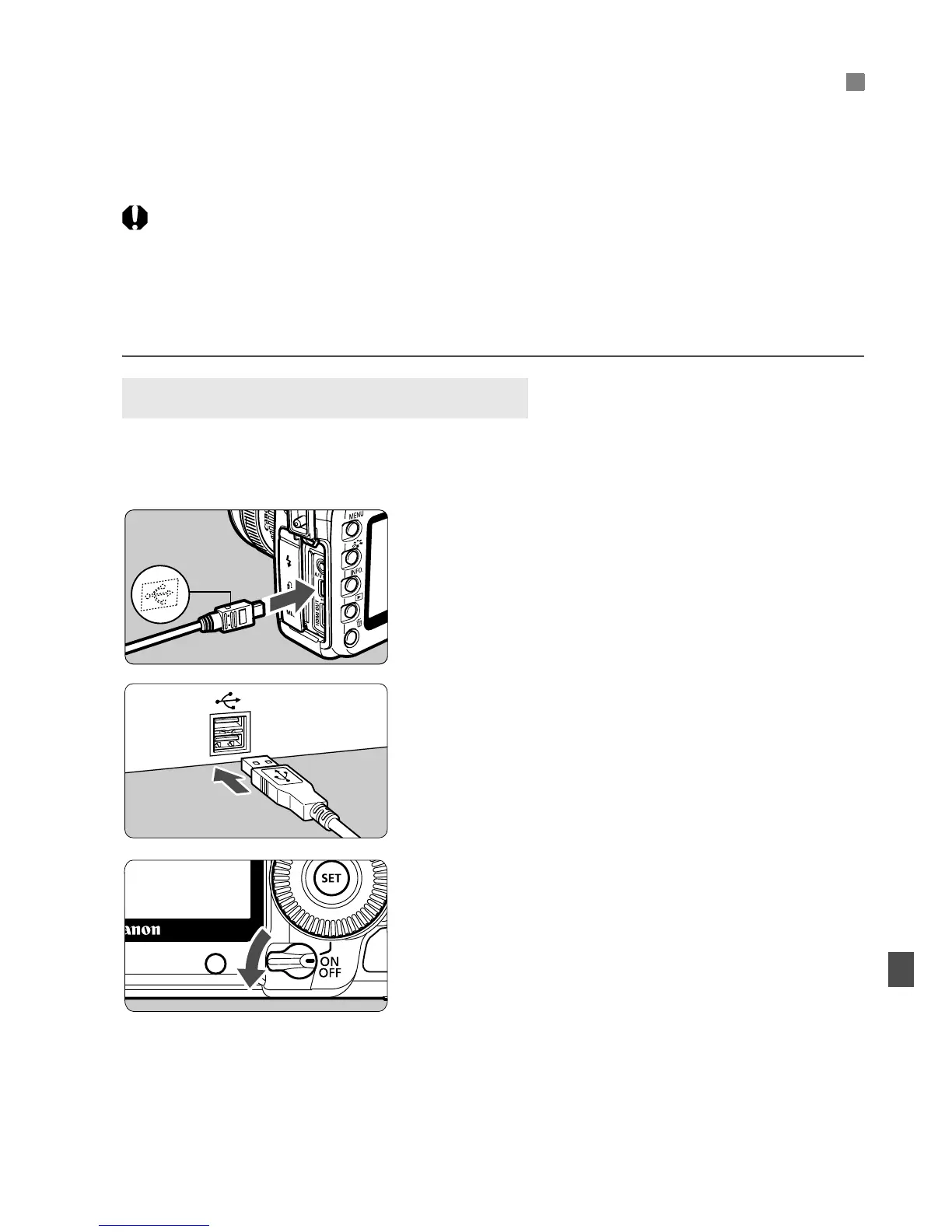
Connect the camera to the
personal computer.
Use the interface cable provided with
the camera.
When connecting the cable plug to
the camera’s <D> terminal, the
cable plug’s <D> icon must face the
front side of the camera.
Connect the plug on other end of the
cable to the personal computer’s
USB port.
3
Set the camera’s power switch to
<1>.
When the program selection screen
appears on the personal computer,
select [EOS Utility].
X The [EOS Utility] screen will appear
on the computer, and the direct image
transfer screen will appear on the
camera’s LCD monitor.
d
Transferring Images to a Personal Computer
Preparation for Image Transfer










 To Next Page