70
Due to the lens characteristics, the four corners of the picture might look
darker. This is called lens light fall-off or drop in peripheral illumination.
This can be corrected. For JPEG images, lens light fall-off is corrected
when the image is captured. For RAW images, it can be corrected with
Digital Photo Professional (provided software).
The default setting is [Enable].
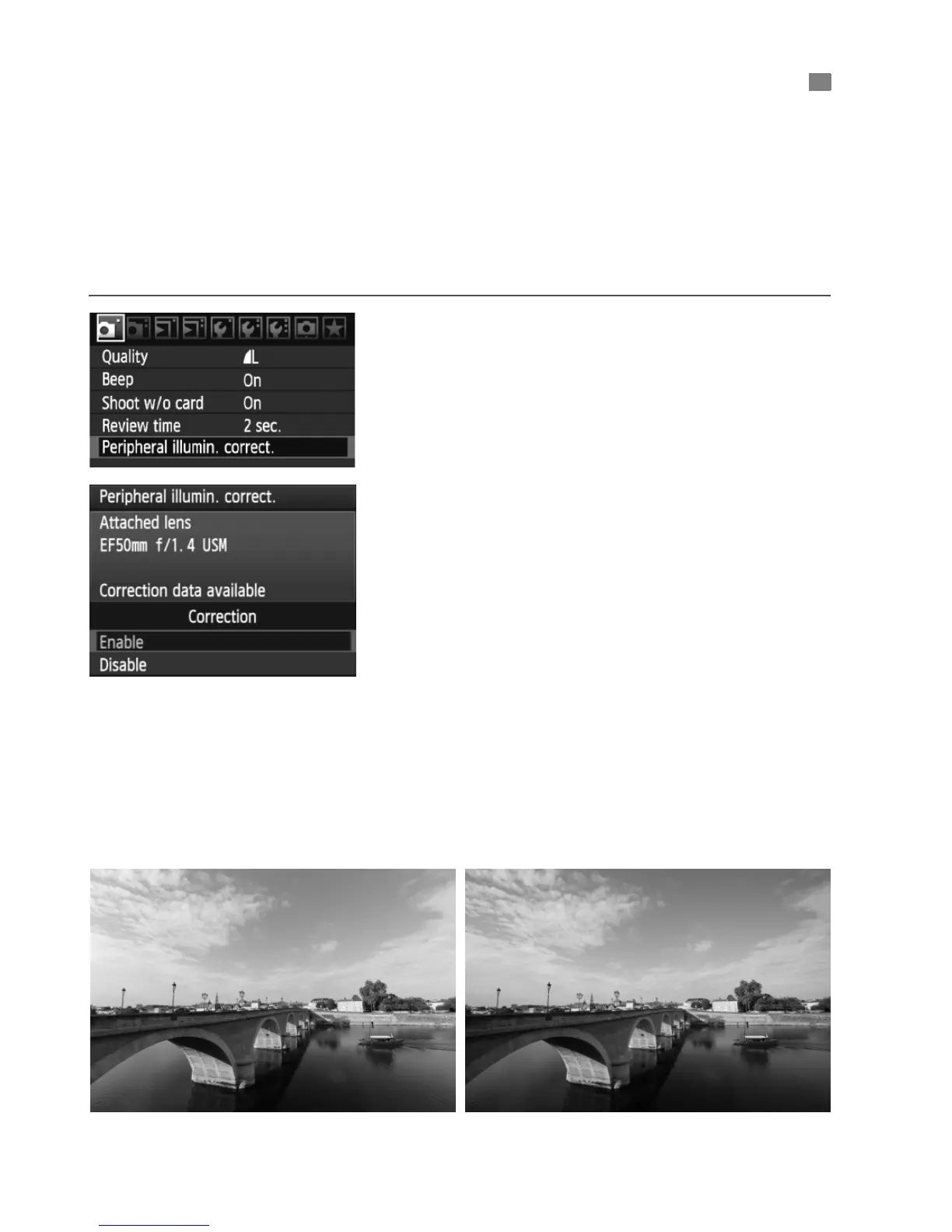
1
Select [Peripheral illumin.
correct.].
Under the [1] tab, select
[Peripheral illumin. correct.], then
press <0>.
2
Set the correction setting.
On the screen, check that the
attached lens’ [Correction data
available] is displayed.
If [Correction data not available] is
displayed, see “About the Lens
Correction Data” on the next page.
Turn the <5> dial to select [Enable],
then press <0>.
3
Take the picture.
The image will be recorded with the
corrected peripheral illumination.
3
Lens Peripheral Illumination Correction
Correction enabled Correction disabled










 To Next Page