Chapter 8: Geometry Application 160
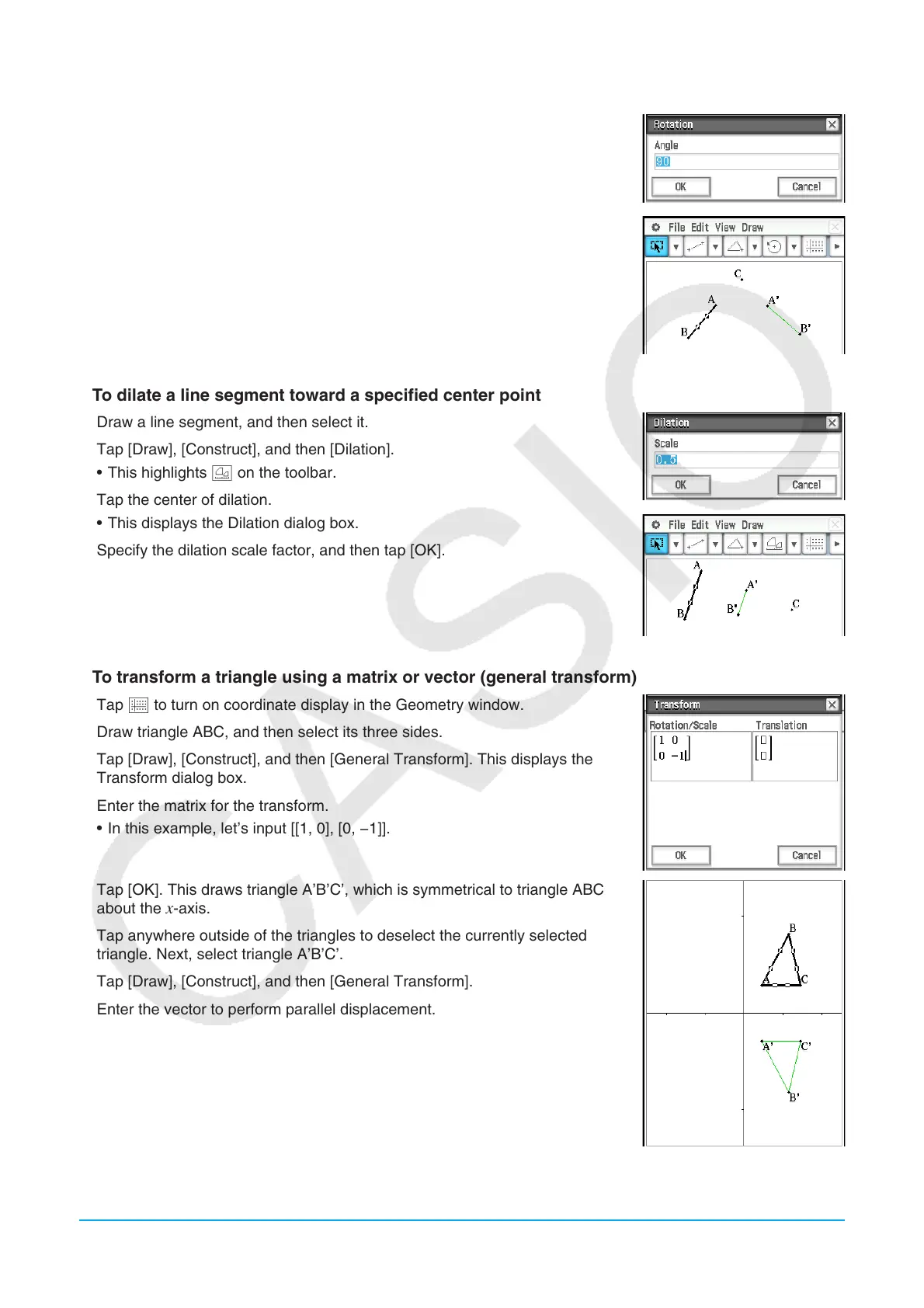
u To rotate a line segment
1. Draw a line segment, and then select it.
2. Tap [Draw], [Construct], and then [Rotation].
• This highlights F on the toolbar.
3. Tap the screen once to select the center of rotation.
• This displays the Rotation dialog box.
4. Specify the angle of rotation in degrees, and then tap [OK].
u To dilate a line segment toward a specified center point
1. Draw a line segment, and then select it.
2. Tap [Draw], [Construct], and then [Dilation].
• This highlights 2 on the toolbar.
3. Tap the center of dilation.
• This displays the Dilation dialog box.
4. Specify the dilation scale factor, and then tap [OK].
u To transform a triangle using a matrix or vector (general transform)
1. Tap q to turn on coordinate display in the Geometry window.
2. Draw triangle ABC, and then select its three sides.
3. Tap [Draw], [Construct], and then [General Transform]. This displays the
Transform dialog box.
4. Enter the matrix for the transform.
• In this example, let’s input [[1, 0], [0, −1]].
5. Tap [OK]. This draws triangle A’B’C’, which is symmetrical to triangle ABC
about the x-axis.
6. Tap anywhere outside of the triangles to deselect the currently selected
triangle. Next, select triangle A’B’C’.
7. Tap [Draw], [Construct], and then [General Transform].
8. Enter the vector to perform parallel displacement.
• In this example, let’s input [1, 1].













 To Next Page