Chapter 1: Basics 24
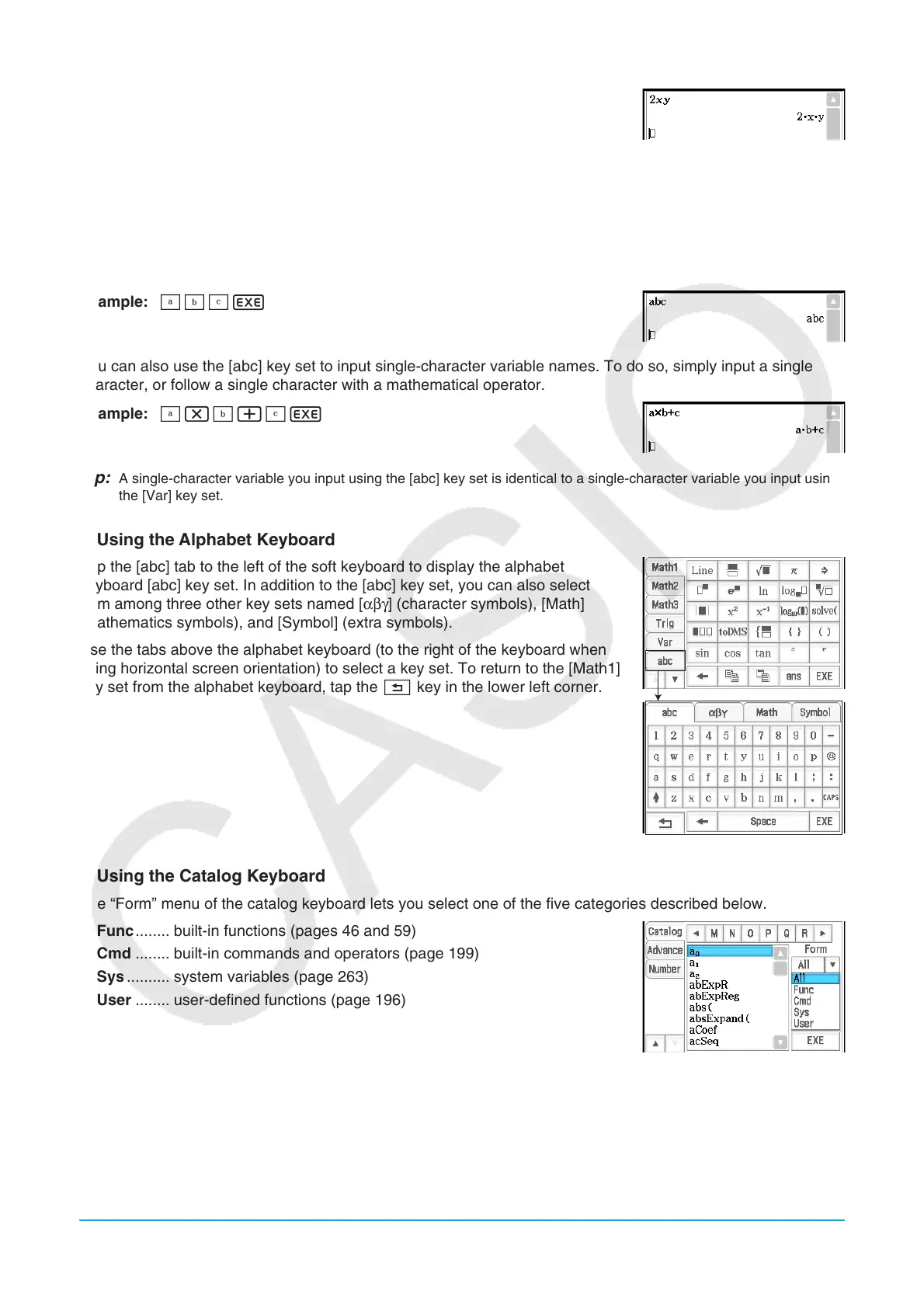
Example 2: 2xyE
Tip: When you input a single-character variable, its name appears on the display as an italicized character. This is simply
to let you know that the letter is a single-character variable name.
u To input a series of multiple characters
A series of multiple characters (like “list1”) can be used for variable names, program commands, comment text,
etc. Always use the [abc] key set when you want to input a series of characters.
Example: abcE
You can also use the [abc] key set to input single-character variable names. To do so, simply input a single
character, or follow a single character with a mathematical operator.
Example: a*b+cE
Tip: A single-character variable you input using the [abc] key set is identical to a single-character variable you input using
the [Var] key set.
k Using the Alphabet Keyboard
Tap the [abc] tab to the left of the soft keyboard to display the alphabet
keyboard [abc] key set. In addition to the [abc] key set, you can also select
from among three other key sets named [αβγ] (character symbols), [Math]
(mathematics symbols), and [Symbol] (extra symbols).
Use the tabs above the alphabet keyboard (to the right of the keyboard when
using horizontal screen orientation) to select a key set. To return to the [Math1]
key set from the alphabet keyboard, tap the I key in the lower left corner.
k Using the Catalog Keyboard
The “Form” menu of the catalog keyboard lets you select one of the five categories described below.
Func ........ built-in functions (pages 46 and 59)
Cmd ........ built-in commands and operators (page 199)
Sys .......... system variables (page 263)
User ........ user-defined functions (page 196)
All ............ all commands, functions, etc.
After selecting a category, you can choose the item you want from the alphabetized list that appears on the
catalog keyboard.
Tip: Note that user-defined variables and user-defined programs cannot be input using the catalog keyboard. Use
Variable Manager (page 27) instead.













 To Next Page