D15330.06 SX10 Administrator Guide CE9.1, JUNE 2017. www.cisco.com — Copyright © 2017 Cisco Systems, Inc. All rights reserved.
132
Cisco TelePresence SX10 Quick Set Administrator Guide
The User guide for the video system describes in full detail how
to operate the video system using the TRC6 remote control.
The TRC5 remote control is not supported.
Operating tips
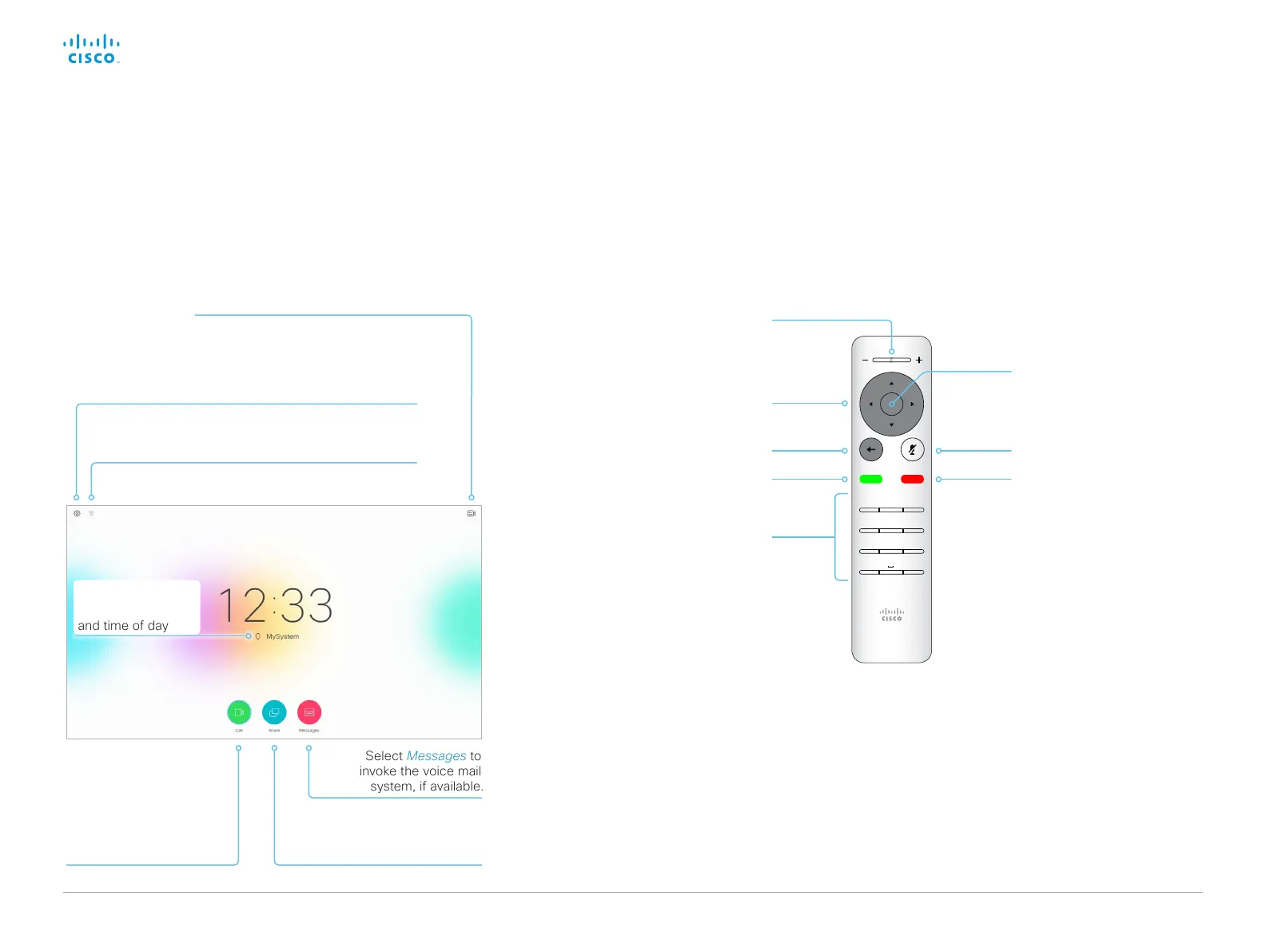
Use the Cursor keys to move about the screen.
Press OK/Enter to open the selected menu field.
Use the Cancel key to exit a menu (and return to the
Home screen), undoing any changes. Use the Back
key to go just one step back.
Access Selfview and Camera Control menu.
1 2 3
4 5 6
7 8 9
*
0
#
.@
pqrs tuv wxyz
defabc
ghi jkl mno
Volume control and
Increase/Decrease control
Field selector / Cursor keys
Go back one step
Microphone mute/unmute
Reject incoming call /
End call / Cancel /
Back to Home screen
(outside calls)
Place call / Accept incoming call
OK/Enter
Keypad
How to use the remote control and the on-screen user interface
Access the System Information and Settings menu,
Restart the video system, activate and deactivate Call
forwarding, Standby, Proximity and Do not disturb modes.
TRC6 remote
control
Select Call to invoke
the contacts including
Favorites, Directory and
Recents lists; and to open
the Search or Dial field.
Select Share to start
sharing content and to
conduct presentations.
Indicates whether or not the
Proximity feature is switched on.
Select Messages to
invoke the voice mail
system, if available.
System name or
contact information,
and time of day




 To Next Page