D15330.06 SX10 Administrator Guide CE9.1, JUNE 2017. www.cisco.com — Copyright © 2017 Cisco Systems, Inc. All rights reserved.
140
Cisco TelePresence SX10 Quick Set Administrator Guide
Control a local camera
Sign in to the web interface and navigate to Call Control.
Prerequisites
• The Video > Input > Connector n > CameraControl >
Mode setting is switched On .
• The camera has pan, tilt or zoom functionality.
• Speaker tracking is switched Off.
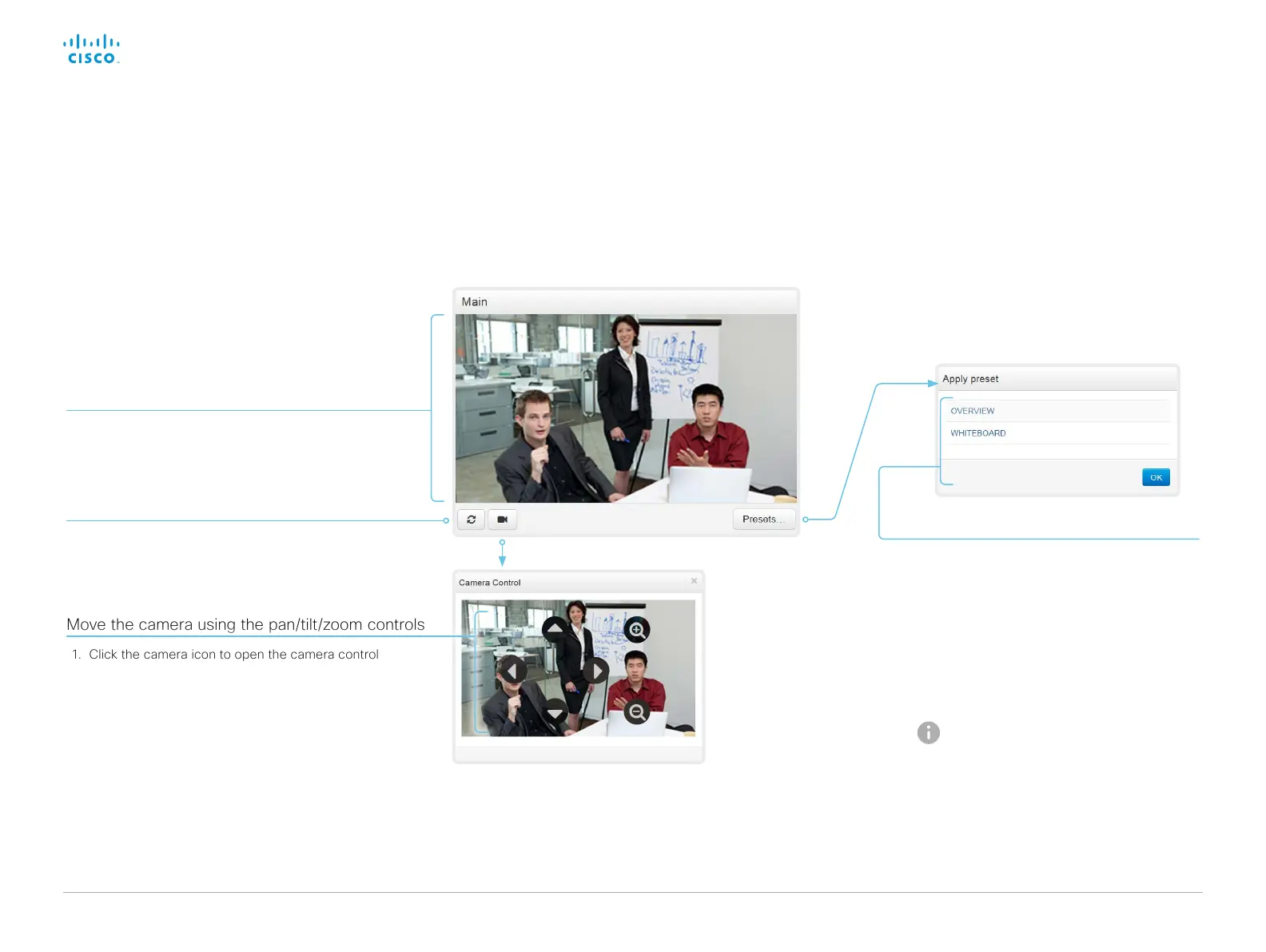
Move the camera using the pan/tilt/zoom controls
1. Click the camera icon to open the camera control
window.
Video snapshots from the room are only displayed for
video systems that have the Remote Monitoring option.
2. Use the left and right arrows to pan the camera; the up
and down arrows to tilt it; and + and - to zoom in and out.
Only relevant controls appear in the window.
Move the camera to a preset position
1. Click Presets... to open a list of available
presets.
If no presets are defined, the button is
disabled and named No presets.
2. Click a preset’s name to move the camera to
the preset position.
3. Click OK to close the window.
You cannot use the web interface to
define a preset; you should use the
Touch controller.
Automatically refresh snapshots
Snapshot area
Shows snapshots of the main input source.
Only available on video systems that have the
Remote Monitoring option.



 To Next Page