Time, day and date
You can manually set the time, day and date that
appear on the screen.
However, if you subscribe to caller ID service with your
telephone service provider, your phone automatically
sets the date and time when the rst call arrives after
phone setup or after the time change.
To set the time, day and date
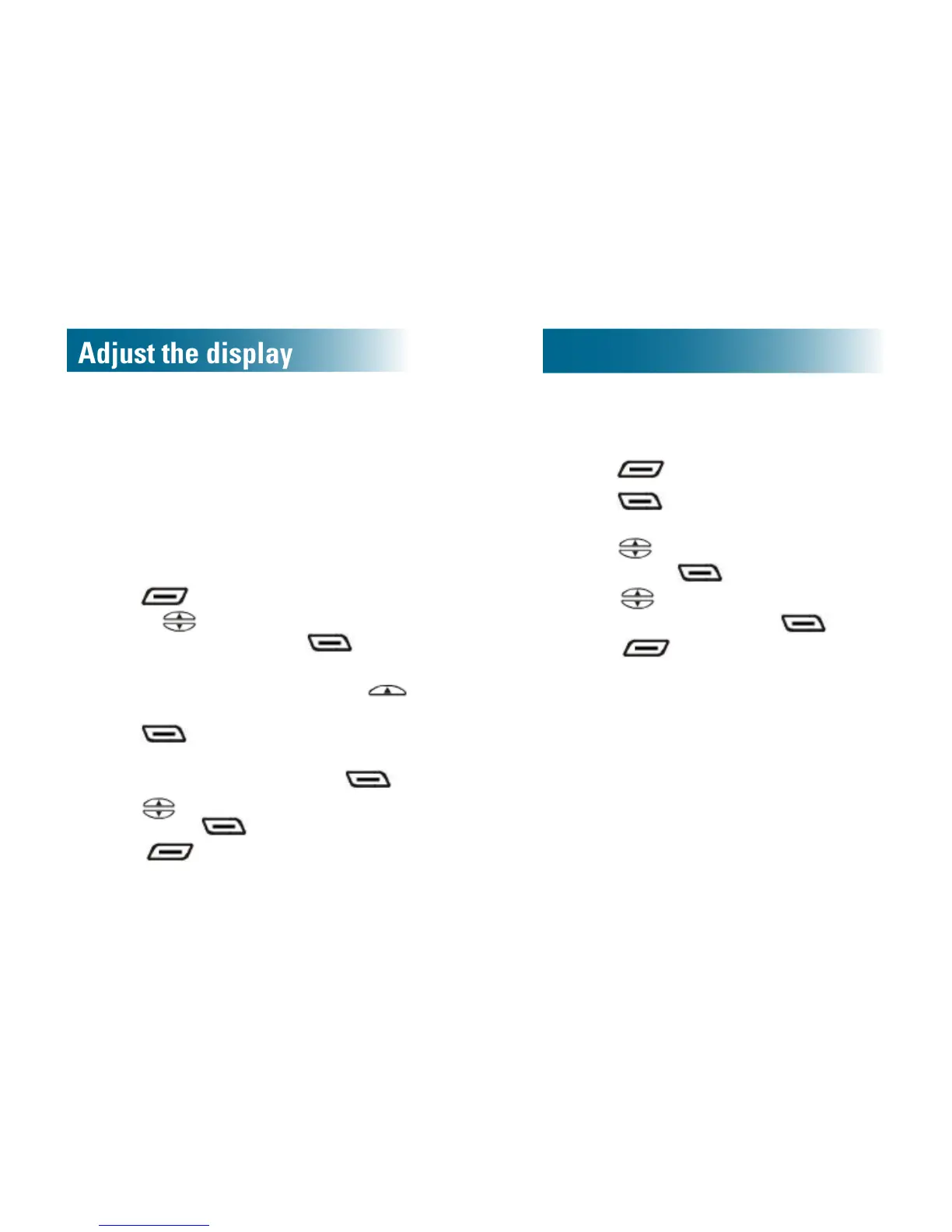
1. Press beneath Menu on the screen.
2. Press
and scroll down to
SetDate/Time, and then press
.
3. Press alphanumeric keys to enter the time,
including initial zeros. If necessary, press
to change AM or PM.
4. Press
.
5. Press alphanumeric keys to enter the date,
including initial zeros, and then press
.
6. Press
and scroll to the day of the week,
and then press
.
7. Press
until you arrive at the home
screen.
The time, day and date appear on the screen.
To set the hour format
You can select 12-hour format or 24-hour format.
1. Press beneath Menu on the screen.
2. Press
.
Set Display is selected.
3. Press
and scroll down to Hour Format,
and then press
.
4. Press
and scroll to 12 hour clock or
24hourclock, and then press
.
5. Press
until you arrive at the home
screen.
The new hour format appears on the screen.


 To Next Page