27
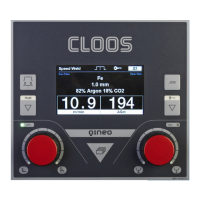
3. Configuration operating panel
By holding down the "Hold" and "Job" buttons simultaneously, you can
open the configuration menu.
1. Turn the rotary knob to select a menu item.
2. Confirm your selection by pressing the rotary knob.
3.1 Language
• For the menu language, 5 storage places are available in this menu.
The storage spaces can each be assigned a language by the user.
• Load and activate the language file.
Proceed as follows:
1. Insert the SD card into the card slot above the operating panel.
2. Select a storage space to be assigned a language.
• The following functions appear: "Activate", "Load", "Delete",
"Cancel".
• If a language is already assigned to this storage space, it will be
overwritten.
3. Select and confirm the "Load" function.
• The language files that can be loaded from the SD card will be
displayed.
4. Select and confirm a language file.
• The language file will be loaded into the internal memory of the
welding power source. The SD card can be removed.
• Deleting a language file
1. Select a storage space that is assigned a language.
• The following functions appear: "Activate", "Load", "Delete",
"Cancel".
2. Select and confirm the "Delete" function.


 To Next Page