Start up and basic functions
98-145510-E Chapter 5: Initial setup and basic functions 5-6
3. Check that the status shows STOPPED.
4. To start the antenna again, select OPERATION > START.
The antenna restarts. Select OPERATION > DEPLOY when you are ready to continue.
To stop the antenna using the mobile web interface
1. Connect your smartphone or tablet to the WLAN access point of the ACU. For
information on WLAN setup, see WLAN settings on page 6-16.
2. In the browser of your smartphone or tablet, type in the IP address for the web
interface. By default the IP address is http://192.168.0.1.
3. Tap Stop.
The Stop button changes to Start.
4. To start the antenna again, tap Start.
The antenna restarts. Tap Deploy when you are ready to continue.
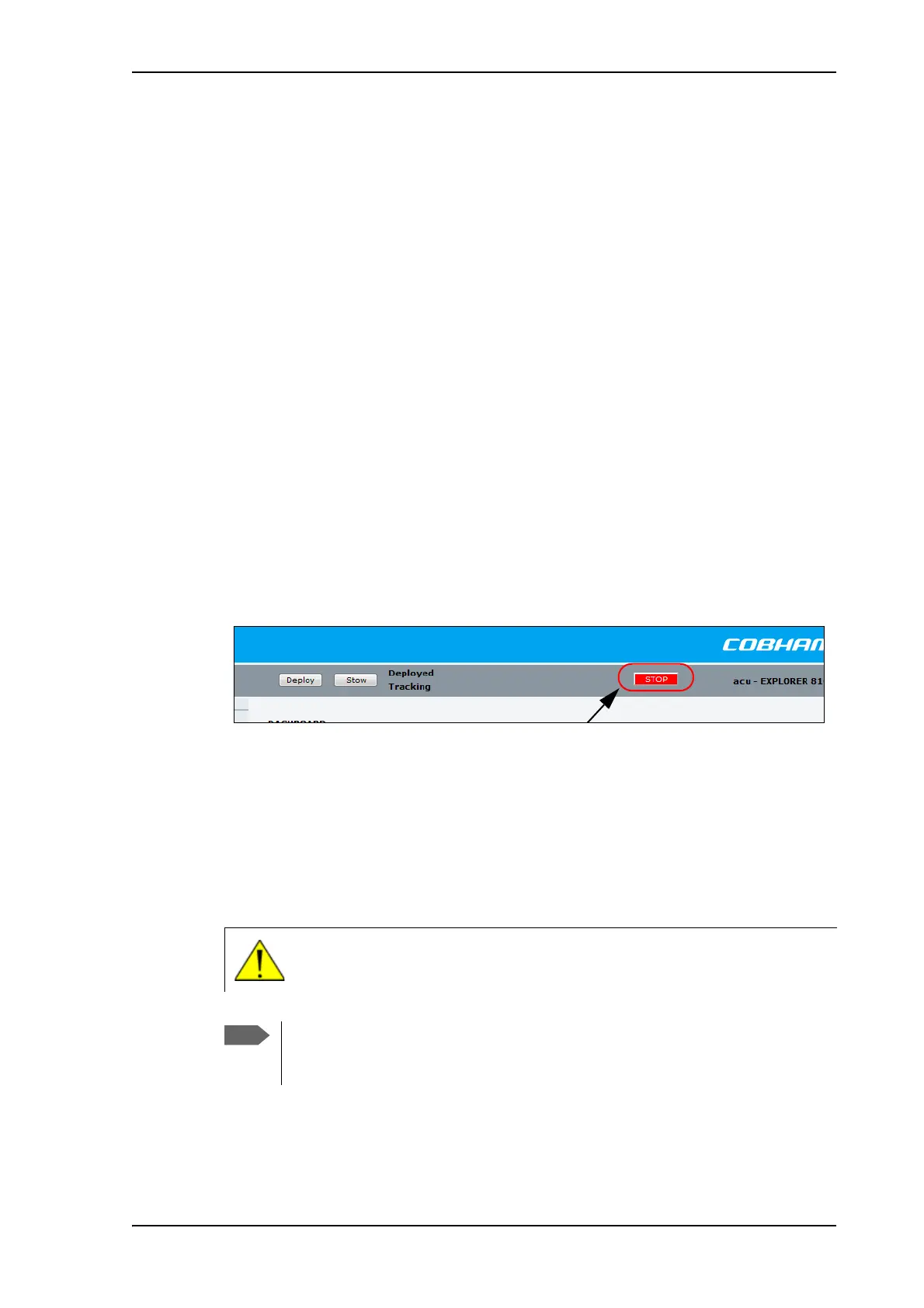
To stop the antenna using the web interface
1. Connect a PC to the LAN1 or front LAN connector at the ACU.
You may also use WLAN, if it is configured.
2. Open an Internet browser and type the IP address (default http://192.168.0.1).
3. At the top, click the red Stop button.
The Stop button changes to Start and the system status shows Stopped.
4. To start the antenna again, click Start.
The antenna restarts. Select Deploy when you are ready to continue.
5.4.3 To stow the antenna
The antenna must be set into the stow position before moving the vehicle.
To stow the antenna using the keypad and display
Shortcut: Press and hold for 2 seconds.
Figure 2: To stop the antenna using the web interface
WARNING! Be aware of pinch points while the antenna is being positioned,
deployed or stowed.
You can stow the antenna manually, if for some reason the system is inoperable
(loss of power or similar). For details, see To stow and unfold the antenna
manually on page 7-9.


 To Next Page