CB-MF-SOP-002
A/1
18
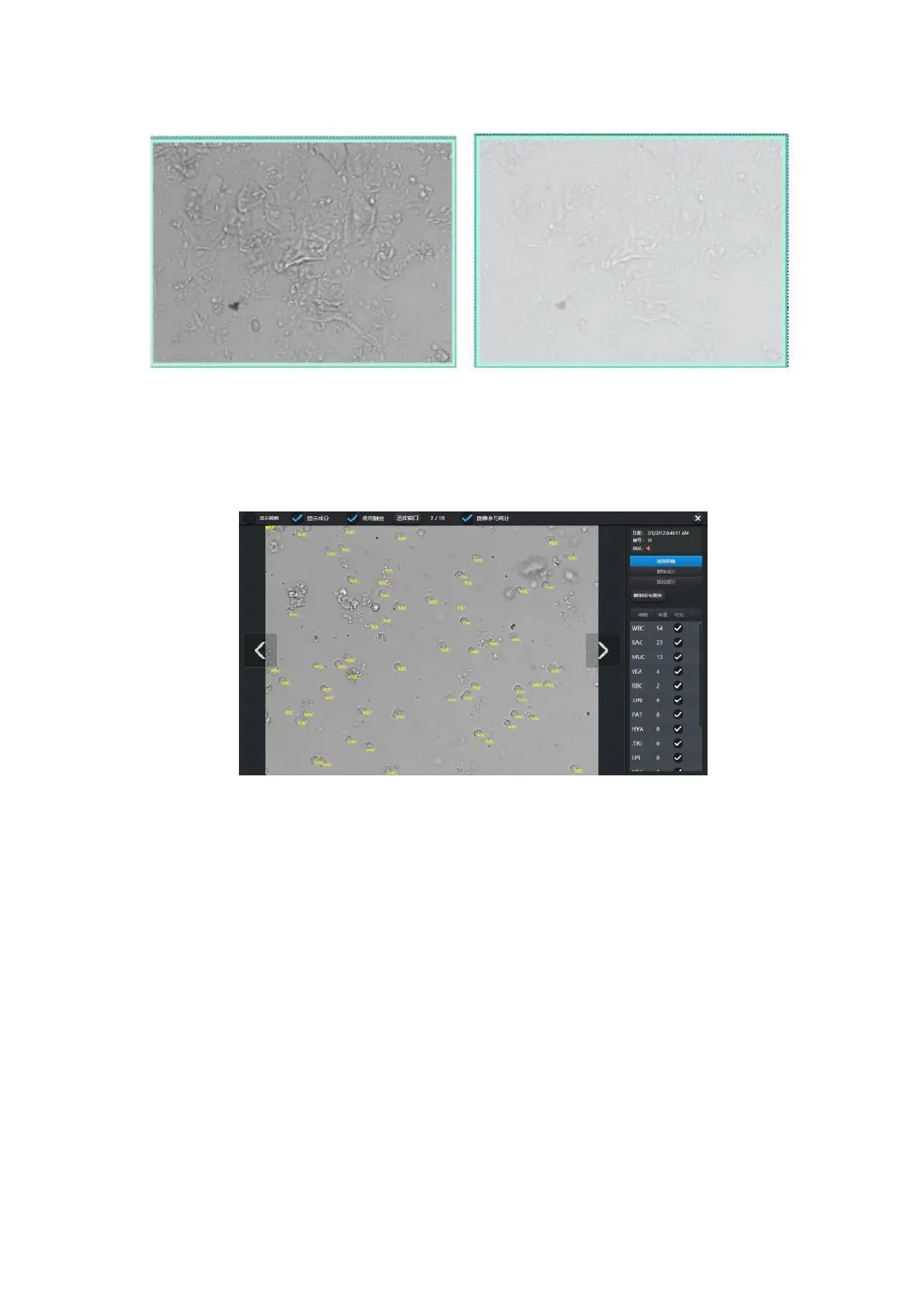
Figure 3-9
3.2.7 Image Editing
Default display and Settings, as shown in the following figure:
Figure 3-10
Top:
Grid display switch and elements display switch used to control grid and elements display or
hiding.
Note: The "visible" column of the contents list in the lower right corner allows certain element to
be displayed or hidden.
Image participation statistical switch: if the image's composition distribution and content are in
line with the actual situation and can reflect the disease condition, check. Otherwise, if the image has
large blank or dark areas and the composition distribution and content are not objective, do not
check.
Right side:
The upper part is the basic information of the sample (including this image), the lower part is the
content information of this image, and the middle part is the operation related to composition editing.
Browse images: At this point, the image can be viewed front and back through the navigation
buttons on both sides of the image. If the "touch" switch on the top of the window is checked, you can
use your fingers to drag the image to switch the image. You can use two fingers to zoom the image.


 To Next Page