CB-MF-SOP-002
A/1
19
After zooming, you can use one finger to move the image. At last, click the "fit window" button at the
top to make the image fit the window size. If the "touch control" switch is not checked, you can use
the mouse wheel to zoom the image. After zooming, you can press the left button to drag the image,
and click the "fit window" button or the left button to click the image to make the image adapt to the
size of the window.
Delete elements: At this point, you can remove an element by clicking it with your finger or
mouse. (The finger or mouse depends on the top switch)
Add elements: at this point, select the added elements type in the drop-down list (the
drop-down list is immediately below the [add elements] button) and click on the image to add to the
image.
Undo all changes: restore the original elements statistics.
Note: If more elements are added or deleted, mouse operation is recommended. Mouse is
more accurate and faster than finger.
After finishing operation, click the top right corner to close and return to the archive
page.
3.3 Setting
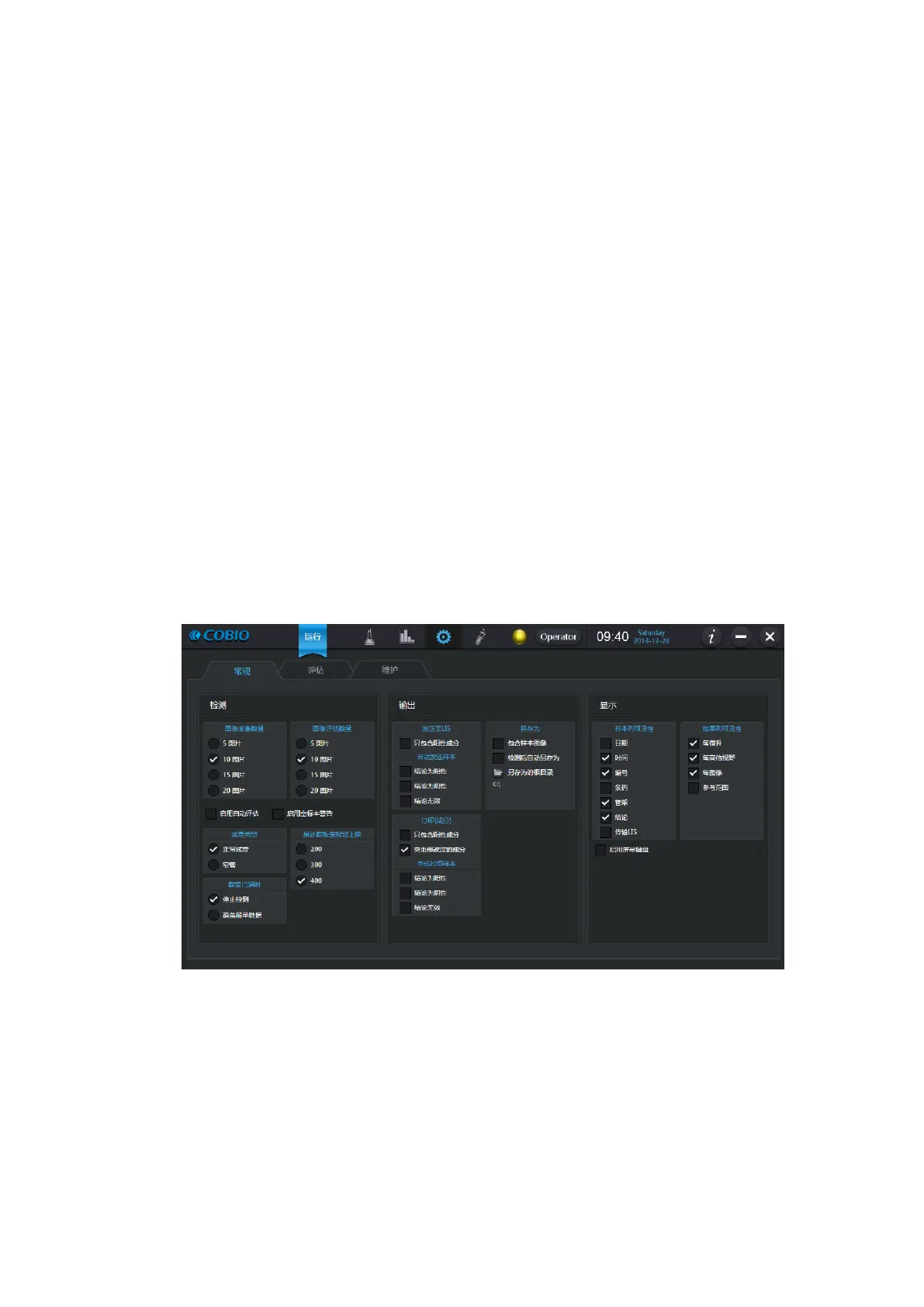
3.3.1 Routine
Figure 3-11
The output part, Automatic Sending and Automatic Printing means that every time a sample is
tested, the sample is sent to LIS or printed out. Selectively send or print based on setting according
to the conclusion type. The sample conclusion type is shown in section 3.2.1. Inclusion of only
positive elements means that only those elements/cells that are positive in the sample are sent or
printed.
Startup screen keyboard of the display section: Whether to display the system soft keyboard
when you need to input text.


 To Next Page