9
Default - reset the displayed settings to factory defaults
Apply - After all changes are made click the Apply button to save
Exit - If you want to cancel after making any changes, click Exit to exit the menu
without changes
IMPORTANT NOTE: Always click “Apply” after making any changes within the menu system. If you
do not click Apply your changes will not be saved
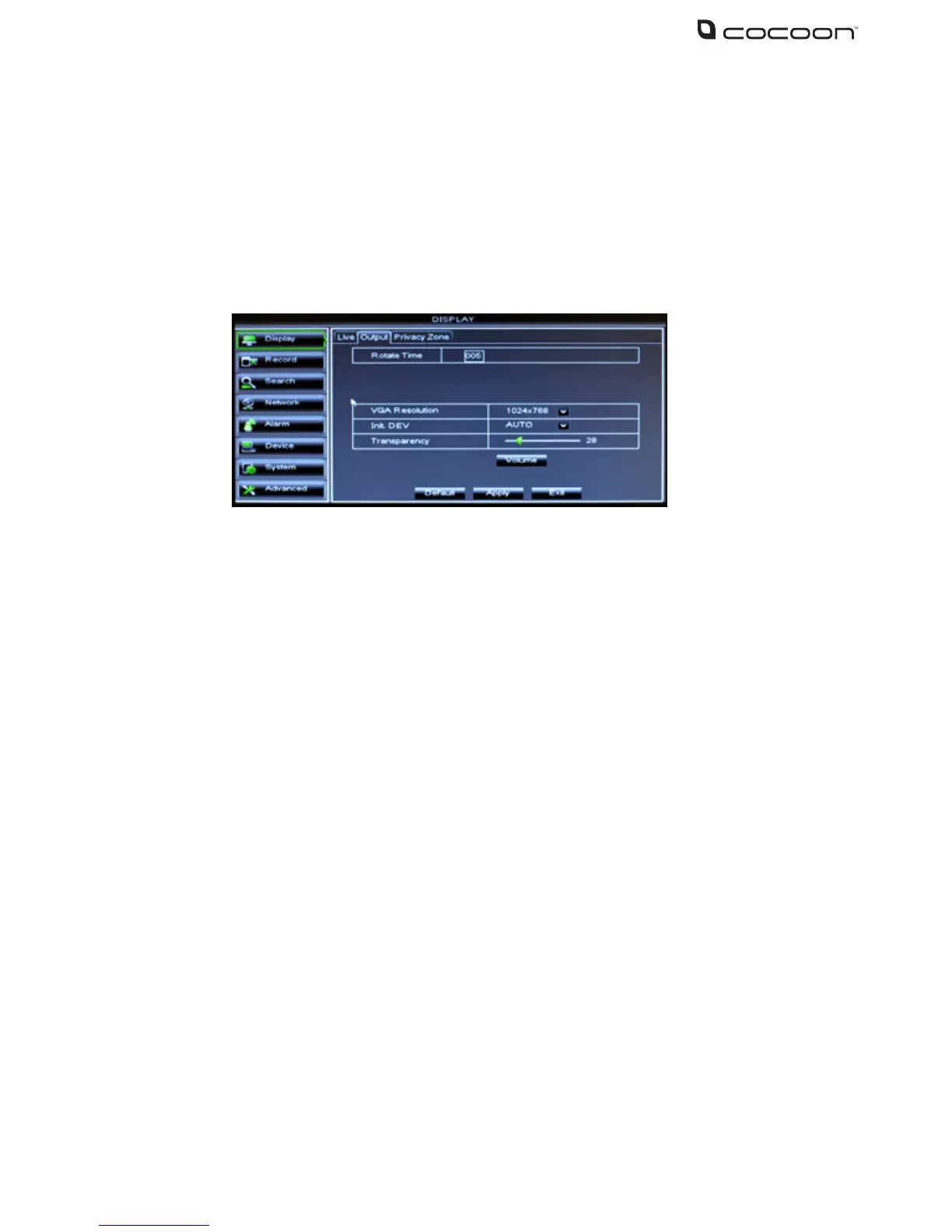
4.3.2 Output
• CH Rotate Time: Set how long image will be displayed in Sequential viewing mode
• VGA Resolution: Select the output resolution when connected via VGA cable
• Video Output: Set the primary video output, AUTO, VOUT or VGA.
The default is set to AUTO
• Transparency: Adjust menu transparency range from 1~128
• Volume: Adjust the DVR unit volume if speakers are attached
4.3.3 Privacy Zone
The Privacy Zone allows you to mask out areas of the camera you do not want to record. For
instance, if the camera is in view of a computer screen or monitor you do not want to record you
can draw a black box around this area and it will not record. Each channel can support up to 4
privacy zones
1. Select desired channel to apply the Privacy Zone
2. Select the Area to set, 1-4
3. Click Setup to place and position the mask area. Adjust the size of the box by click and
dragging the edge of the box. Move the box by clicking and dragging the center of the box
4. After adjusting the mask, right click to exit
5. To copy the mask area settings from one channel to another use the copy function
6. Click Apply to save the changes


 To Next Page